
Find out what can cause a drop in your product visibility on Amazon, and how to investigate it step by step.
Before Getting Started
This use case uses the Visibility (Vendor) dashboard in the Hub together with the Visibility report in Market Insights. You can only use it if you have uploaded the relevant keywords under Setup → Monitoring Configuration → Managing Tracked Keywords.
Step 1 — Check whether your Visibility Share is dropping
Go to the Visibility section in the Vendor Performance Summary Hub and see whether your Visibility Share is trending down.
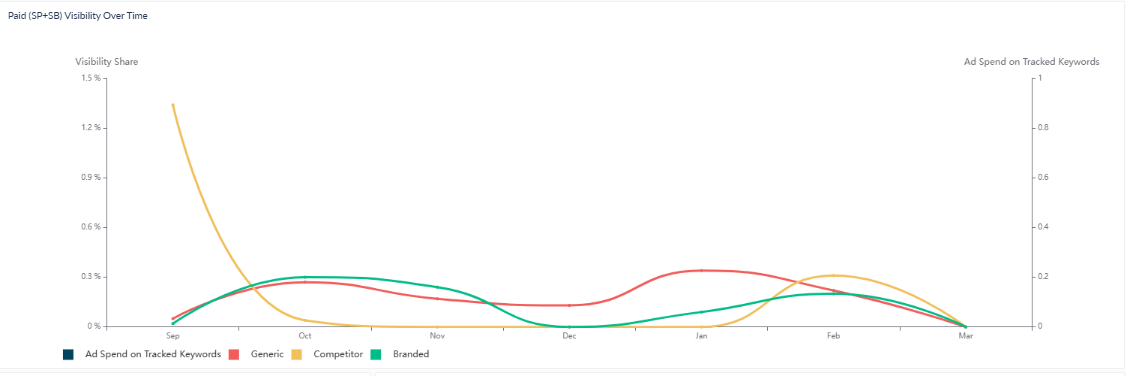
Step 2 — Drill down to keyword level
If the share is dropping, drill down to keyword level and check which keywords are affected. Focus on the most relevant ones (best search frequency rank). You can also check directly how much you are spending on each keyword. If visibility on certain keywords has dropped — organically or paid — take action to push your product visibility again.
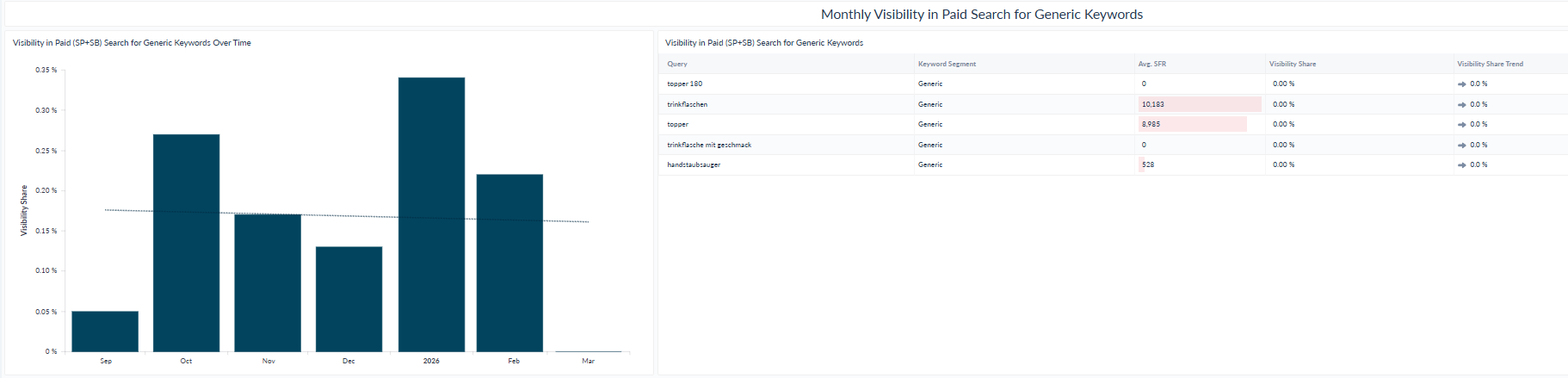
You can only track organic and paid visibility on keyword level if you have previously uploaded keywords in your tracked keywords section.
Step 3 — Compare against the competition in Market Insights
Jump to the Visibility report in Market Insights to check whether competition is increasing on specific keywords, and which products are winning in organic and paid search
💡 Tip: Reach out to your account manager or email support@emax-digital.com for a free one-week Market Insights trial to gain deeper insight into your market and improve your strategy.