App path -> https://app.emax-digital.com/performance-summary-hub-vendor/visibility
Overview
The Visibility dashboard tracks how often your products appear in Amazon search results for the keywords you have chosen to monitor. It is the starting point for understanding your share of search — both organic (unpaid placements driven by listing relevance) and paid (placements bought through Sponsored Products and Sponsored Brands campaigns).
Keywords are grouped into three strategic segments — Branded (your own brand terms), Generic (category and product-type terms), and Competitor (other brands' terms) — so you can separate "defending the home turf" from "winning new shoppers" from "stealing share." For each segment, the dashboard shows how many of your catalog ASINs are showing up, how your visibility share has evolved over time, and whether the most recent period is up or down vs. the previous one.
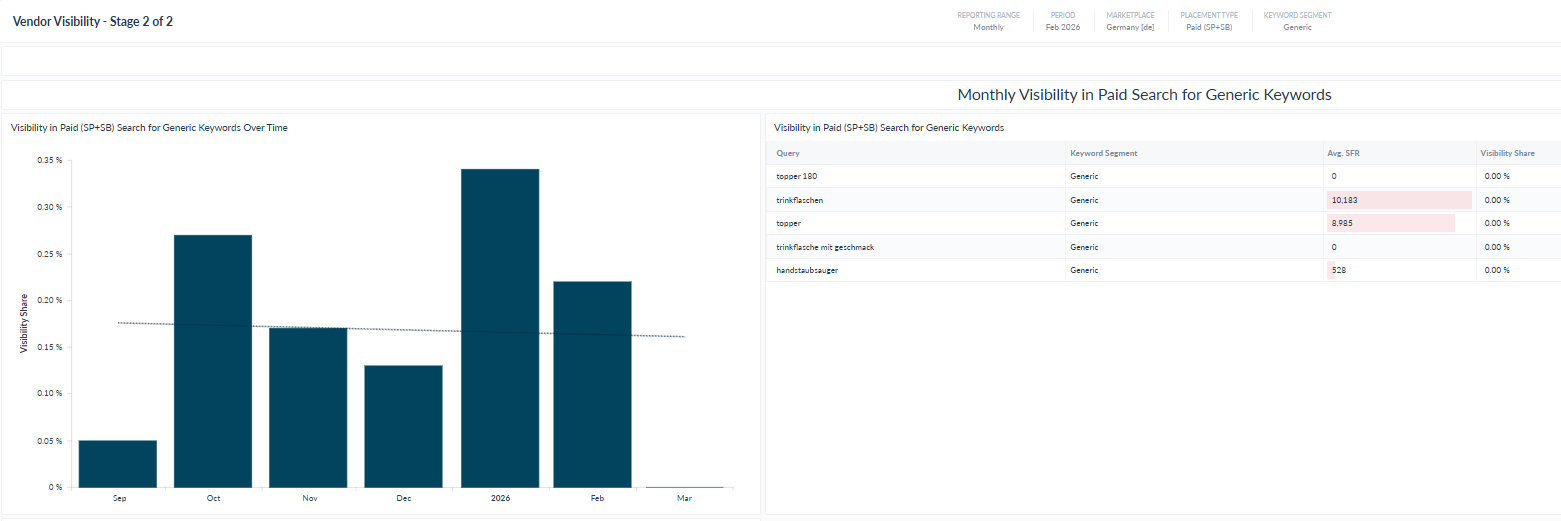
This is Stage 1 of 2 in the visibility workflow: it gives you the overview across all three segments side-by-side. The "View More" buttons take you into segment-specific deep-dive dashboards.
Prerequisite: This dashboard only works if you have uploaded a tracked keyword list and assigned each keyword to a segment (Branded / Generic / Competitor) in the data input section. Without tracked keywords, the dashboard will be empty.
What You Can See on This Dashboard
Section 1 — Keyword Segmentation for Your Tracked Keywords
A quick read of how your tracked keyword universe is structured for the selected marketplace and period.
Key metrics:
-
Keyword Count by Segment — the number of distinct tracked keywords that recorded at least one visibility data point in the selected period, broken down by segment (Branded / Generic / Competitor).
Notes: Keywords you have uploaded but which were not yet crawled in the period will not be counted here — only keywords with actual visibility data appear.
Section 2 — Your Catalog ASINs in Search
Shows how much of your catalog is actually being surfaced in search results for the selected placement type (Organic or Sponsored).
Key metrics:
-
Found in Search — number of distinct active catalog ASINs that appeared at least once in tracked keyword search results within the selected period.
-
Not Found in Search — number of active catalog ASINs with no recorded appearance — a direct measure of your visibility gap.
Notes: Switching the Placement Type filter changes both counts. An ASIN can be "Found" organically but "Not Found" on Sponsored placements, or vice versa.
Section 3 — Visibility Over Time (by Keyword Segment)
The trend view that ties together visibility and the advertising spend behind it.
Key metrics:
-
Visibility Share (%) — share of all tracked search placements captured by your ASINs, broken down per keyword segment and time period. Calculated as your ASINs' appearances divided by the total possible placements across all tracked keywords in that segment.
-
Ad Spend — total spend from Sponsored Products and Sponsored Brands campaigns whose targeting matches your tracked keywords. Spend on campaigns targeting non-tracked keywords is excluded.
Visualizations: A combined chart showing Visibility Share over time per segment, with Ad Spend overlaid. The time axis adapts to the Reporting Range filter: last 12 weeks (Weekly), 6 months (Monthly), 3 quarters (Quarterly), or monthly intervals across the year (Yearly).
Section 4 — Tracked Keywords Summary (per Segment)
Three side-by-side summary cards — one each for Branded, Generic, and Competitor keywords.
Key metrics (per segment):
-
ASINs Found — number of active catalog ASINs that appeared in search results for at least one keyword in that segment.
-
Keywords Tracked — total number of distinct keywords in that segment with recorded visibility data in the period.
Use the Placement Type filter to flip between organic and paid summaries.
Section 5 — Visibility Share Trend (per Segment)
Three side-by-side bar charts showing the historical Visibility Share trend separately for Branded, Generic, and Competitor keywords.
Key metrics:
-
Visibility Share (%) — period-by-period share of placements your ASINs captured within that keyword segment.
A rising Branded trend means stronger brand search defence; a rising Generic trend means stronger category presence; a rising Competitor trend means you are increasingly appearing alongside (or instead of) competing brands.
Section 6 — Current vs. Previous Period Visibility Share (per Segment)
Three scorecards showing the most-recent-period visibility share compared to the period immediately before, for each segment.
Key metrics:
-
Current Period Visibility Share (%) — for the selected period.
-
Previous Period Visibility Share (%) — for the immediately preceding equivalent period (e.g. previous week vs. this week, previous month vs. this month).
Notes: If no visibility data exists yet for the most recently selected period, the report automatically falls back to the most recent period with data available.
Section 7 — "View More" Drill-Through Buttons
At the bottom of each segment column there is a View More button that opens the dedicated segment deep-dive dashboard — where you can inspect individual keywords, ASIN-level visibility, and ranking detail.
Available Filters
|
Filter |
What it does |
Multi-select? |
Default |
|---|---|---|---|
|
Marketplace |
Restrict the view to a specific Amazon marketplace (e.g. DE, UK, FR) |
No |
— |
|
Reporting Range |
Sets the time granularity: Weekly, Monthly, Quarterly, or Yearly |
No |
— |
|
Placement Type |
Switches the dashboard between Organic and Sponsored (Paid) search visibility |
No |
— |
|
Period |
The specific date / date range to report on (constrained by Reporting Range) |
No |
— |
Filter interaction notes
-
Placement Type is the single most important filter on this dashboard. Every count, share, and trend on the page is scoped to either Organic or Sponsored — not both at once. If a number looks unexpectedly low, check whether Placement Type is set to the view you intended.
-
Reporting Range and Period work together — changing the granularity (e.g. Weekly → Monthly) refreshes the list of available periods.
-
Ad Spend on the trend chart only reflects spend on campaigns targeting your tracked keywords. If you advertise heavily on keywords you have not uploaded to the visibility tracker, that spend will not appear here.
Use Cases
1 — Weekly visibility health check
You want a fast read on whether your share of search is moving in the right direction.
-
Set Reporting Range = Weekly, Placement Type = Organic, Period = last completed week.
-
Glance at the three Current vs. Previous Period scorecards — Branded, Generic, Competitor — to see at a glance which segments are up or down.
-
Drop down to the Visibility Share Trend bar charts to see whether this week's movement is part of a longer trend or a one-off blip.
2 — Identifying catalog visibility gaps
You suspect some of your products are not showing up in search at all.
-
Set Placement Type = Organic.
-
Read the Your Catalog ASINs in Search card — the "Not Found in Search" count is your direct gap measure.
-
If that number is high, the underlying ASINs need attention: relevance fixes (keywords in title/bullets), indexation issues, or out-of-stock listings.
-
Re-run the same check with Placement Type = Sponsored. ASINs that are "Not Found" on paid placements are candidates for advertising activation.
3 — Paid vs. organic visibility comparison
You want to understand how much of your visibility is bought vs. earned.
-
Note the Visibility Share for each segment with Placement Type = Organic.
-
Switch Placement Type to Sponsored and compare.
-
A segment where paid visibility share is much higher than organic suggests you are renting that visibility rather than owning it — a strategic risk if budgets get cut.
-
This is especially diagnostic on Branded keywords, where you should generally already own strong organic visibility.
4 — Tracking ad spend efficiency on tracked keywords
You want to see whether increased ad spend is actually buying more visibility.
-
Set Placement Type = Sponsored, Reporting Range = Monthly.
-
In the Visibility Over Time chart, look for periods where Ad Spend rose but Visibility Share did not — that is a sign of either bid inflation or low-quality keyword targeting.
-
Conversely, periods where Visibility Share rose faster than Ad Spend indicate efficiency gains.
5 — Competitor share-of-voice tracking
You want to know whether you are winning ground on competitor brand terms.
-
Look at the Competitor column across the Visibility Share Trend and Current vs. Previous scorecards.
-
Combine with Placement Type = Sponsored to see whether your conquesting campaigns are gaining share, and = Organic to see whether your listings are starting to rank for those terms unaided.
Limitations & Notes
-
Tracked keywords only. This dashboard measures visibility only for the keywords you have uploaded into emax digital's keyword tracker. Untracked keywords — even if they drive significant search traffic to your products — are invisible here.
-
Segment assignment is your responsibility. Branded / Generic / Competitor classifications come from how you tagged each keyword on upload. Misclassified keywords will distort segment-level results.
-
Placement Type is single-select. You cannot see Organic and Sponsored visibility in the same view — switch the filter to compare them.
-
Ad Spend is filtered to tracked-keyword targeting. The Ad Spend number in the trend chart only includes campaigns targeting keywords on your tracked list. It is not your total Sponsored Ads spend. For total ad spend, use the Vendor Business Summary or a dedicated advertising dashboard.
-
Visibility data depends on crawl coverage. Keywords are crawled on a schedule. If a tracked keyword was not crawled within the selected period, it will not appear in the keyword counts — even if it is technically still being tracked.
-
Current vs. Previous fallback. If no visibility data has been recorded yet for the currently selected period, the comparison scorecards fall back to the latest period with data. This means in a freshly closed week, the "current" figure may actually be one week behind your filter selection — check the trend charts to confirm.
-
Vendor Central only. This dashboard is part of the Vendor performance hub. Seller Central visibility is not included.
-
"Stage 1 of 2." This dashboard is the cross-segment overview. For per-keyword and per-ASIN detail, follow the View More buttons to the segment-specific dashboards.
Data Refresh
Data updates daily.
Reference Screenshots
The following screenshots were migrated from the legacy walkthrough for reference. The walkthrough also documented the Avg. SFR (Average Search Frequency Rank): a relative ranking metric reported by Amazon indicating the popularity of a search term in Amazon Search on a scale from 1 to 600,000 or higher, where 1 = most popular and 600,000+ = less popular.