
App path → https://app.emax-digital.com/performance-summary-hub-vendor/inventory
Overview
The Inventory dashboard gives Vendor Central brands a live view of stock health across the entire catalog. It answers the everyday operational question: "Which of my ASINs are about to run out, which are sitting on too much stock, and where do I need to act before Amazon does?" Each ASIN is classified into a Stock Category (Out of Stock, Critical, Low, Sufficient, Overstock, or "ASIN not in AMZ report") based on current inventory levels, recent sales speed, and vendor lead time. From there, you can drill into trends, unhealthy inventory shares, and a full per-ASIN detail table with run-out dates and forecast coverage.
This dashboard is designed for supply chain leads, vendor managers, and brand managers who need to make weekly replenishment decisions and prevent both stock-outs and excess-inventory risk.
This dashboard covers Vendor Central (1P) inventory only. Seller Central / FBA inventory is not included.
What You Can See on This Dashboard
Section 1 — How Stock Categories are Defined
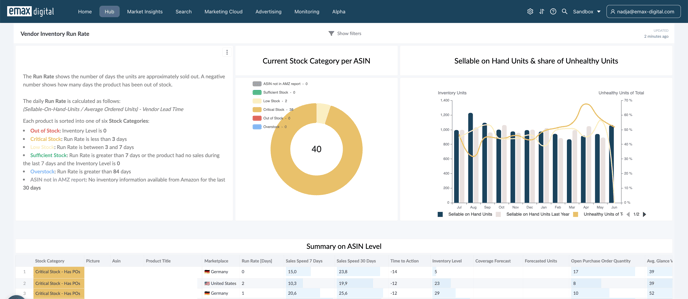
The dashboard opens with a reference panel explaining the Run Rate calculation and the six Stock Categories that every ASIN is assigned to. This is critical context for interpreting the rest of the page.
-
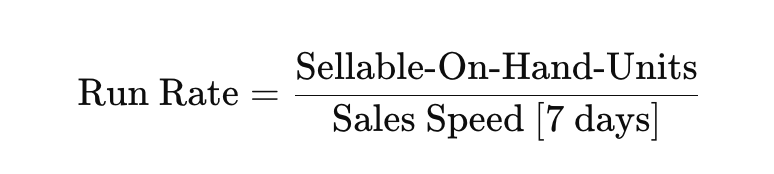
Run Rate (Days) = Sellable On-Hand Units ÷ Average Daily Ordered Units. It tells you how many days of stock remain at the current sales pace.
-
Stock Categories:
-
Out of Stock — Inventory Level is 0.
-
Critical Stock — Run Rate less than 3 days.
-
Low Stock — Run Rate between 3 and 7 days.
-
Sufficient Stock — Run Rate greater than 7 days, or the product is in stock but had no sales in the last 7 days.
-
Overstock — Run Rate greater than 84 days.
-
ASIN not in AMZ report — No inventory information received from Amazon for the last 30 days.

Section 2 — Current Stock Category per ASIN
A pie chart showing how your catalog is distributed across the six Stock Categories right now.
Visualization: Pie chart with one slice per Stock Category, sized by the number of ASINs in that category. All active filters (marketplace, category, subcategory, tags, availability, replenishment category, open POs) apply.
What to look for:
-
A large Out of Stock or Critical slice means you have an immediate replenishment problem.
-
A large Overstock slice means you have working capital tied up in slow movers and possibly storage cost exposure.
Section 3 — Sellable On-Hand Units & Share of Unhealthy Units
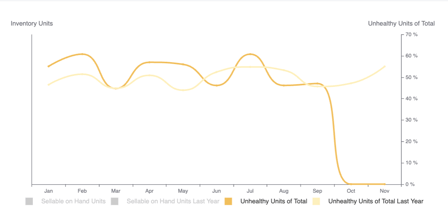
A trend view of total stock levels and how much of it is "unhealthy" (typically aged or excess inventory).
Key metrics:
-
Sellable On-Hand Units — Total sellable units held in Amazon's fulfilment network for each reporting period.
-
Sellable On-Hand Units Previous Year — Same metric for the equivalent period one year ago.
-
Unhealthy Units of Total (%) — Share of total sellable on-hand units classified as unhealthy (aged 90+ days or otherwise flagged).
-
Unhealthy Units of Total Previous Year (%) — Same metric one year ago.
Visualization: Combined bar/line chart over the last 12 weeks or 12 months (per Reporting Range) showing inventory volume against the share of unhealthy units, both with prior-year overlays.
What to look for:
-
A rising unhealthy share against flat or rising inventory suggests forecast misalignment — you are stocking faster than the assortment is selling through.
-
A falling inventory level with a stable unhealthy share usually means a healthy sell-through.
Section 4 — Inventory Detail Table (per ASIN)
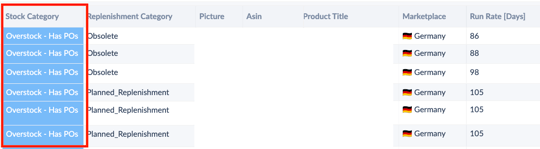
The operational core of the dashboard: one row per ASIN, grouped by Stock Category and further split by whether an open purchase order (PO) exists for that ASIN (Has POs / No POs).
Columns shown:
-
Stock Category · Replenishment Category · Availability · Picture · ASIN · Link · SKU · EAN · Tracked · Product Title · Marketplace
-
Run Out Date — Projected date the ASIN runs out at the current sales pace.
-
Run Rate [Days] — Days of stock remaining (Sellable On-Hand ÷ 7-day Sales Speed).
-
Time to Action — Run Rate minus Vendor Lead Time. A negative value means Amazon will go out of stock before a new order can arrive if you placed it today.
-
Sales Speed 3 / 7 / 30 Days — Average daily units ordered over the respective time window.
-
Inventory Level — Current sellable on-hand units.
-
Forecasted Units — Amazon's mean demand forecast for the next 4 weeks (summed).
-
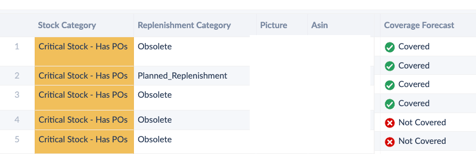
Coverage Forecast — Whether current stock + open POs cover the 4-week forecast (adjustable via the Coverage Factor filter).

e.g.

-
Open Purchase Order Quantity — Units on POs Amazon has issued but not yet received.
-
Avg. Glance Views [30 Days] + Trend — Average daily detail-page views and how that has changed vs. the prior period.
-
Vendor Lead Time [Days] — Days from PO placement to units being available.
-
Vendor Confirmation Rate — Share of PO units you confirm out of those Amazon requests (procurable ASINs only).
-
Unhealthy Units — Units flagged as unhealthy inventory for this ASIN.
-
Aged 90+ Days — Units that have been sitting in Amazon's network for 90+ days.
-
Last Seen — The most recent date Amazon reported inventory data for this ASIN. Useful for checking data freshness before acting on Run Rate.
How to use it: Sort by Time to Action ascending to surface ASINs at the highest stock-out risk. Filter to Overstock and sort by Aged 90+ Days descending to find candidates for promotion or removal.
Available Filters
|
Filter |
What it does |
Multi-select? |
Default |
|---|---|---|---|
|
Marketplace |
Restrict the view to one or more Amazon marketplaces (DE, UK, FR, IT, ES, …) |
Yes |
All marketplaces |
|
Distributor View |
Switch between Manufacturing (the brand's sell-in to Amazon) and Sourcing (vendor-of-record alternative) perspective |
No |
Manufacturing |
|
Reporting Range |
Granularity of the trend chart: Weekly or Monthly |
No |
— |
|
Category |
Filter to one or more product categories |
Yes |
All categories |
|
Subcategory |
Filter to one or more subcategories of the selected category |
Yes |
All subcategories |
|
Tag |
Filter ASINs by manually assigned tags (from your Vendor Catalog) |
Yes |
All tags |
|
ASIN Auto Tag |
Filter ASINs by automatically assigned tags (lifecycle, growth bucket, etc.) |
Yes |
All auto tags |
|
ASIN |
Filter to one or more specific ASINs |
Yes |
All ASINs |
|
Stock Category |
Filter all visualizations to specific categories (Out of Stock, Critical, Low, Sufficient, Overstock, ASIN not in AMZ report) |
Yes |
All categories |
|
Replenishment Category |
Filter by Amazon's replenishment classification |
Yes |
All |
|
Catalog Availability |
Filter by the Availability status maintained in your Vendor Catalog (custom column) |
Yes |
All |
|
Purchased Orders |
Restrict to ASINs that have open POs, or those that don't |
No |
All |
|
Coverage Factor |
Adjusts the safety margin used when calculating Coverage Forecast in the table (default: −10) |
Free input |
−10 |
Filter interaction notes
-
Subcategory depends on Category — selecting one or more categories narrows the available subcategories.
-
Stock Category filter scopes both the pie chart and the detail table. Note that selecting Stock Categories here is independent of the grouping in the detail table, which always shows the category for each ASIN.
-
Coverage Factor changes how strict the Coverage Forecast column is. A more negative value (e.g. −20) means you require more buffer stock above forecast before an ASIN is considered "covered".
-
Distributor View affects both inventory and forecast figures because Manufacturing and Sourcing models have different ownership of stock in Amazon's network.
Use Cases
1 — Weekly stock-out prevention
You want to identify which ASINs need urgent replenishment action this week.
-
Filter Stock Category to Critical Stock and Low Stock.
-
Set Purchased Orders to No POs to surface at-risk ASINs without any inbound supply.
-
In the detail table, sort by Time to Action ascending. Any negative value is an ASIN that will stock out before a fresh PO could land.
-
Cross-reference Vendor Confirmation Rate — if it is low, your team may already have unconfirmed POs that could close the gap.

2 — Overstock and aged inventory clean-up
You need to identify excess inventory before storage fees compound.
-
Filter Stock Category to Overstock.
-
In the detail table, sort by Aged 90+ Days descending.
-
For each top offender, check Avg. Glance Views [30 Days] and the trend — if traffic is also falling, organic sell-through won't fix it. Consider promotion, price drop, or removal.
-
Review the Sellable On-Hand Units & Unhealthy Units trend chart to confirm the broader pattern (e.g. unhealthy share rising for several months).
3 — Forecast coverage gap check
You want to know whether the next 4 weeks of Amazon's demand forecast is covered by current stock + open POs.
-
Open the detail table and look at Coverage Forecast alongside Forecasted Units and Open Purchase Order Quantity.
-
Tighten the Coverage Factor filter (e.g. set to −20) to see how many additional ASINs fall outside coverage when a larger safety buffer is required.
-
Focus on ASINs with high Sales Speed 30 Days — the demand-coverage risk is greatest where rotation is fastest.
4 — Category-level stock health review
You want a portfolio view of stock health for a specific category before a quarterly planning meeting.
-
Filter Category (and optionally Subcategory).
-
Read the pie chart for the share of ASINs in each Stock Category, and the trend chart for how unhealthy share has evolved YoY.
-
If unhealthy share is rising while sales are flat, raise the forecasting accuracy issue with Amazon vendor managers.
5 — "Data freshness" sanity check before acting
Before you escalate an out-of-stock or replenishment alert, you want to confirm the data is current.
-
In the detail table, check the Last Seen column for the affected ASINs.
-
If Last Seen is more than a few days old, the ASIN may simply not be in Amazon's most recent inventory report — treat the Run Rate cautiously.
-
ASINs flagged as ASIN not in AMZ report should also be checked here.
Limitations & Notes
-
Vendor Central (1P) only. Seller Central / FBA inventory is not covered by this dashboard.
-
Run Rate is a current-pace estimate, not a forecast. It uses recent sales speed (typically 7-day) and assumes that pace continues. Seasonal spikes, promotions, or stock-outs in the lookback window can distort the figure.
-
Time to Action depends on Vendor Lead Time. If Vendor Lead Time is not maintained or is stale, Time to Action can be misleading. Validate lead-time inputs with your supply-chain team.
-
"ASIN not in AMZ report" does not necessarily mean the ASIN is delisted — it only means Amazon has not provided inventory data for it in the last 30 days. Investigate before taking action.
-
Sales Speed for new or paused ASINs. ASINs without recent sales (but with stock) will be classified as Sufficient Stock by definition, even when the underlying demand may be zero. Use Avg. Glance Views as a sanity check.
-
Coverage Factor default (−10). Coverage Forecast is calibrated with a default −10 buffer. If your category requires a different safety stock posture, adjust the filter — the table will recompute coverage live.
-
Distributor View applies throughout. Manufacturing and Sourcing views can show materially different inventory and forecast numbers; do not compare across views without re-running the dashboard.
-
Availability column reflects the status uploaded via the Custom Column in the Vendor Catalog and is available in the Excel download.
-
Unhealthy Units definition follows Amazon's reporting: typically aged 90+ days or otherwise excess. The trend chart aggregates this across the filtered selection — drill into the table for the per-ASIN breakdown.
Data Refresh
Data updates daily.
Monitoring Inventory & Forecasting — additional use cases
a. Preventing stock-outs (Run Rate)
Use the Run Rate (Days) KPI to understand how many days of stock remain at the current sales pace. Sellers can react immediately and replenish FBA stock. Vendors depend on Amazon purchase orders, so monitor this KPI frequently. For vendors enrolled in Born to Run, check the KPI 2–3 weeks ahead of events to make sure the selected ASINs can participate in time (pre-calculate costs and compare with previous-year data to avoid overstocking). Monitor high-demand ASINs on a daily or weekly basis, depending on sales velocity.

b. Checking whether your stock is covered (Coverage Forecast)
Use the Coverage Forecast KPI to assess whether current inventory and open purchase orders are sufficient to meet Amazon's forecasted demand. Review it during planning cycles, seasonal peaks, or when market conditions shift (typically weekly or monthly) to stay prepared and prevent stock-outs.
c. Seeing last year's stock for specific event days
To prepare inventory for events such as Prime Day, use the Product Performance or ASIN Focus dashboards rather than the inventory view:
-
Open Product Performance or ASIN Focus for detailed per-ASIN performance.
-
Compare current-month sales with the same months of the previous year (e.g. June/July ahead of Prime Day).
-
Use the comparison to forecast demand and adjust inventory and procurement accordingly.
This avoids both over- and under-stocking during peak periods and minimizes stock-outs. Dashboard links — Product Performance: Vendor / Seller; ASIN Focus: Vendor / Seller.