
App location: Hub → Vendor → Product Performance (app.emax-digital.com/hub/vendor-product-performance)
Overview
The Product Performance dashboard lets you build a fully customised, Excel-like table of your Vendor Central catalogue. You choose the metrics and KPIs, sort and filter like a spreadsheet, analyse at four levels (ASIN, Parent ASIN, Subcategory, Category), and save your preferred views as presets for fast repeat access. It is the place to combine retail and advertising metrics in a single, ASIN-level analysis and to answer questions such as "which products are dropping and why" or "which categories should I focus on for my next order".
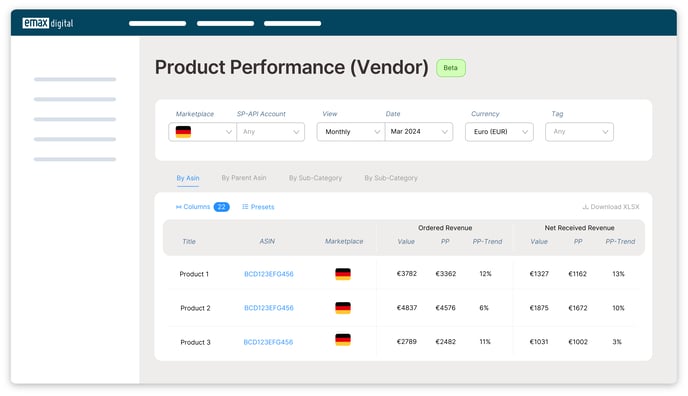
📊 Data sources are combined here. Most ASIN-level data originates from Amazon Retail Analytics, and advertising data from Amazon Advertising. Some KPIs combine both to give a holistic view of your Vendor business — see the note on data alignment below before reconciling totals.
Filter Options
-
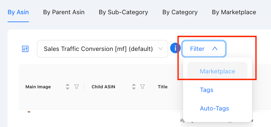
Marketplace — choose which marketplace to view for your selected date.
-
SP-API Account — choose which account to view advertising data for.
-
View & Date — set the time range and date you want to analyse.
-
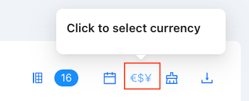
Currency — choose the display currency for your data.
-
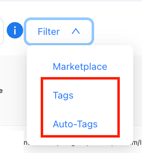
Tag — select one or multiple tags for a detailed analysis.
-
Reset filters — clear your current filter selection.
-
Download file — download the table with your preset filters applied.
If you have multiple marketplaces, leaving the Marketplace and SP-API Account filters empty shows all marketplaces by default in the table.

KPIs
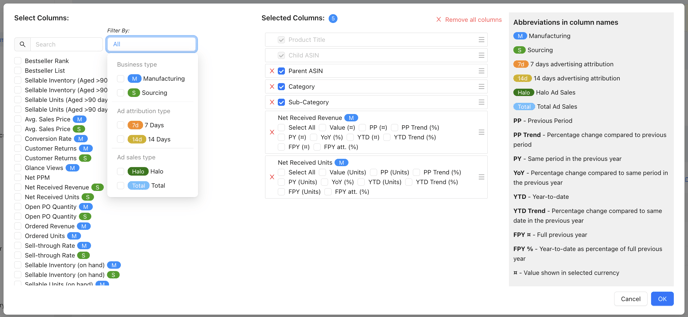
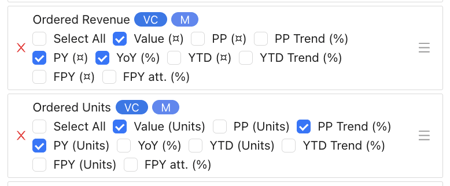
You can track a wide range of KPIs, including Bestseller Rank, Sellable Inventory, Conversion Rate, Shipped Revenue, Ad Sales, Click-Throughs, and Procurable Product Out-of-Stock Rate. You can filter data by manufacturing or sourcing level and choose the attribution window you prefer, for a tailored analysis.
Key retail and advertising metrics available at ASIN level include Net Received Revenue, Ordered Revenue, Customer Returns, Glance Views, Conversion Rate, and Organic Conversion Rate, each with their period-over-period change, alongside Ad Sales, Organic Sales, and TACoS. Products can be graded using metrics such as Glance Views and Conversion Rate and assigned to performance groups that align with the quadrants in the Strategic Portfolio Matrix, helping you prioritise actions effectively.
View Options
You can view data at four levels — ASIN, Parent ASIN, Subcategory, and Category — allowing you to focus on the identifier most relevant to your analysis.
Getting Started
1. Create your custom table
Select the metrics and KPIs you want to include and arrange columns and rows to display the data most effectively.
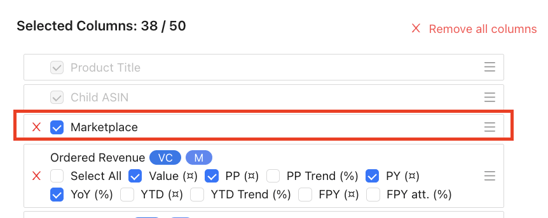
2. Explore multi-country insights
Use the multi-country overview to understand your performance on a global scale and compare regions to identify patterns and areas for improvement.
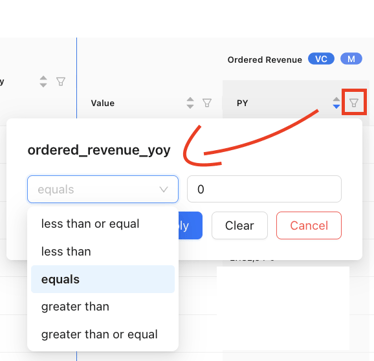
3. Use sorting and filtering
Arrange your data to focus on specific criteria and narrow your view to extract meaningful insight.
4. Save your custom table (presets)
Once configured, save your custom views for future reference. emax digital provides two default presets you can use and adapt: one focused on a C-level performance overview, the other for more operational purposes.

Use Cases
Sales performance is dropping or not growing month over month
Select Sales Data, Traffic, Conversion Rate, In-stock, Buy Box, and Sales Rank to understand which factor could be causing the drop. Compare against previous-year data (the same timeframe last year, e.g. April 2024 vs April 2023) to see whether the drop is seasonal or unusual.
Understand which categories or subcategories perform well or poorly
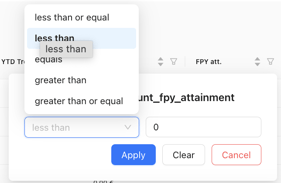
Select your sales KPIs and analyse against your benchmarks. To find underperformers, use the filters to select ASINs below your benchmarks. When planning preorders or born-to-run, filter to your top categories or subcategories to focus on the strongest performers. Category and subcategory analysis requires that you have filled in those details in your emax digital catalogue.
Identify underperforming products and high-potential ASINs
Spot products with low Glance Views or Conversion Rates and refine titles, images, or descriptions. Focus on products with strong Glance Views but low Conversion Rates — these often benefit most from improved content, pricing, or advertising. Cross-check ASIN performance against advertising to see whether specific campaigns are driving Glance Views or conversions.
Limitations & Notes
Data sources are not organically aligned. Amazon Retail Analytics and Amazon Advertising are independent data sources and do not always line up perfectly — for example, availability windows and attribution differ between Sponsored Ads and retail sales data. Because of advertising attribution: if a customer interacts with an ad on one date and purchases on a later date, the sale is attributed to the earlier (interaction) date — which can make ad sales for a period appear higher than total sales in your Retail Analytics reports for that same period. Advertising data at ASIN level may also differ from advertising data at campaign level; the two do not necessarily reconcile and their totals may not match. Where a single combined KPI is needed, emax digital provides the combination to the best of our knowledge, joining the sources as accurately as the underlying data allows. Keep this in mind when reconciling figures across dashboards.
-
Analysis is limited to products that appear in your reports and are listed in the Analytics Hub catalogue.
-
Category and subcategory views require the corresponding fields to be maintained in your Vendor Central catalogue.
Migration note (Phase 1b): Written from the legacy Vendor Analytics page "Product Performance Vendor" (1666809927), with metric and use-case detail folded in from the legacy ASIN-level performance walkthrough (1666547922) and the data-alignment caveat from the legacy data-source note (1667104842). The legacy "ASIN Focus" dashboard is deprecated; its metrics now live in Product Performance and are documented here. Content reproduced, not yet optimised or fact-checked. 11 source images embedded via external URL — intern to verify they render and re-upload if broken. Flagged for the later optimisation phase.