
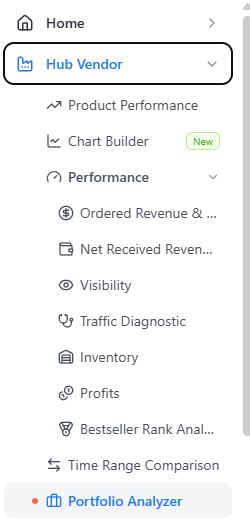
App path → https://app.emax-digital.com/portfolio-analyzer-hub-vendor
Overview
The Portfolio Analyzer classifies every product in your Vendor Central catalogue into one of four strategic groups based on how it performs on traffic (Glance Views) and conversion rate relative to the rest of your portfolio. It then layers on seven traffic-light alarms — covering advertising, stock, A+ content, content quality, conversion, visibility, and pricing — so that you can quickly see which products are healthy, which are at risk, and which need intervention.
It is the answer to the question: "With hundreds or thousands of ASINs in my catalogue, where should I actually focus my time this week?" Rather than reading every line of a sales report, you see the portfolio at a glance, drill into the group that matters, and use the alarm summary to prioritize the specific products that need work.
This dashboard covers Vendor Central (1P) data only.
The Four Portfolio Groups
Every product (or brand, category, or subcategory, depending on your grouping choice) is ranked against the rest of your portfolio on two axes and placed into one of four quadrants:
-
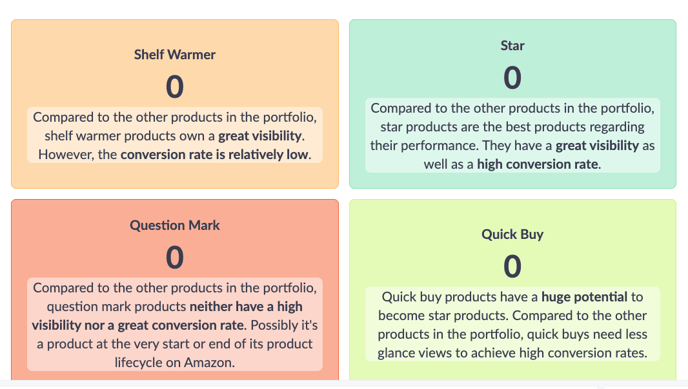
⭐ Star — High traffic and high conversion. Top performers. Protect their visibility and consider increasing investment.
-
🛒 Quick Buy — Low traffic but high conversion. Shoppers who find them, buy them. The biggest growth opportunity — drive more traffic through advertising or SEO.
-
🛋 Shelf Warmer — High traffic but low conversion. Plenty of views but few purchases. Look at content, pricing, reviews, or stock availability.
-
❓ Question Mark — Low traffic and low conversion. Neither visible nor compelling. Could be end-of-lifecycle, brand-new, or simply not worth further investment.
Rankings are relative, not absolute. A product is High or Low compared to the rest of your portfolio, not against an external benchmark. You can adjust the Minimum Glance Views and Minimum Ordered Units filters to exclude low-signal items from the ranking.
What You Can See on This Dashboard
Section 1 — Portfolio Group Summary
A header block that confirms the filter context (Date, Marketplace, Currency) and counts how many items from your portfolio fall into each of the four groups under your current filter selection.
Key metrics:
-
Total Items — Count of ASINs (or parent ASINs, brands, categories, or subcategories, depending on the View By filter) included in the analysis.
-
Star / Quick Buy / Shelf Warmer / Question Mark counts — How many items fall into each portfolio group.
Visualizations: Summary KPI block with one count per group, plus a short narrative description of what each group means.
Section 2 — Strategic Portfolio Matrix (Traffic vs. Conversion)
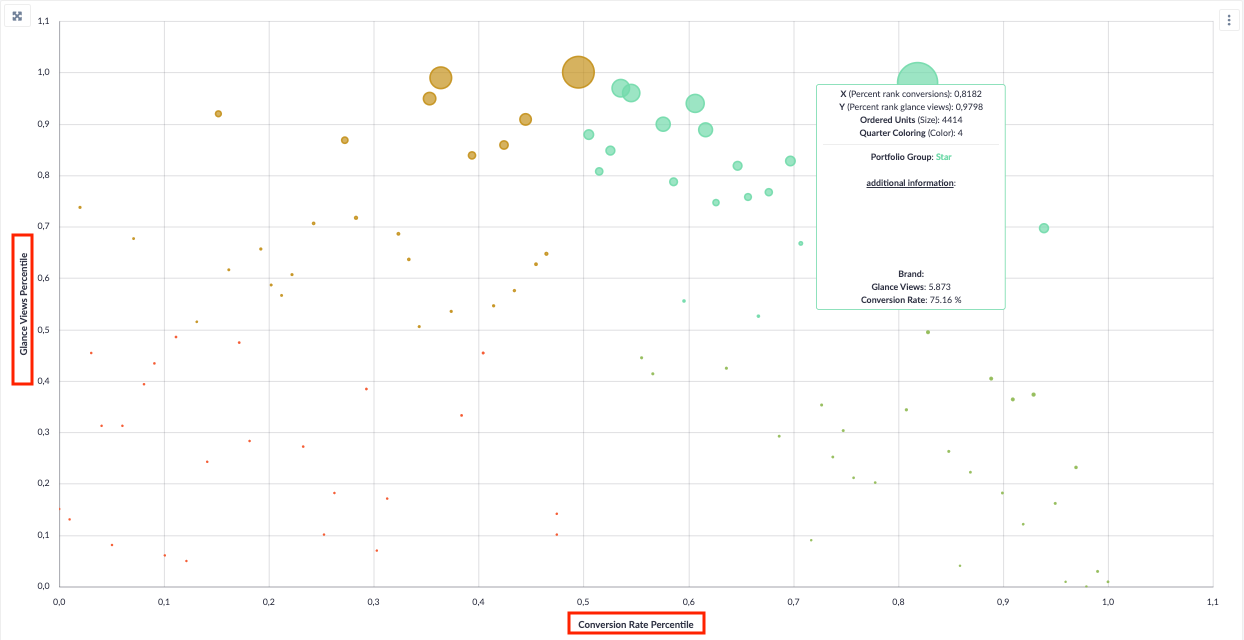
The visual centerpiece of the dashboard: a scatter chart that plots each item by its Glance Views (x-axis) and Conversion Rate (y-axis), color-coded by portfolio group. Bubble size reflects Ordered Units.
Key fields per data point:
-
Portfolio Group (Star / Quick Buy / Shelf Warmer / Question Mark)
-
Glance Views and Conversion Rate (raw values plus percentile rank within the portfolio)
-
Ordered Units for the selected period
Use it to: spot outliers — e.g. a single Question Mark with surprisingly high ordered units that may deserve promotion to Quick Buy with the right traffic push, or a Shelf Warmer with very high glance views where fixing conversion would unlock big revenue.
Section 3 — Data Quality Counters
Three small counters that flag products which would otherwise distort the Portfolio Matrix. Each shows the number of affected ASINs, with a click-through button to inspect them.
-
ASINs with Sales but No Glance Views — Units are moving but Amazon reported no page traffic. Usually a data-reporting gap that prevents these ASINs from being classified correctly.
-
ASINs with Glance Views but No Sales — Shoppers are landing on the page but not buying. These ASINs are essentially Shelf Warmers — useful to investigate as a pure conversion problem.
-
ASINs with No Glance Views and No Sales — Completely inactive products. May be suppressed, delisted, out of stock, or undiscoverable. Worth a separate review before they distort relative rankings.
By default these ASINs are excluded from the matrix and the detail table — the counters tell you how many were filtered out.
Section 4 — Alarm Summary
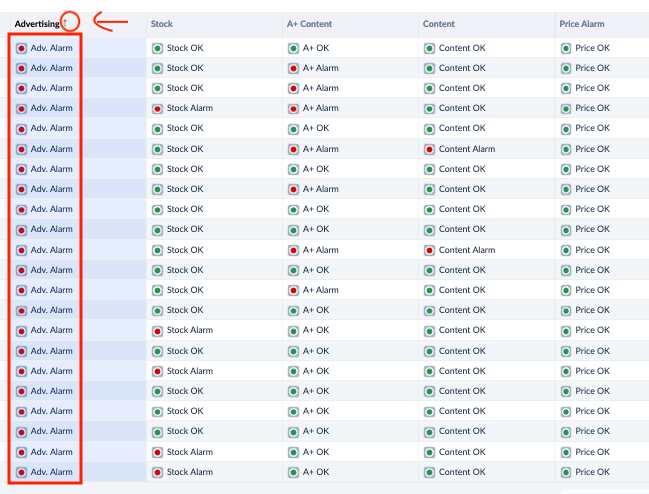
A row of seven counters showing how many products in your current filter view are currently triggering each alarm. Click any alarm to filter the Product Overview table below to just the affected products.
The seven alarms:
-
GV Alarm (Glance Views) — Visibility has declined versus the previous period.
-
CR Alarm (Conversion Rate) — Conversion rate has declined versus the previous period.
-
Adv. Alarm (Advertising) — No advertising spend recorded for this product in the period.
-
Stock Alarm — Sellable inventory is zero and no replenishment PO is open.
-
A+ Alarm — No A+ or A+ Premium content detected on the detail page.
-
Content Alarm — Content score (title, images, bullets) is in the bottom third of the portfolio.
-
Price Alarm — The current Buy Box price is below the Recommended Retail Price (RRP).
Section 5 — Product Overview (Detail Table)
The detail table is where the dashboard becomes actionable. One row per item (ASIN, parent ASIN, brand, category, or subcategory depending on the View By filter), showing performance metrics side-by-side with traffic-light alarm indicators.
Columns shown:
-
Identification — Portfolio Group · ASIN · SKU · EAN · Product Title
-
Sales — Units Ordered · Ordered Revenue (with period-over-period trend) · Ordered Revenue YTD · Shipped COGS · Shipped COGS YTD
-
Traffic & Conversion — Glance Views (with trend) · Conversion Rate (with trend)
-
Alarms (with traffic-light colour) — Advertising · Stock · A+ Content · Content Score · CR Alarm · GV Alarm · Price Difference vs. RRP · Price Alarm
A traffic light value of n/a means detail-page tracking is not yet active for that product, or no Recommended Retail Price has been set in the Vendor Central catalogue.
Available Filters
|
Filter |
What it does |
Multi-select? |
Default |
|---|---|---|---|
|
Marketplace |
Select the Amazon marketplace to analyze (DE, UK, FR, IT, ES, …) |
No |
— |
|
Reporting Range |
Set granularity to Weekly, Monthly, Quarterly, or Yearly |
No |
Monthly |
|
Period |
The specific date / range to report on (driven by Reporting Range) |
No |
— |
|
Currency |
Currency in which monetary KPIs are displayed |
No |
EUR |
|
View By |
Group results by ASIN, Parent ASIN, Brand, Category, or Subcategory |
No |
ASIN |
|
Category |
Restrict to one or more product categories |
Yes |
All categories |
|
Subcategory |
Restrict to one or more subcategories under the chosen Category |
Yes |
All subcategories |
|
Tag |
Filter by manually assigned product tags from the Analytics Hub catalogue |
Yes |
All tags |
|
Auto Tag |
Filter by automatically generated tags (e.g. lifecycle, growth bucket) |
Yes |
All auto tags |
|
Portfolio Groups |
Restrict the view to one portfolio group (Star, Quick Buy, Shelf Warmer, Question Mark) |
No |
All groups |
|
Alarm Filter |
Restrict the detail table to products triggering one or more selected alarms |
Yes |
All |
|
Most Ordered |
Limit the view to the top-N most-ordered items |
No |
— |
|
Minimum Glance Views |
Exclude items below a chosen Glance Views threshold from the matrix and table |
No |
— |
|
Minimum Ordered Units |
Exclude items below a chosen Ordered Units threshold from the matrix and table |
No |
— |
|
Search (ASIN, EAN, Product Title) |
Find a specific product by ASIN, EAN, or title (free-text, multi-value) |
Yes |
— |
Filter interaction notes
-
Subcategory depends on Category. Selecting one or more Categories narrows the available Subcategories.
-
Reporting Range and Period work together. Switching Reporting Range (e.g. Monthly → Weekly) reloads the available Period values.
-
Minimum Glance Views and Minimum Ordered Units affect the rankings, not just the display. Raising these thresholds removes low-signal items from the relative ranking, which can change which products end up in which group.
-
Portfolio Groups and Alarm Filter narrow the detail table only — they do not change the matrix ranking. To restrict the matrix itself, use Category, Tag, or Search.
-
Most Ordered is a quick way to focus on the long tail of bestsellers without manually setting unit thresholds.
Use Cases
1 — Weekly portfolio triage
You have 30 minutes on a Monday morning and want to know what to act on this week.
-
Set Reporting Range = Weekly, Period = last closed week.
-
Glance at the Portfolio Group Summary — has the Star count shrunk or the Shelf Warmer count grown vs. last week?
-
Open the Alarm Summary and click on the alarm with the most products triggered (typically Stock or GV Alarm).
-
The Product Overview table now filters to just those products — work through them top-down by Ordered Revenue.
2 — Find the biggest growth opportunities (Quick Buys)
You want to identify products to invest in with advertising.
-
Set Portfolio Groups = Quick Buy.
-
Sort the Product Overview table by Ordered Revenue descending — these are products already converting well that just need more visibility.
-
Cross-check the Adv. Alarm column — Quick Buys with no current ad spend are the highest-priority candidates for a new Sponsored Products campaign.
3 — Fix your Shelf Warmers
You want to recover lost conversion on high-traffic products.
-
Set Portfolio Groups = Shelf Warmer.
-
Look at the alarm columns to diagnose why conversion is weak: A+ Alarm (missing premium content), Content Alarm (weak title/images), Price Alarm (priced below RRP suggesting margin loss, or check whether competitors are undercutting), or Stock Alarm (out-of-stock suppressing conversion signal).
-
Prioritize the Shelf Warmers with the highest Glance Views — fixing them unlocks the most revenue.
4 — Category-level portfolio health check
You manage multiple product categories and want a strategic view.
-
Set View By = Category (or Subcategory).
-
Read the Portfolio Matrix — each bubble is now a whole category. Categories sitting in the Shelf Warmer quadrant indicate broad conversion issues; categories in Quick Buy indicate broad traffic gaps.
-
Use this as input for category-level investment decisions rather than individual ASIN tactics.
5 — Data quality audit before reporting
Before sharing portfolio insights with stakeholders, sanity-check the underlying data.
-
Read the three Data Quality Counters: Sales-but-no-GV, GV-but-no-Sales, and No-GV-and-No-Sales.
-
A high "Sales but no Glance Views" count signals an Amazon reporting gap — note this caveat when presenting numbers.
-
A high "No GV and No Sales" count suggests catalogue hygiene issues (suppressed listings, delisted ASINs still in the catalogue) — clean up before quoting Question Mark counts to leadership.
Limitations & Notes
-
Vendor Central only. This dashboard reads from your Vendor Central catalogue and master report. Seller Central (3P) products and metrics are not included.
-
Rankings are relative, not absolute. A product is "High traffic" only relative to the rest of your selection. Changing filters (Category, Tag, Minimum thresholds) re-ranks the portfolio, so the same ASIN can flip between groups under different filter contexts. This is by design but worth remembering.
-
Data quality exclusions. By default, ASINs with missing Glance Views or zero sales are excluded from the matrix and detail table. The three counters tell you how many were filtered out — always check these before drawing conclusions, especially if Amazon's traffic reporting has been incomplete for the period.
-
Trend columns compare to the immediately previous period on a like-for-like day basis. Year-over-year is not the default comparator on this dashboard — for YoY views, use the Vendor Business Summary.
-
Content scores rely on crawl data from the last ~8 days (for the detail table) and last 30 days (for the Alarm Summary). Very new ASINs may show n/a until they have been crawled.
-
Price Alarm requires RRP. If no Recommended Retail Price is set in the Vendor Central catalogue, the Price Alarm shows n/a. Maintaining RRPs in the catalogue is a prerequisite for this alarm to be useful.
-
A+ Alarm and Content Alarm require detail-page tracking to be active for the ASIN. Newly added ASINs may show n/a until tracking is provisioned.
-
Currency conversion. Revenue and COGS values are converted using the exchange rate from the start of the reporting year. Cross-marketplace totals are directionally accurate but small differences vs. native-currency reports are normal.
-
Stock Alarm reflects sellable inventory plus open POs at the snapshot point — very short stockout windows that close before the next data refresh may not be captured.