
Learn how to analyse and maximise your Sponsored Ads performance at the ASIN level.
Before Getting Started
Before analysing your Sponsored Ads performance, ensure that:
-
Your ads account is connected. Learn how to connect your Sponsored Ads account for Vendor Central or Seller Central.
-
All necessary filters are set.
-
Ads are actively running in your Amazon Ads console.
Where to Analyse Your Sponsored Ads Performance at ASIN Level
You can analyse your Sponsored Ads performance at the ASIN level in the ASIN Performance Dashboard.
Available Filter Options
Beyond the general metrics, you can refine your analysis by campaign, campaign type, advertised ASIN, minimum ad sales, minimum ad spend, minimum ACoS, and minimum impressions. These filters are designed to help you pinpoint underperforming ASINs that require immediate action, allowing for targeted optimization.
Use Cases
Identifying Underperforming ASINs with High ACoS
A high Advertising Cost of Sales (ACoS) can indicate inefficient ad spending or unprofitable keywords, requiring adjustments to campaign targeting or bid management.
-
Set your filters and make sure you have set your ACoS benchmark. For example, if your ACoS benchmark at ASIN level is 10%, enter "10" in the "min. ACoS" filter.
-
In the table, sort ACoS in descending order and check whether the spend has been excessively high.
-
Look for commonalities among high-ACoS ASINs. Are they part of specific ad campaigns or product categories? Is the bidding for the targeting method inside the campaign too high?
Identifying Low-CTR ASINs
A low click-through rate (CTR) may indicate that the product is not resonating with the target audience or that the ad creative needs improvement. Also watch for ASINs with a decreasing CTR trend.
-
Set the "min. Spend" filter to at least 1.
-
In the table, sort CTR in ascending order and look for ASINs with a CTR below the benchmark.
What is a good CTR in Amazon Ads? A good benchmark for CTR in Amazon ads typically falls within 0.5% to 1.5%. However, CTR varies depending on factors such as product category, competition, ad placement, and targeting. Monitor your CTR relative to your specific industry and campaign objectives to determine what constitutes good performance.
Identifying High-Impressions, Low-Clicks ASINs
Look for ASINs with high impressions but low click-through rates. This suggests the ad is shown frequently but fails to attract clicks, signaling potential issues with ad relevance or messaging. Also watch for ASINs with decreasing clicks while impressions stay high.
To improve ad relevance and messaging and increase the click rate:
-
Keyword analysis: Review the keywords associated with the underperforming ASINs. Ensure they are highly relevant to the product and aligned with the target audience's search intent. Identify any irrelevant or broad keywords that may be driving high impressions but low clicks.
-
Ad creative optimization: Evaluate the ad creatives (titles, images, descriptions) associated with the underperforming ASINs. Make them more compelling, informative, and relevant — consider highlighting unique selling points, offers, or benefits to capture attention and encourage clicks.
-
Negative keywords: Add negative keywords to your campaigns to exclude irrelevant search terms that may be generating high impressions but low clicks.
Granular ASIN-Level Performance Analysis
The ASIN Performance Dashboard shows comprehensive advertising performance for individual ASINs, with accumulated data across campaigns. For a more granular view specific to each campaign, use the ASIN per Campaign view dashboard. This provides ASIN performance at the campaign level and lets you sort by campaign to understand which ASINs are inside a campaign and how each is performing.
Finding Negative Trends, Potentials and Weak Spots Across the 360° Sponsored Ads Report
To find where you still have potential in your advertising campaigns, work top-down through the Advertising dashboards:
-
Top level — in the overview dashboard, check Ad Spend, Ad Sales, and ROAS per campaign type and targeting method. This shows where to shift budget and where you currently spend nothing.
-
Campaign level — still at the top level, identify which SP, SB, or SD campaigns spend a lot but have a low ROAS. These are the campaigns to edit.
-
ASIN level — go to ASIN Level and check which ASINs do not convert, have a low ROAS, or a high CPO (i.e. become unprofitable through ads).
-
Keyword level — go to Keyword Targeting and check which keywords should be added with another or additional match type, which match types should be deactivated because they are too expensive, and which keywords don't work at all.
-
Product & category level — go to Product & Category Targeting and check which ASINs and categories do not convert, have a low ROAS, and should be changed or deactivated.
Optimizing Your Campaigns, Keywords and Bids
Define your goals
Define your advertising objectives — increasing sales, driving traffic, boosting brand awareness, or promoting specific products. We recommend setting a Target ROAS to optimize against. Your goals determine how you proceed.
Choosing keywords
-
Relevance — look for keywords that accurately describe your product and match the search intent of potential customers (features, benefits, variations, use cases). Ask: what would you type into the search bar to buy your product?
-
Search frequency — prefer keywords with a high search frequency. Check the most-searched keywords under Search → Keywords (Search Frequency); see Competitive Keyword & Search Analysis.

-
Stay up to date — keep keywords updated as market trends, customer preferences, and products change. Consider seasonal keywords relevant at specific times of year.
-
Sponsored Ads keyword targeting — to see which keywords perform best, use Keyword Targeting in the 360° Sponsored Ads Report and analyze on keyword level across ROAS, impressions, clicks, sales, etc. See Keyword Targeting (SPA).
Organize campaign structure
Create organized campaign structures with ad groups that group similar keywords and products together. This improves targeting, monitoring, and optimization.
Adjust bids
Optimize your bid strategy based on keyword performance. Allocate budget based on the performance of individual campaigns, ad groups, and keywords — focus more budget on high performers while scaling back or pausing underperformers. To maximize ROAS, increase bids for high-performing keywords and decrease bids for low-performing ones. If the goal is to boost sales and awareness with budget as a secondary concern, increase bids more broadly — but expect ROAS to decrease.
Which ASINs Should I Advertise?
Finding ASINs to advertise — Portfolio Analyzer
In the Portfolio Analyzer, use the Advertising Alarm and Portfolio Groups filters to find the ASINs to analyze. To find your top performers, use the Most Ordered filter. The Advertising Alarm shows which ASINs are currently not advertised or not performing well. Focus on:
-
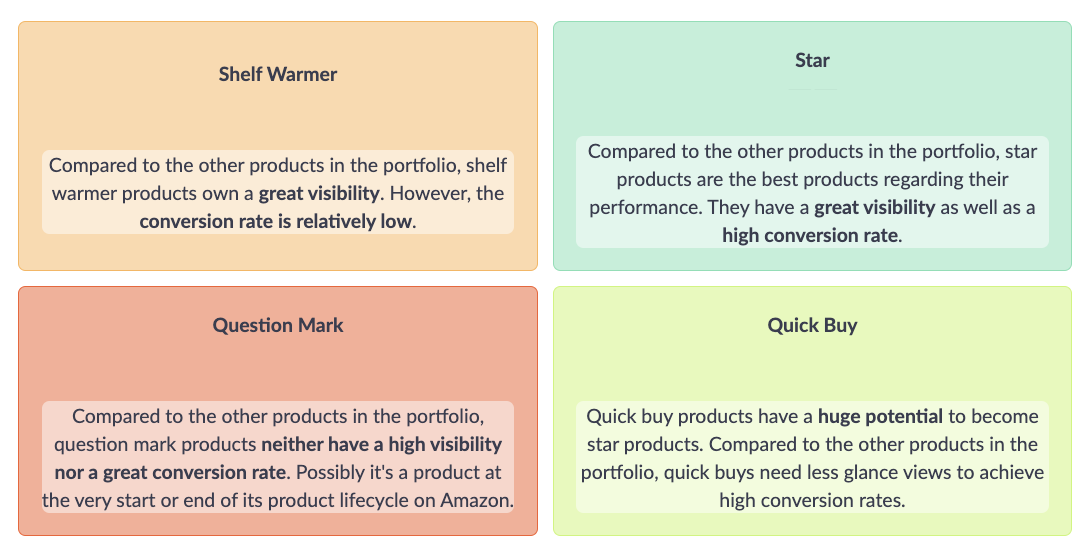
Star Products — your best-performing ASINs.
-
Quick Buys — frequently purchased ASINs.
-
Shelf Warmers — these often have conversion-rate issues, so check and optimize their content; if they are among your top sellers, still push them in ads.
Access the Portfolio Analyzer: Vendor / Seller.
Finding ASINs to advertise — ASIN Focus / Product Performance
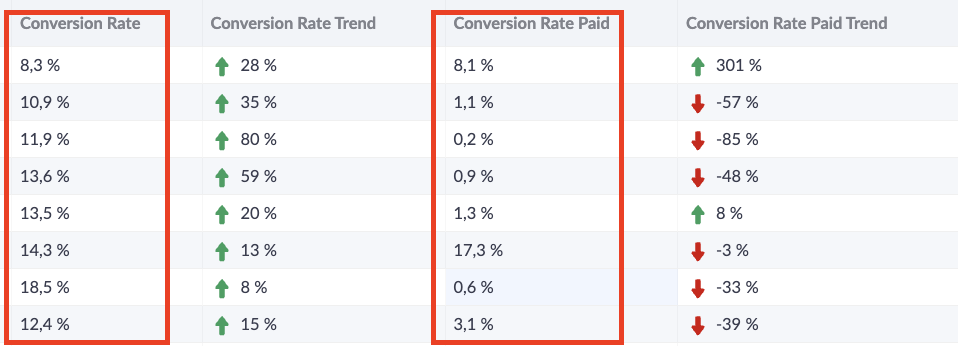
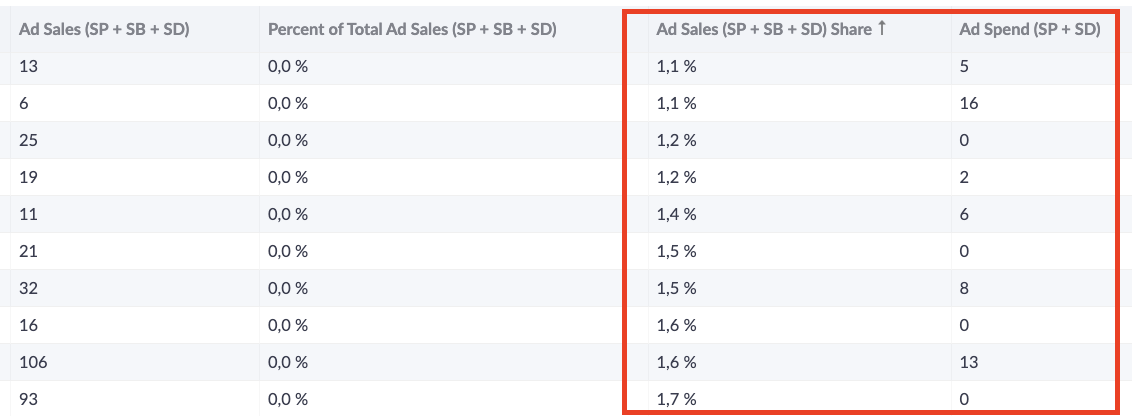
In ASIN Focus (now Product Performance) you can identify which ASINs drive the most sales, with metrics such as Conversion Rate (CR) for paid ads and ad spend share. Use Portfolio Groups to focus on Star Products, Quick Buys, and Shelf Warmers.
-
Check CR and CR Paid at ASIN level and push ASINs with an overall low CR or a decreasing CR trend.
-
If the ad sales share is below 5%, push the ASIN if it's a top seller that doesn't need significant content optimization.
-
Make sure the ASIN is not an overall low performer — these usually need content optimization before driving traffic makes sense.
Additionally, calculate your break-even ROAS at product level to determine whether advertising a given ASIN is feasible (some may not be cost-effective due to low margins). Access ASIN Focus: Vendor / Seller. Product Performance: Vendor / Seller.
Obstacles — when an ASIN can't be advertised
Some ASINs may be ineligible for advertising. The three most common reasons are bad reviews, low inventory, and a lost Buy Box. See Ad Eligibility (SPA) for how to diagnose and preserve eligibility.