
Prerequisites
For the admin (one-time setup)
-
Admin rights in Microsoft Copilot Studio are required to set up an MCP app in Copilot at tenant level.
-
Setting up custom MCPs in Copilot requires Copilot Studio and may be subject to additional licences depending on your company's contract with Microsoft. Please check with your Microsoft administrator before starting.
For every user
-
Access to the emax digital MCP in Copilot requires at minimum access to standard Copilot, typically included with a standard Microsoft 365 licence. A fully paid additional Copilot licence is not required.
-
An individual emax digital account. A colleague with the User Manager role can invite new users directly under Setup → Users & Companies — see Managing Users and Companies
-
Each user has to connect the emax digital MCP in their own Copilot instance — see the last step of this guide.
Publishing the agent in Teams or Microsoft 365 does not grant data access. Every user signs in with their own emax digital account, and the permissions they have in emax digital apply one-to-one in Copilot.
Create New Agent In Copilot Studio
https://copilotstudio.microsoft.com/
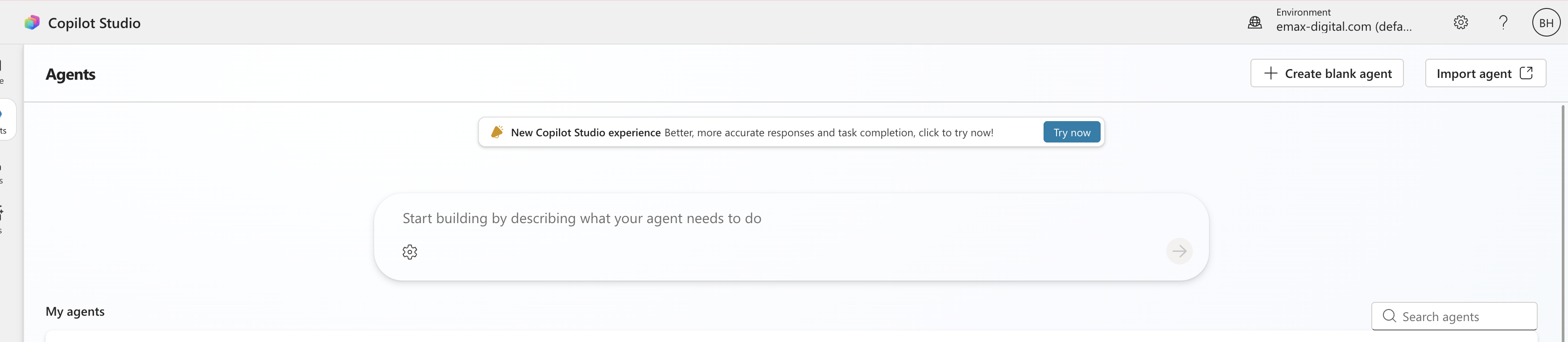
Click on Create blank agent.
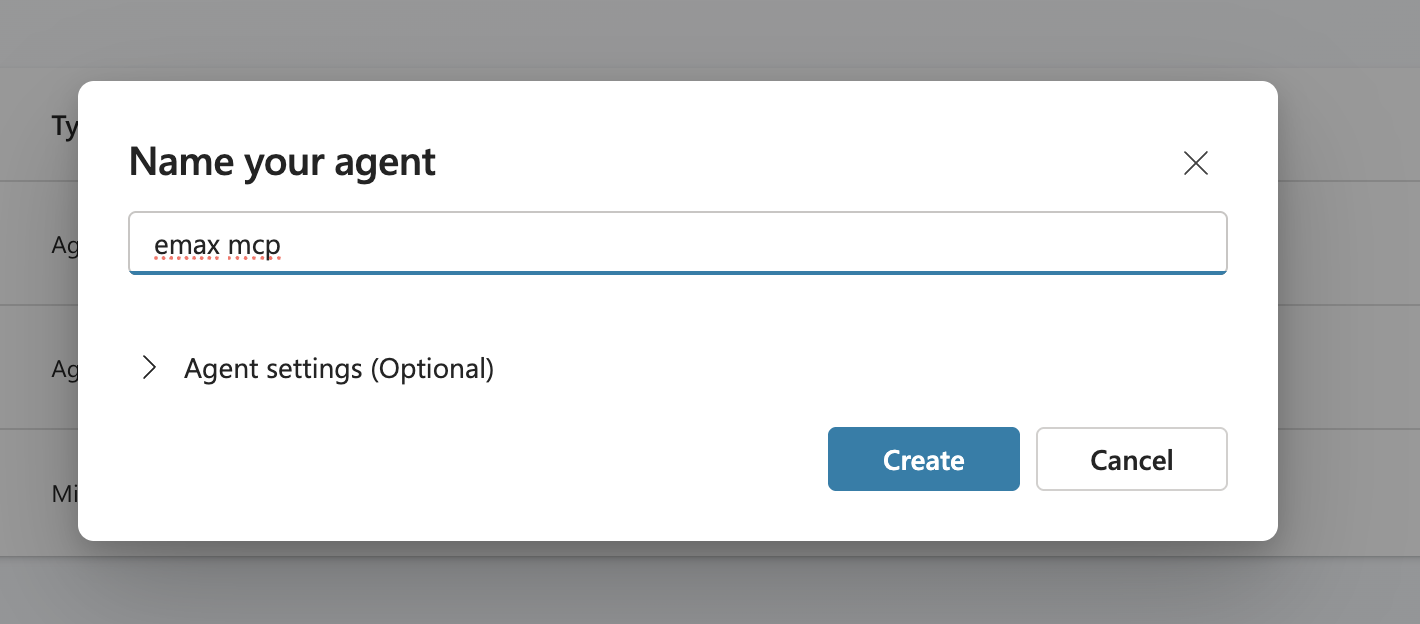
Give the agent a name.
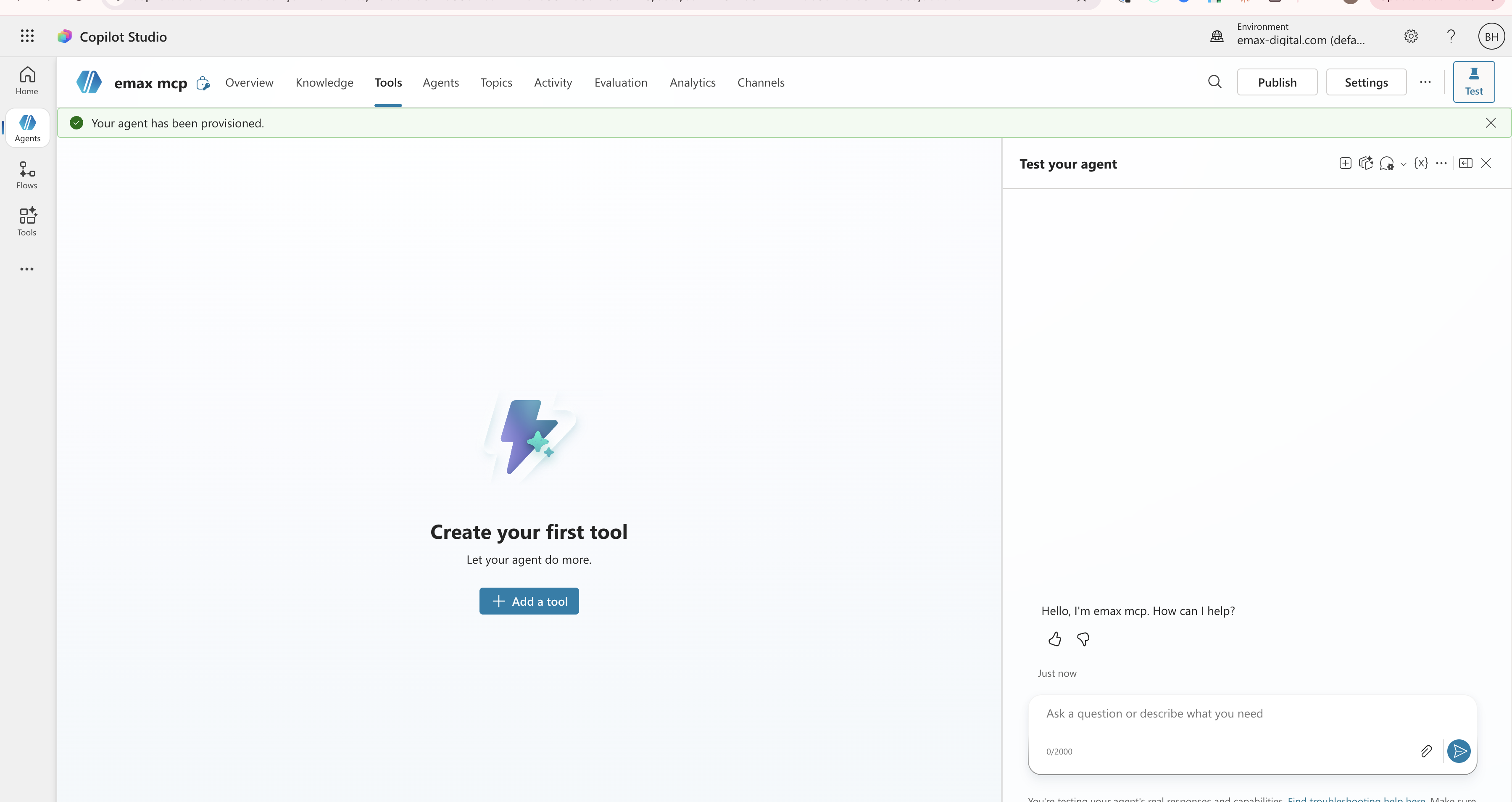
Go to Tools → Add tools.
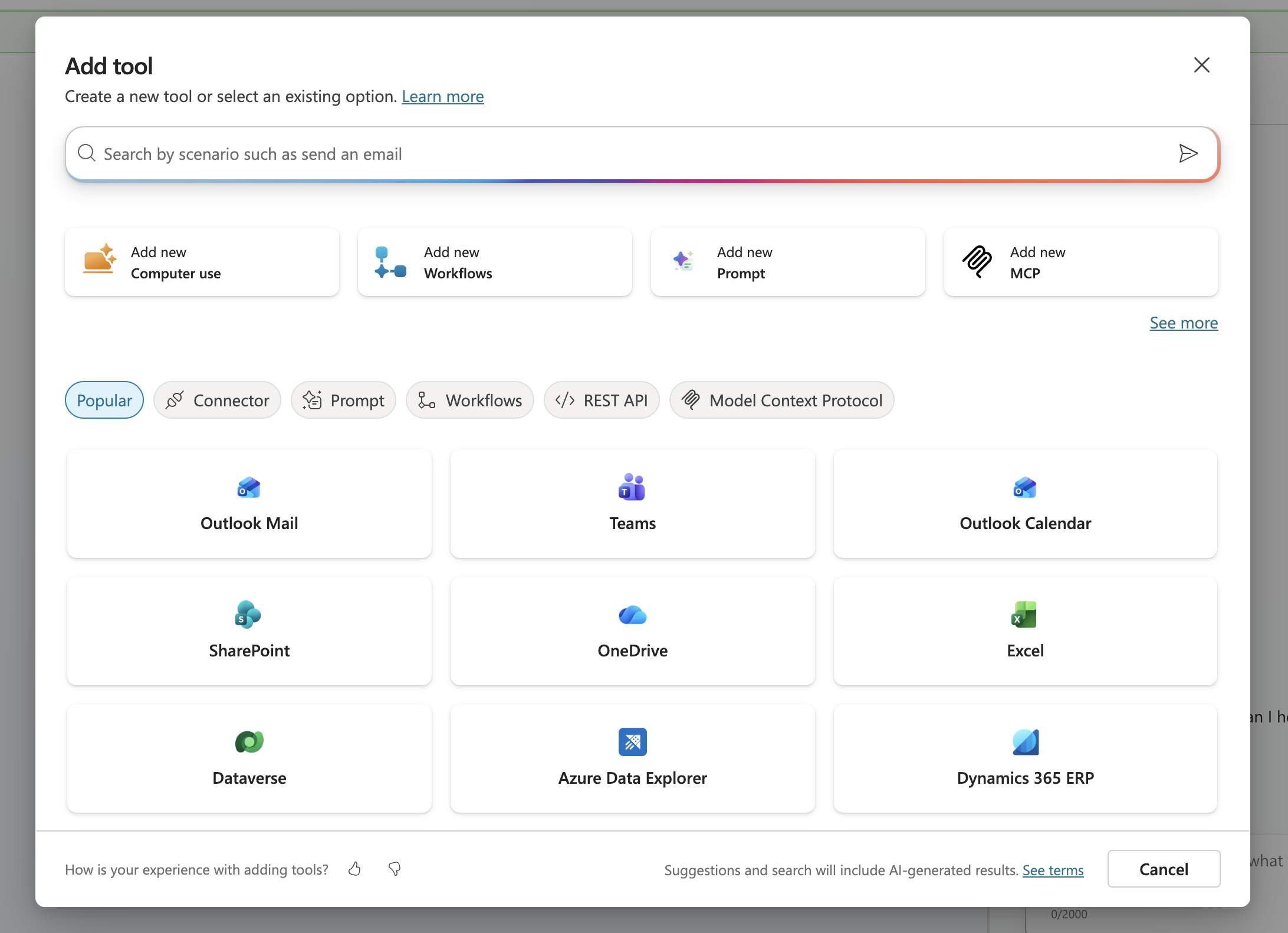
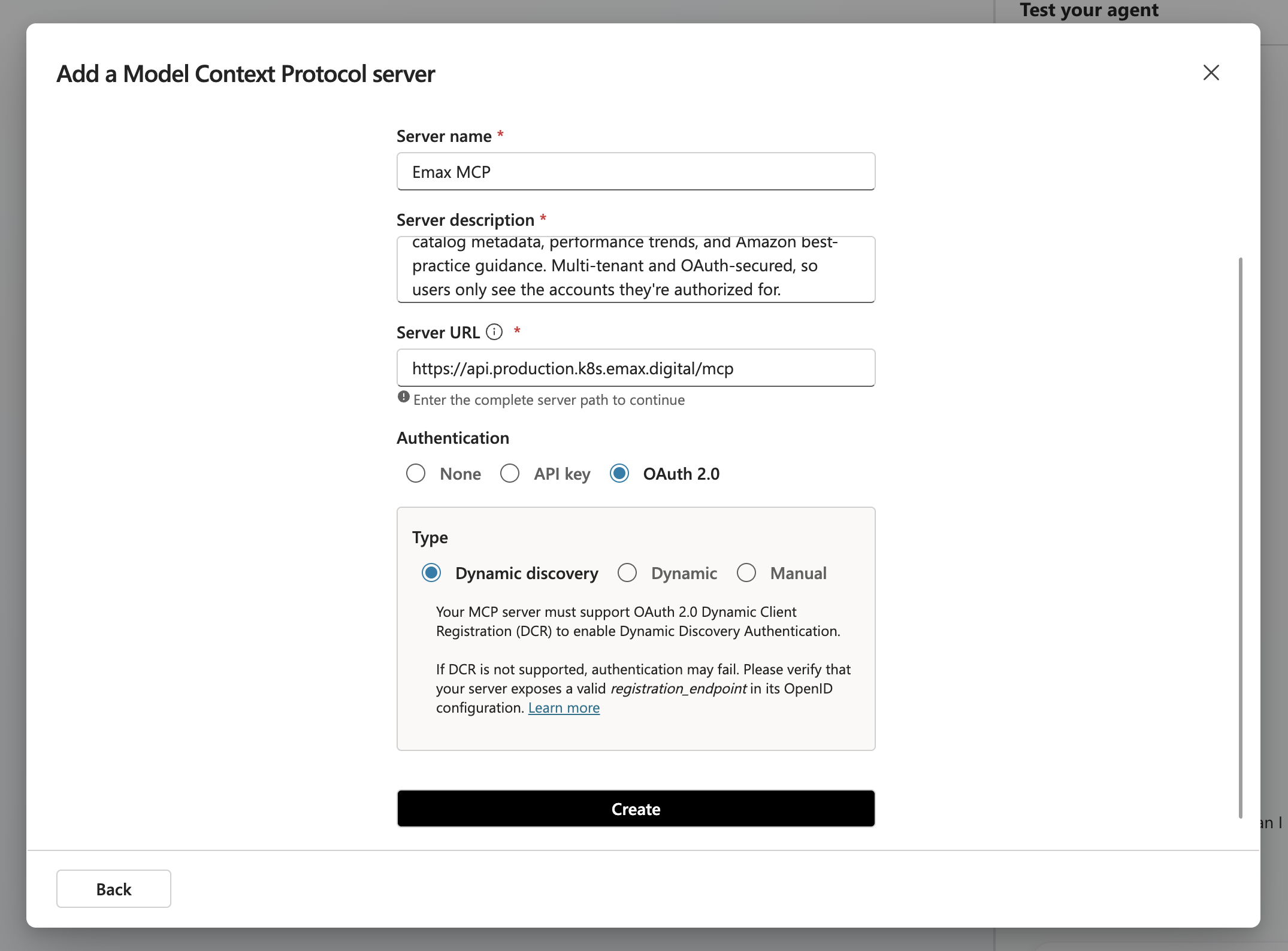
Go to Add new MCP and fill in the following details:
-
Server Name: emax digital MCP
-
Server description: Natural-language access to your Amazon analytics from emax digital — advertising performance (SP/SB/SD/DSP), catalog metadata, performance trends, and Amazon best-practice guidance. Multi-tenant and OAuth-secured, so users only see the accounts they're authorized for.
-
Server URL: https://api.production.k8s.emax.digital/mcp
-
Authentication: OAuth 2.0 Dynamic discovery
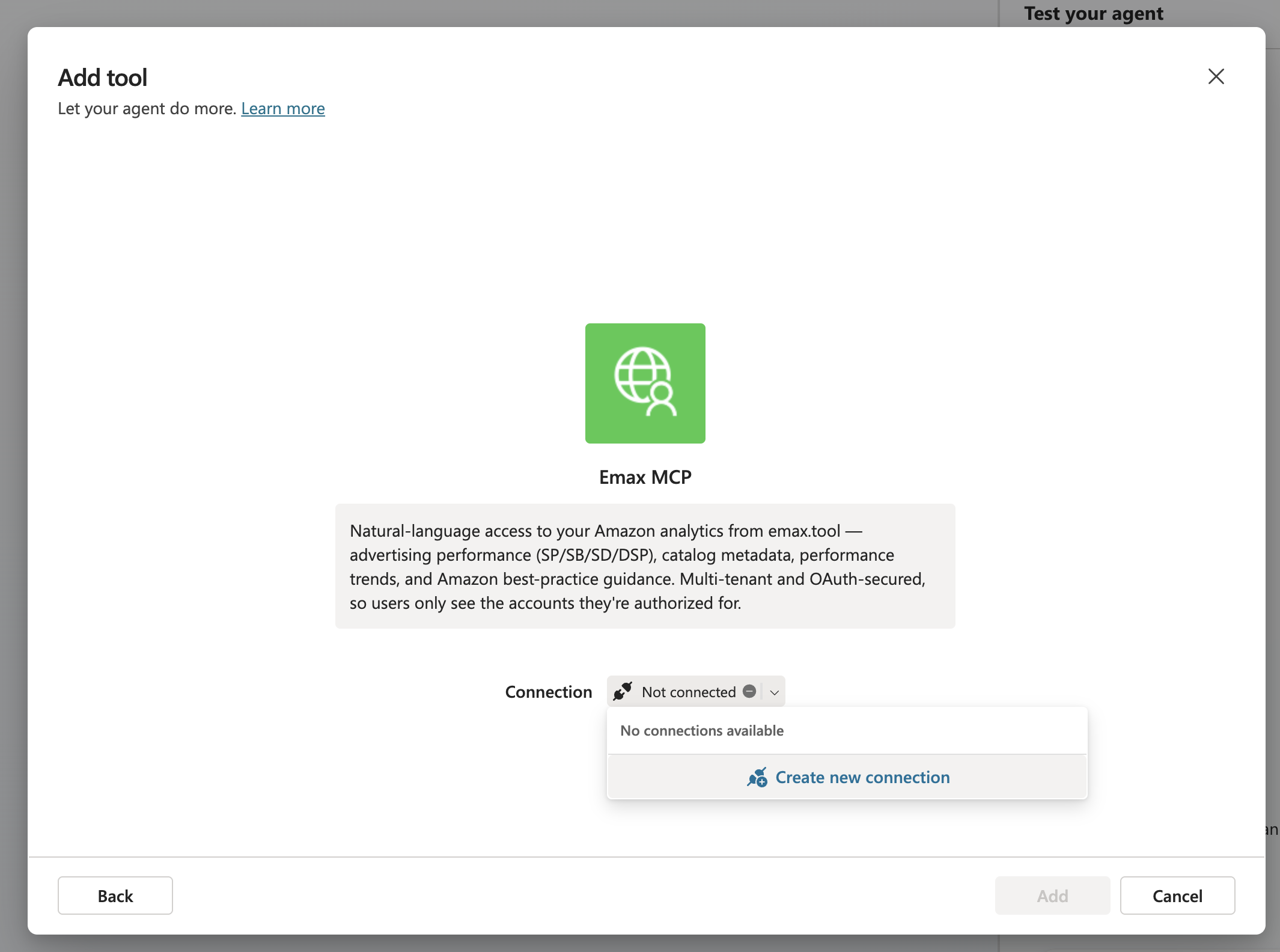
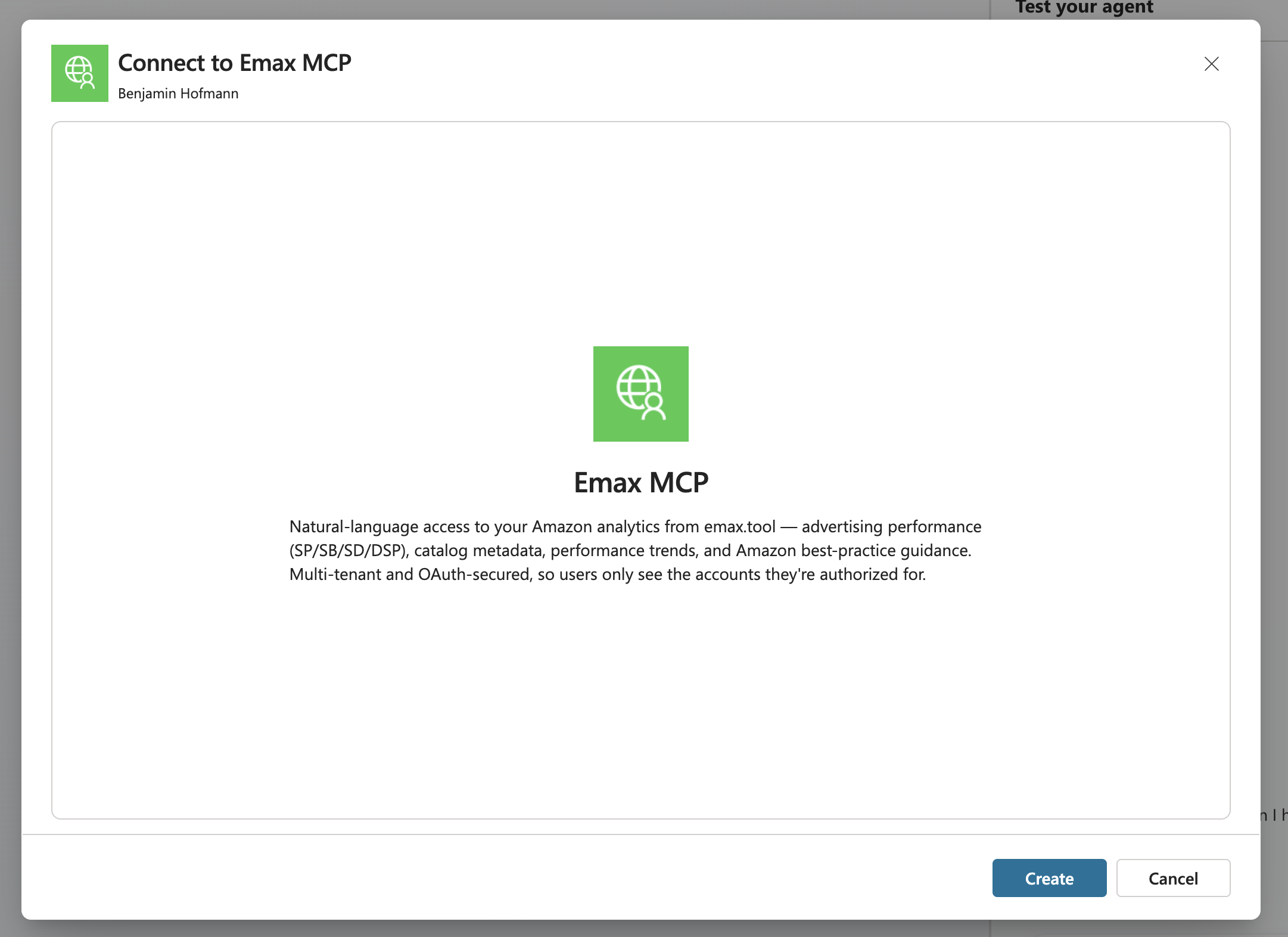
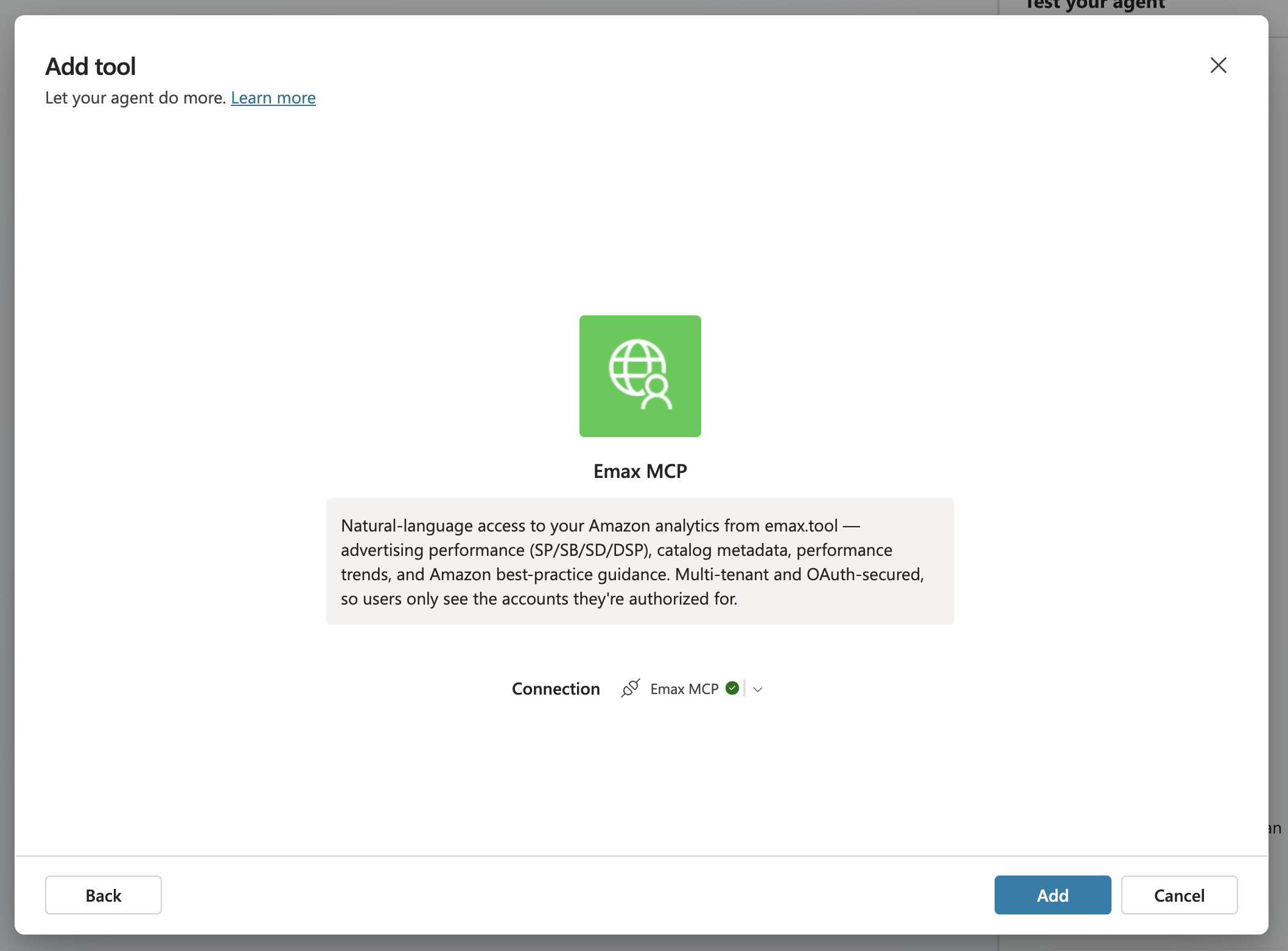
Click on Not connected to create an initial connection, then click Create.
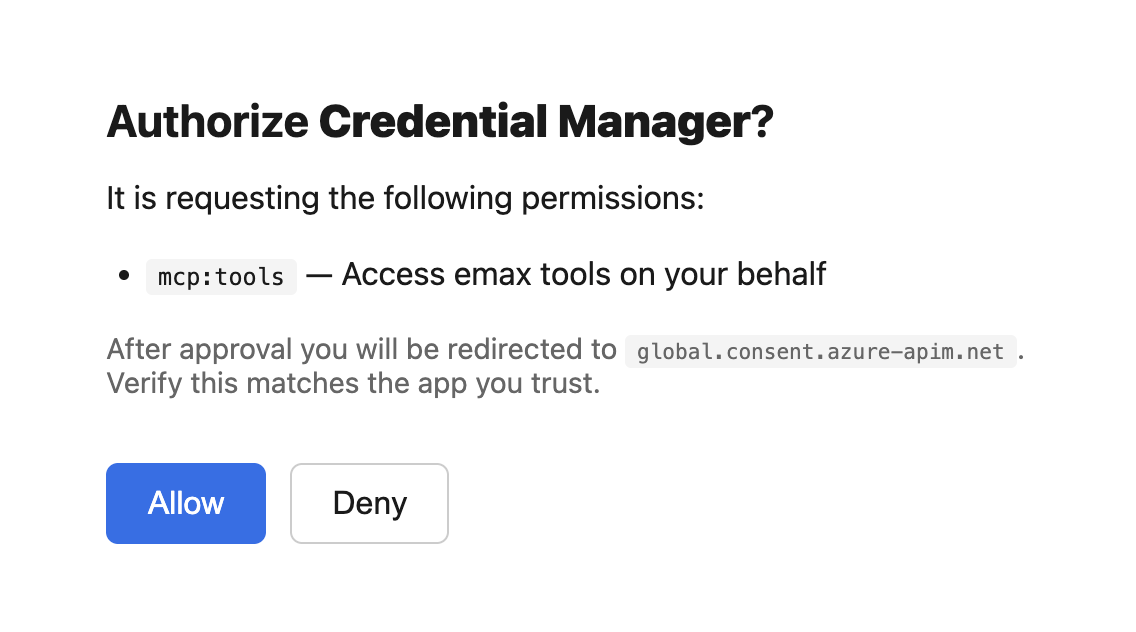
Click Allow to authorize, then click Add.
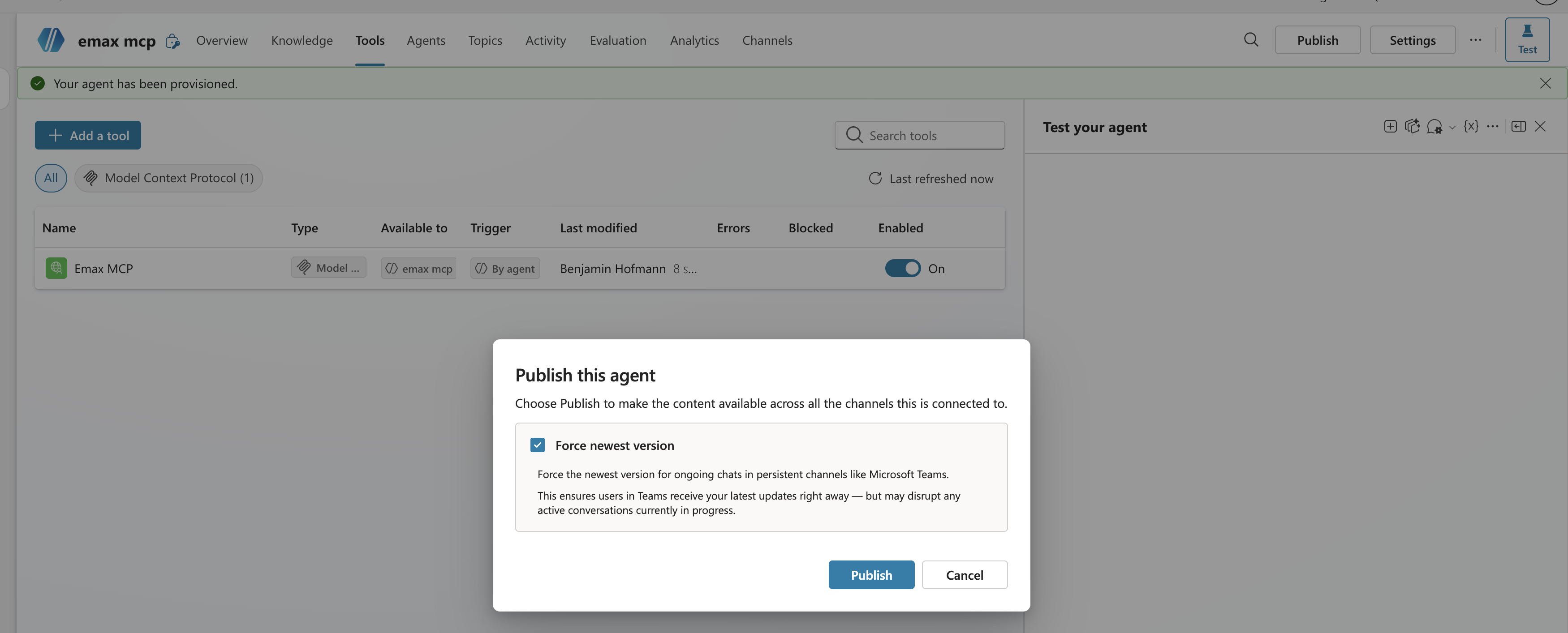
Publish and force the newest version, then publish again.
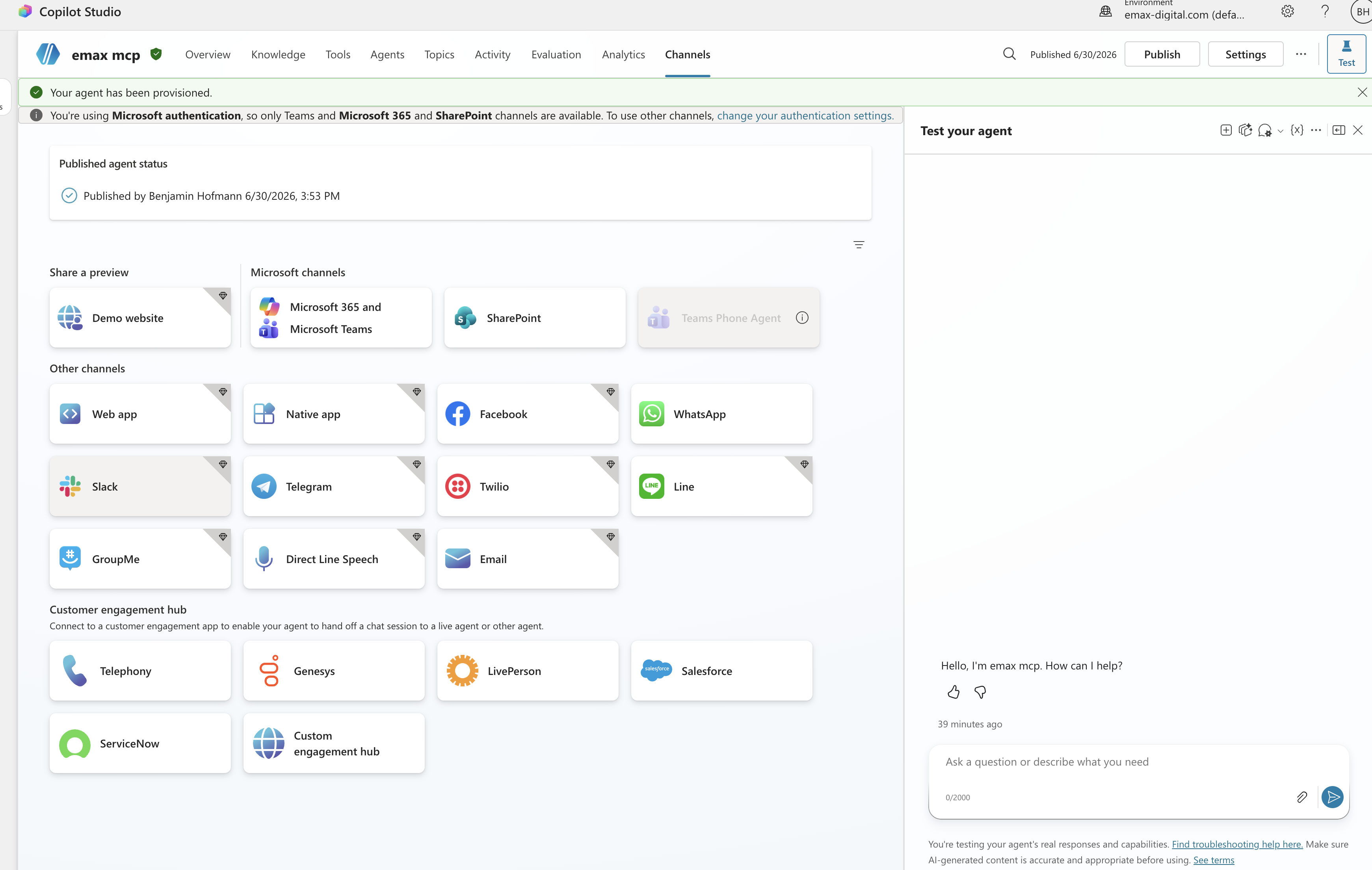
Go to Channels. You can now publish your agent for everyone to use in Teams and Microsoft 365.
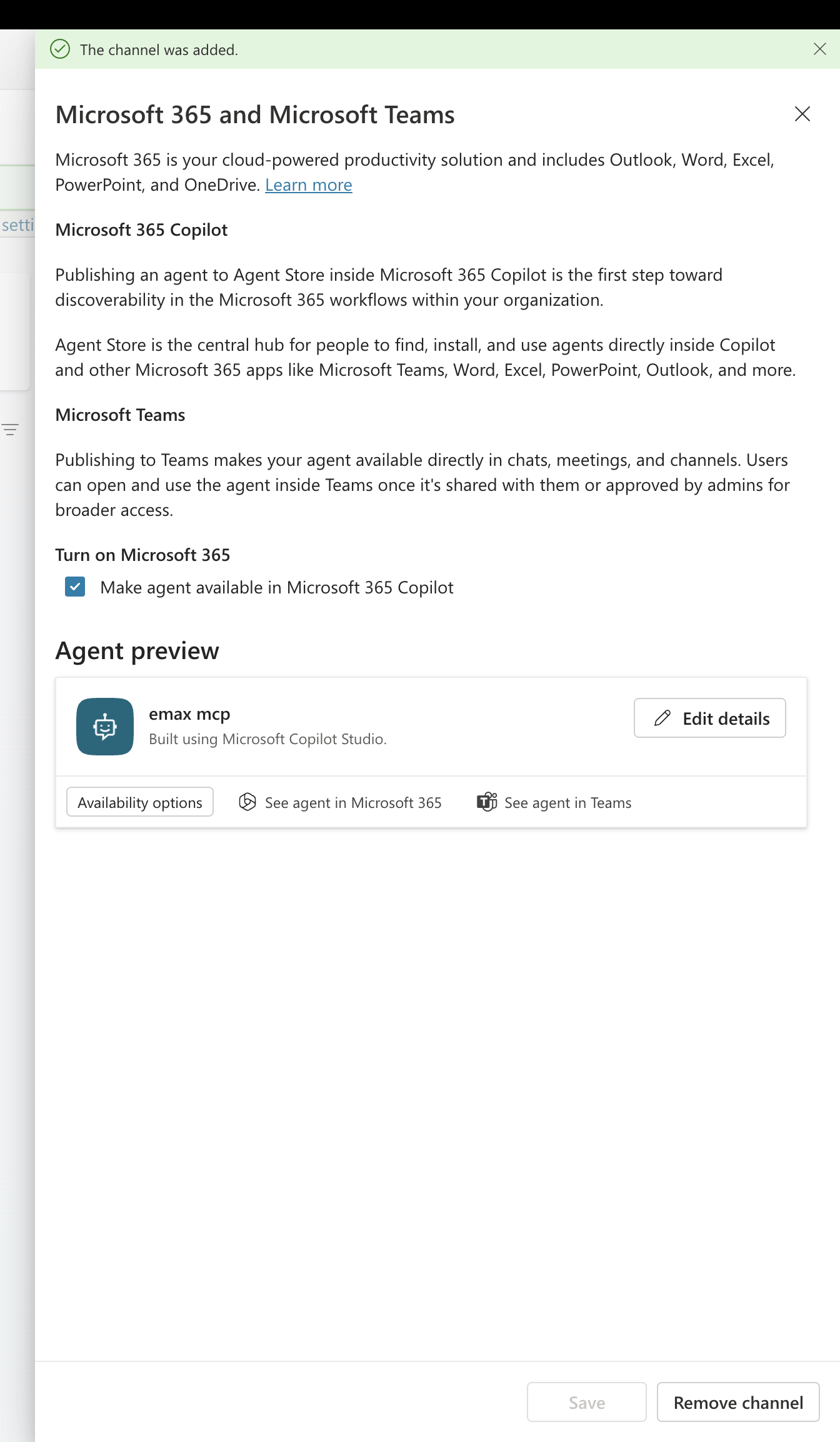
You can add the emax digital MCP in Teams via Add or click See agent in Teams. Alternatively, you can also use the agent in Microsoft 365.
Important: each user has to log in with emax digital MCP again before using the tool for the first time.
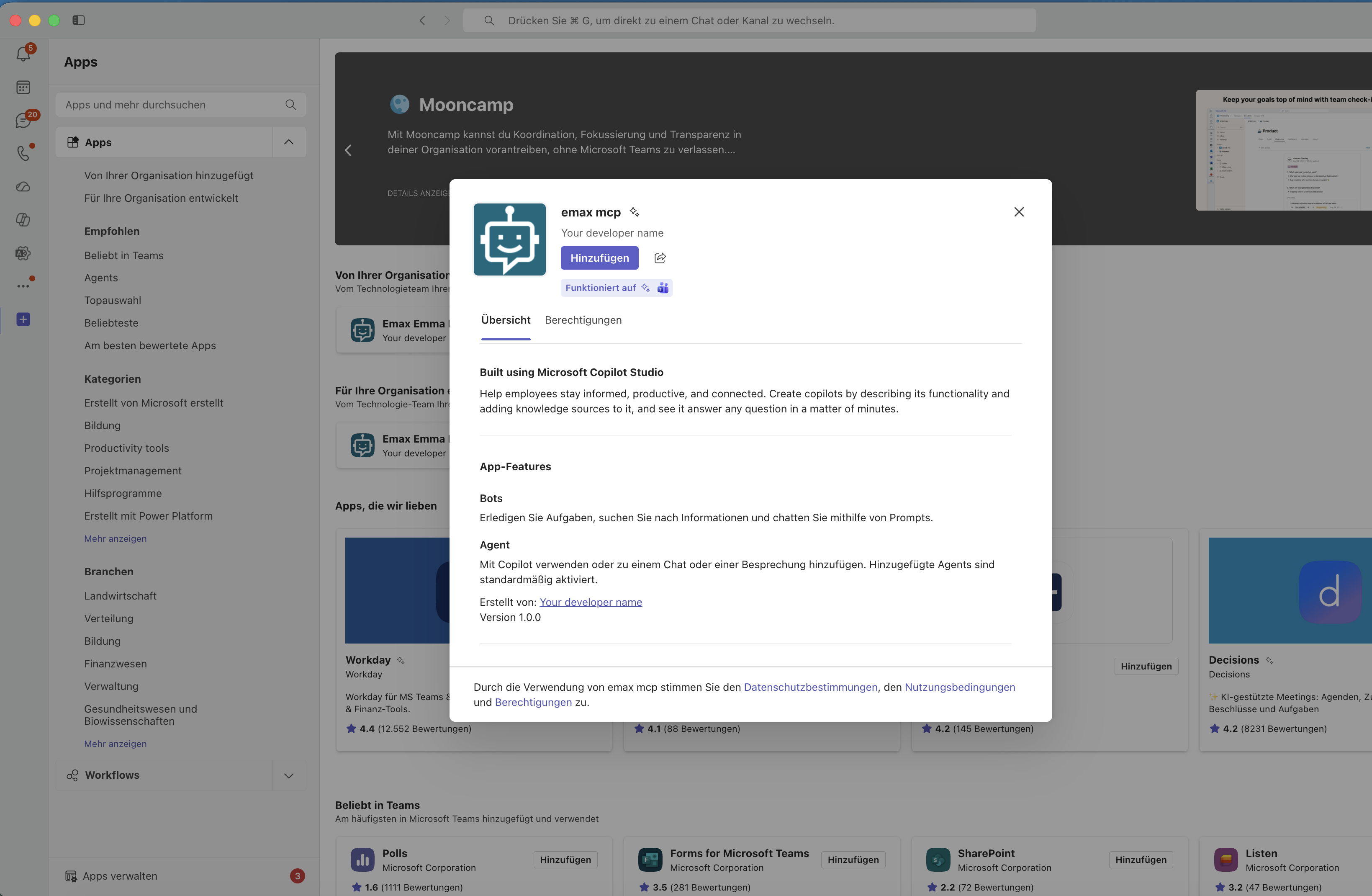
After logging in, the MCP is ready to use.
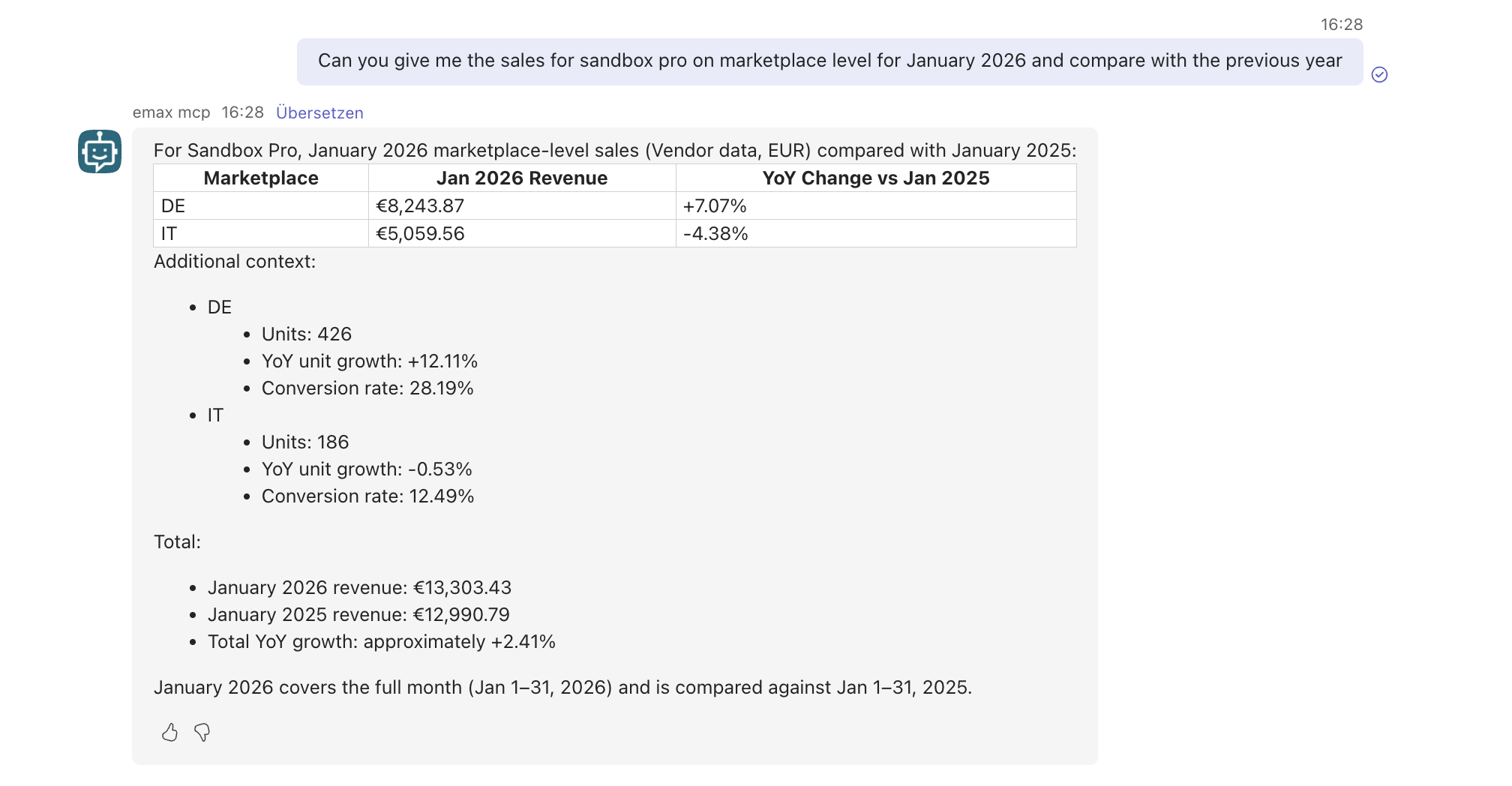
Working with multiple companies
If you have access to more than one company in emax digital, name the company explicitly in your prompt. Otherwise the agent may pick a default or ask you to clarify.
-
Start by asking: "Which companies can I query?"
-
Then include the company in every request: "Show me last week's advertising performance for <Company> in Germany."
Naming the company in the prompt is the single most effective way to get precise answers if you have access to several accounts.