
Skills are reusable prompt shortcuts that let you trigger a pre-defined analysis or task with a single keystroke. Instead of typing the same complex prompt repeatedly, you save it as a skill and run it instantly with a / command. This article explains how to use skills in a conversation, how to create, edit, and share them in Settings, and how to turn a skill into an automated, scheduled report.
💡 Tips for better results
Emma keeps the last 5 responses in its working memory during a conversation. If you want to re-request a report, KPI, or analysis, we recommend starting a new chat — this gives Emma a clean context and produces more accurate results.
Using a Skill in a Conversation
Skills can be triggered at any point during a conversation from the message input field.
-
Click the ⊞ Browse Skills button to the left of the input field, or type / in the input field.
-
A dropdown picker opens showing all available skills. Click a skill to select it.
-
The input field shows "Skill: [Name]" with the prompt text "Press send to run this skill."
-
Press Enter or click the ↑ Send button to execute the skill. To cancel, click ✕ to return to the normal input.
Skill shortcuts follow the format /shortcutname (for example, /lweu). Once selected, the full prompt template is automatically injected and sent.
How Skills Work — Overview

Managing Skills in Settings
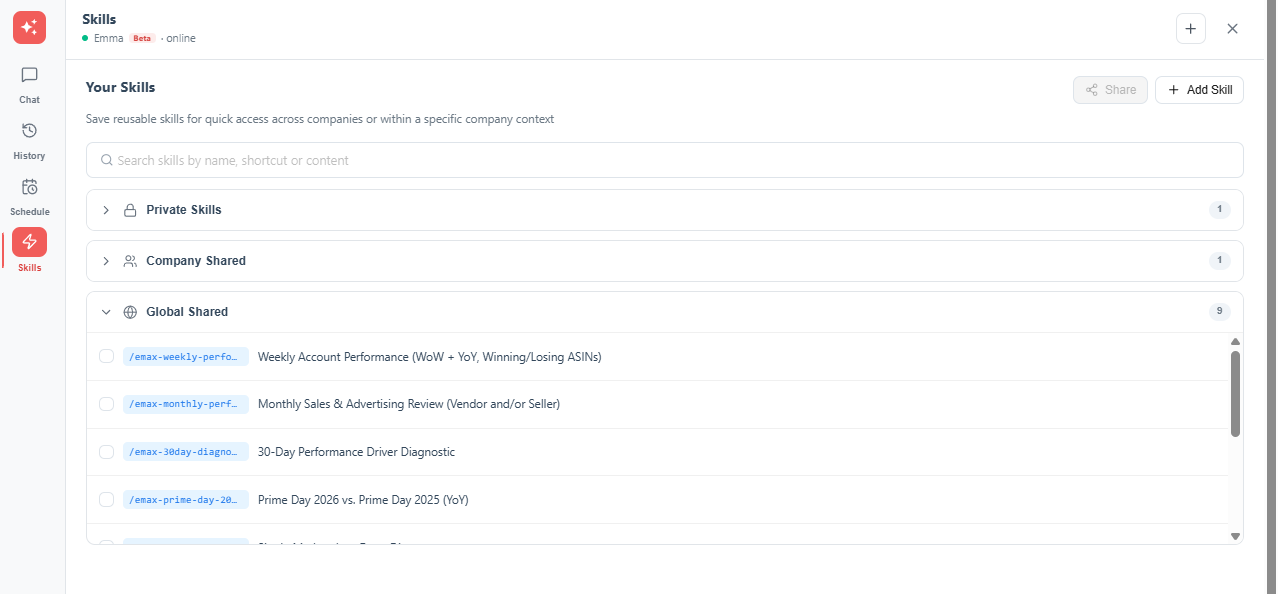
Skills are managed from the ⚙️ Settings panel, under the Skills tab.
Skill Visibility Tiers
|
Tier |
Icon |
Who can use it |
|---|---|---|
|
Private Skills |
🔒 Lock |
Only visible to you. Personal shortcuts for your own use. |
|
Company Shared |
🔓 Unlock |
Shared with all users within your company context. |
|
Global Shared |
🌐 Globe |
Available to all users across all company contexts. |
Adding a New Skill
-
In the Skills tab, click + Add Skill.
-
Fill in: Title (max. 100 characters), Shortcut (max. 30 characters, must start with /), and Custom skill text (the full prompt).
-
Click Add Skill to save, or Cancel to discard.
Editing, Deleting, and Sharing Skills
-
Click the ✏️ pencil icon to edit a skill
-
Click the 🗑️ trash icon to delete a skill
-
Use the checkbox to select skills, then click Share to distribute them to colleagues or across the company context
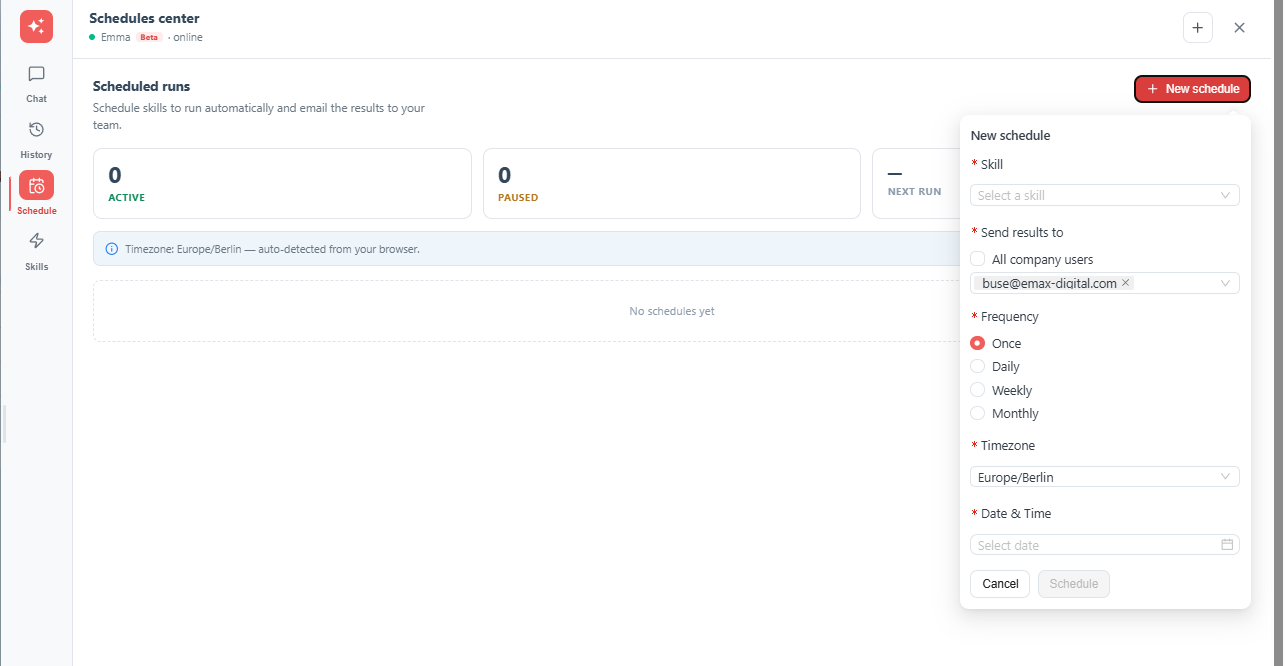
Scheduling a Skill (Automated Reports)
Any skill can be turned into an automated report that Emma sends by email on a recurring schedule — useful for recurring reviews like a weekly performance check or a Monthly Business Review, without asking each time.
How scheduling works
|
Question |
Answer |
|---|---|
|
Output format |
Emma's response is converted into a formatted HTML email — tables and formatting come through correctly |
|
Guardrails |
The same guardrails and rules apply automatically to scheduled skills — no separate setup needed |
|
Data freshness |
A real-time pull, typically no more than 30 minutes behind the scheduled run time |
|
Relative dates |
Resolved at the time the report runs — "last month" on a report that runs in September means August. Use relative phrasing in the skill text rather than a fixed date. |
|
Report length |
Long reports — including a full Monthly Business Review — fit comfortably. |
|
PDF export |
Available for scheduled reports, same as in an interactive conversation |
Good times to schedule
-
Monthly reports: the 3rd of the month
-
Weekly reports: Tuesday
Both give the underlying Amazon data enough time to settle before the report runs.
What not to schedule
Root cause / diagnostic analysis works best as a back-and-forth conversation. A scheduled, unattended run only delivers half the picture — save these for interactive chat.
Guardrail worth adding to any scheduled skill
State the exact date range covered at the start of your response.
If data for the requested period is not yet complete, label values as preliminary.
For the full set of prompting rules and guardrails — see How to Get the Best Results from Emma.
💡 Do you think the content on this page needs improvement? Let us know at support@emax-digital.com