
Emma responds to free-text questions, can read data from the Product Performance board currently visible on screen, and formats its answers to make analysis fast and actionable. This article explains how to send messages, how context awareness works, what a typical response looks like, and what you can do with each response.
💡 Tips for better results
Emma keeps the last 5 responses in its working memory during a conversation. If you want to re-request a report, KPI, or analysis, we recommend starting a new chat — this gives Emma a clean context and produces more accurate results.
Sending a Message
The message input field is located at the bottom of the Emma panel. It displays the placeholder text "Ask anything..." and accepts free-text questions, instructions, and Markdown.
To send a message:
-
Click the input field and type your question or instruction.
-
Press Enter or click the ↑ Send button (the blue arrow icon, which highlights once text is present).
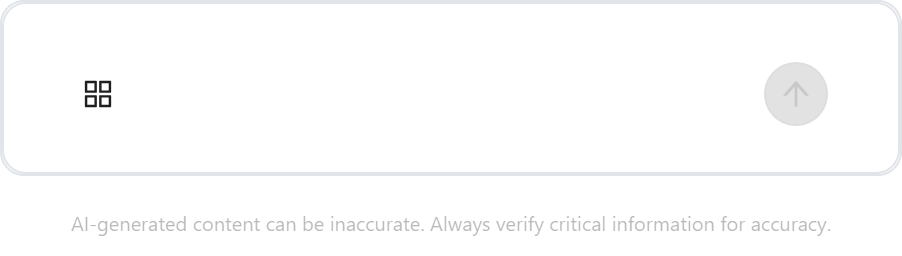
To the left of the input field is the ⊞ Browse Skills button. Clicking it — or typing / in the input field — opens a skill shortcut picker.
Context Awareness — Using On-Screen Data
Emma has context awareness of the Product Performance board — the ASIN table, charts, and filters currently visible on screen. Emma reads this data automatically without any additional setup.
Context awareness is scoped to the Product Performance board. Emma reads whatever is displayed there — including Sales, Inventory, Advertising, Content Score, Buy Box, and Ratings data — depending on how the user has configured the view.
Example prompt:
Use the displayed product performance table on the screen and give me a recommendation on what to do next.
How a Conversation Works

Response Format
Emma formats its responses for quick reading and analysis. Responses can include:
-
Markdown styling — headers, bold and italic text, bullet points, and numbered lists
-
Emojis for visual labelling
-
Tables for structured data such as marketplace performance or advertising metrics
-
Coloured status indicators — 🟢 green for positive signals, ⚠️ orange for areas requiring attention
At the end of each response, Emma proactively suggests follow-up actions.
Response Action Buttons
|
Button |
Function |
|---|---|
|
👍 Thumbs Up |
Rate the response positively |
|
👎 Thumbs Down |
Rate the response negatively |
|
ⓘ Info |
Displays token usage: Input tokens, Output tokens, and Total tokens |
|
📋 Copy |
Copies the response text to clipboard |
|
Copy Markdown |
Copies the response in raw Markdown format |
|
⬇️ Download |
Downloads the response content |
|
📄 Download PDF |
Downloads the full response as a formatted PDF document |
|
📊 Download Excel |
Exports individual tables as Excel files. Only available when the response contains structured table data. |
Note: AI-generated content can be inaccurate. Always verify critical information before making business decisions.
💡 Do you think the content on this page needs improvement? Let us know at support@emax-digital.com