
Emma keeps a complete history of all your conversations, accessible from the left sidebar. This article explains how to browse, search, rename, tag, delete, and share conversations.
Opening the Conversation History Sidebar
The conversation history is displayed in the left sidebar of the Emma panel. If the sidebar is not visible, click the ☰ (Conversation History) icon in the top-left corner of the header to toggle it open. When collapsed, the full panel width is used for the active conversation.
Sidebar Overview
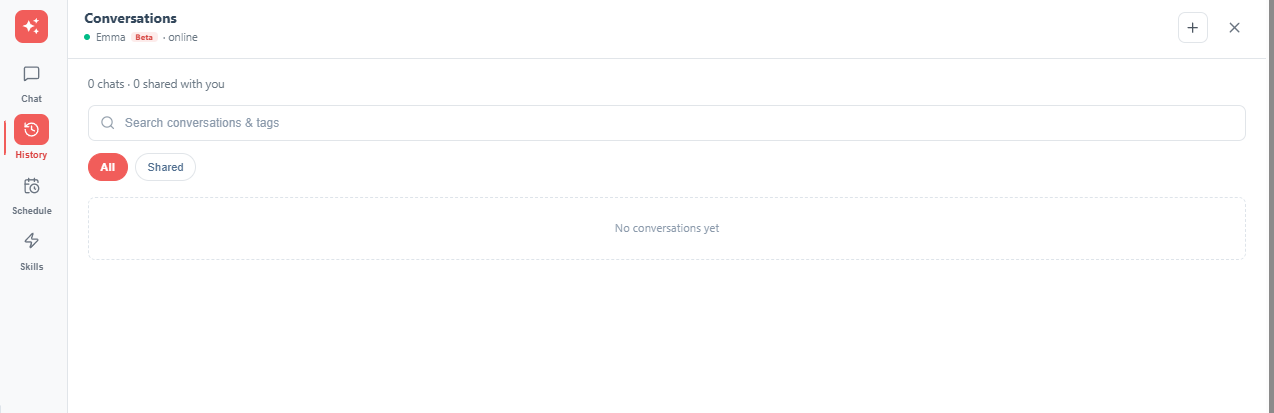
Browsing and Opening Conversations
Each past conversation is listed as a card in the sidebar showing the conversation title and a relative timestamp (for example, "19 days ago"). Click any conversation card to load it in the main chat area.
Searching Conversations
A "Search conversations" text field is available at the top of the sidebar. It includes a tag/filter icon for filtering by labels or keywords.
Renaming a Conversation
-
Hover over the conversation card. The ✏️ Edit (pencil) icon appears.
-
Click the pencil icon. The title becomes an editable text field.
-
Type the new name, then press Enter to save or Escape to cancel.
Tagging and Bookmarking a Conversation
Hover over a conversation card to reveal the 🏷️ Tag/Bookmark icon. Click it to tag or bookmark the conversation for quick reference. Custom tags can be created in ⚙️ Settings → Company Context → Conversation Tags.
Starting a New Conversation
Click the ⊕ New Chat button in the header toolbar to start a fresh, empty conversation. The previous conversation is preserved in the history.
Deleting a Conversation
Click the 🗑️ Delete Conversation button in the header toolbar to permanently delete the current conversation. Deletion cannot be undone.
Sharing a Conversation
-
Click the ↗ Share Conversation button in the header toolbar.
-
Use the Search by email dropdown to select one or more recipients.
-
Click Save to share, or Cancel to dismiss.
Recipients receive read-only access. They can view the conversation but cannot reply to or modify it.
💡 Do you think the content on this page needs improvement? Let us know at support@emax-digital.com