
Emma's Settings panel lets you personalise how Emma communicates with you and how it understands your business. This article covers the My Profile and Company Context tabs — the two tabs that shape Emma's responses for your specific role and organisation.
To open Settings, click the ⚙️ Settings icon in the Emma header toolbar.
Settings Overview

My Profile
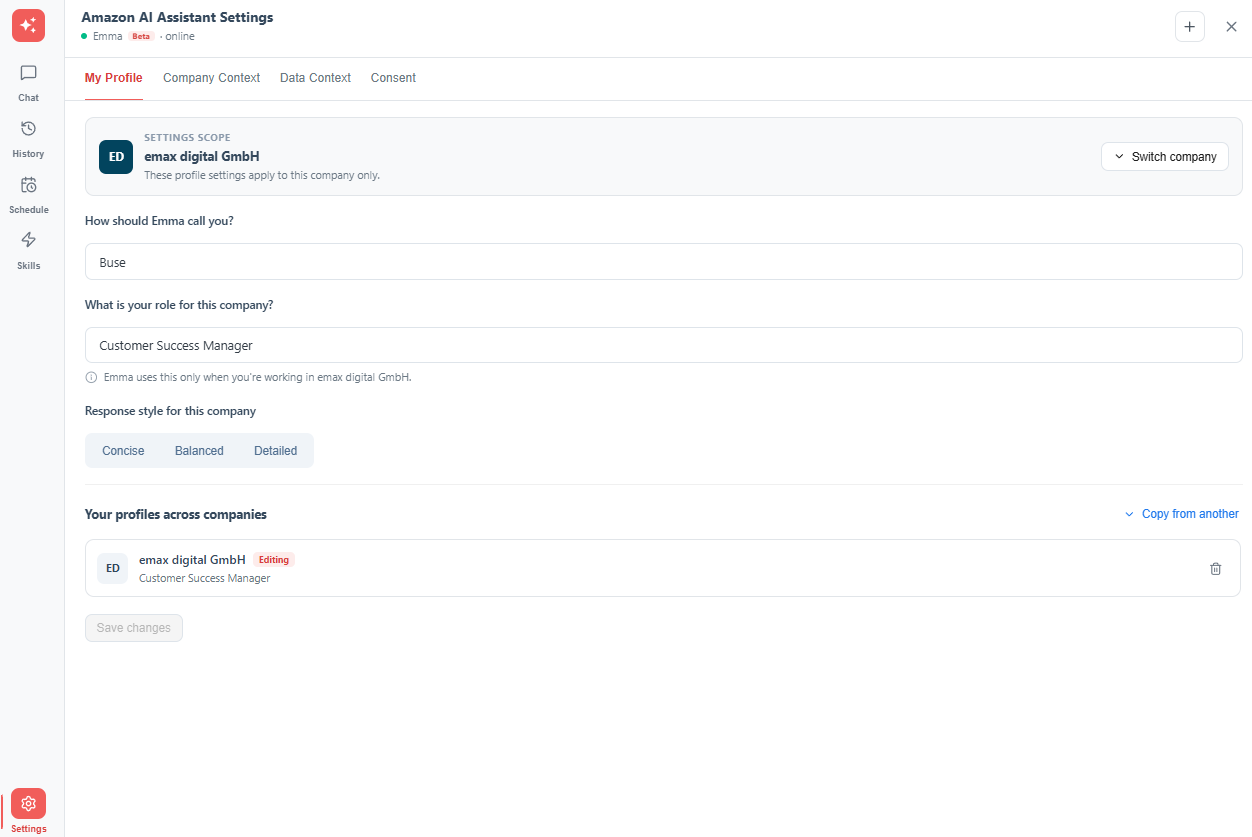
The My Profile tab lets you personalise how Emma addresses you and adapts its responses to your role.
|
Field |
Description |
|---|---|
|
How should Emma call you? |
Enter your preferred first name. Emma will use this name when addressing you in responses. |
|
What is your Role? |
Describe your role — for example, Account Manager or Category Manager. Emma uses this to contextualise insights and tailor the level of detail in responses. |
|
Response Style |
Describe your preferred format for responses. Examples: short summaries, detailed reports, or executive style. |
Click Save to apply your changes.
Company Context
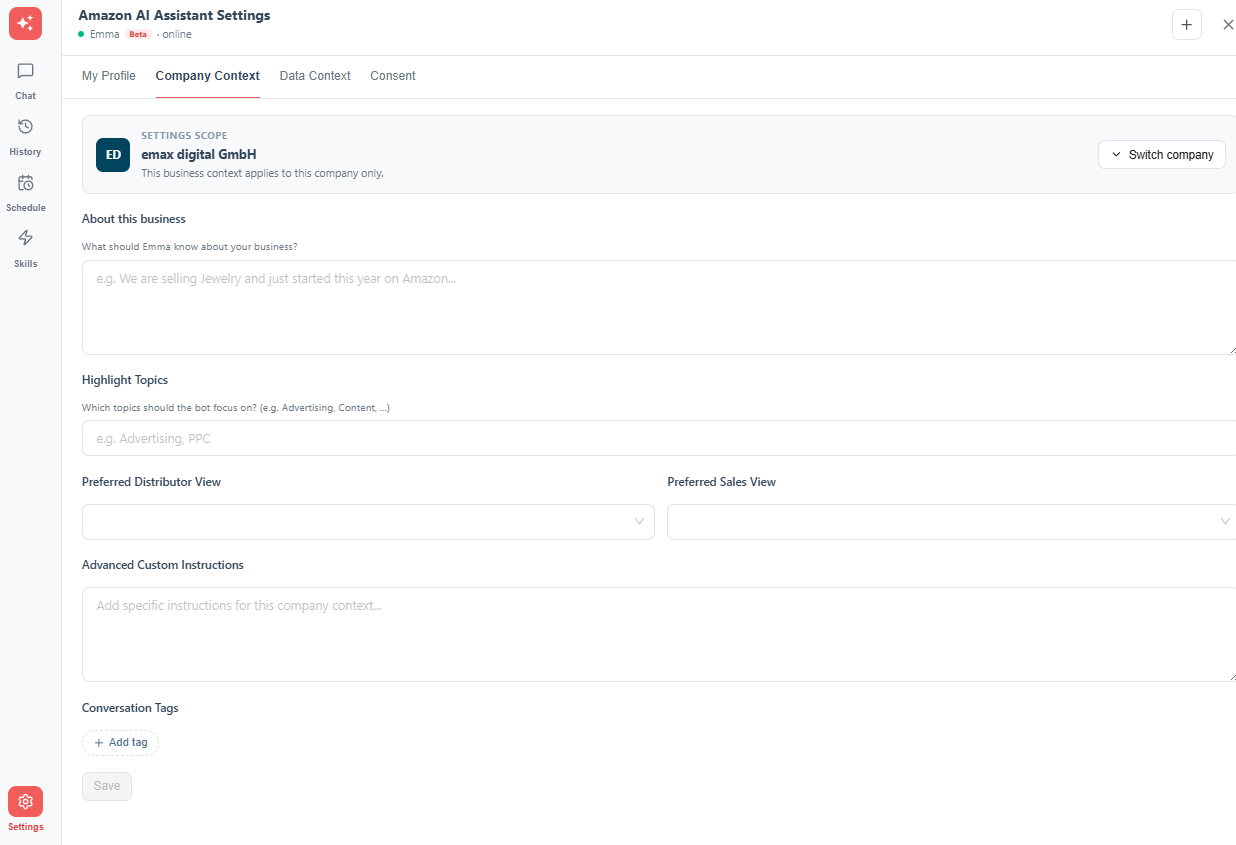
The Company Context tab lets you configure business-specific information so Emma understands the company's setup, focus areas, and priorities.
|
Field |
Description |
|---|---|
|
About this business |
Describe the business model, product category, and sales channels. Example: "We are selling Jewelry and just started this year on Amazon..." |
|
Highlight Topics |
Specify key focus areas such as Advertising, PPC, Content, or Inventory. Emma will prioritise these topics in responses. |
|
Preferred Distributor View |
Select a default distributor view from the dropdown. |
|
Preferred Sales View |
Select a default sales view from the dropdown. |
|
Advanced Custom Instructions |
A free-text field for any additional instructions specific to this company context. |
|
Conversation Tags |
Create custom labels to organise conversations. Click + New Tag to add a tag. |
Click Save to apply your changes.
Note: The Skills tab in Settings is covered in a separate article: Skills (Shortcuts).
💡 Do you think the content on this page needs improvement? Let us know at support@emax-digital.com