
This page explains how to invite and manage emax digital users, and which user roles are available and what each is used for.
Inviting and Managing Users
Invite new users
To invite and manage users in the tool, a user needs the "User Manager" role in addition to another user role.
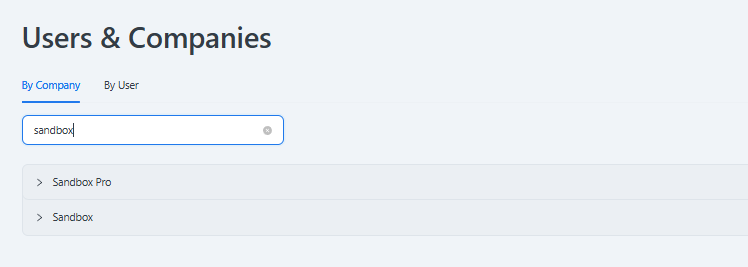
Go to Setup and select Users & Companies. You will see a list of accounts where you can manage users.
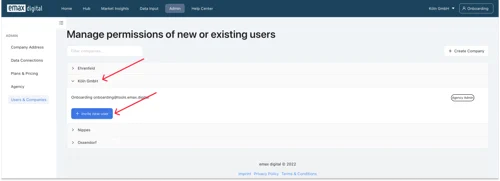
Select the account you want to add a new user to and click Invite new user.
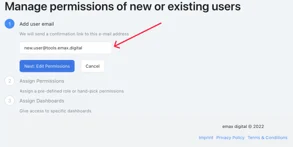
Enter the user's email address and click Next.
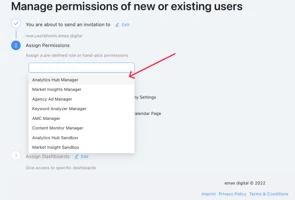
Now select the user roles you want to assign. You can assign one or multiple roles to a user. (An overview of the different user roles and their purpose is in the section below.)
A user can have different user roles for different companies.
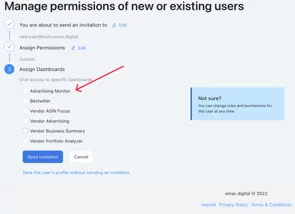
Next, assign the dashboards/reports to the new user and click Send Invitation. You can assign any dashboard/report that is available to you.
Check the checkbox and click Send Invitation, or review the user's settings first.
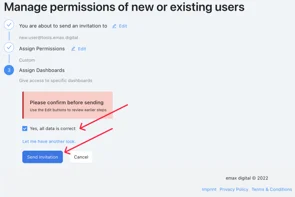
Clicking Send Invitation sends an email invitation to create an emax digital user account. The new user then appears in the user management section.
While the invitation is pending, you can re-send the invitation or copy a direct link to send to the user manually — useful if the automatically generated email ends up in the recipient's spam folder.
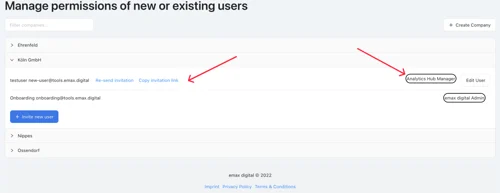
If you re-send an invitation or generate an invitation link, previous invitation links become invalid — only the newest link is active. Once the invitation is accepted and an emax digital user account is created, these buttons disappear.
You have now invited a user to an account. To add a user to multiple accounts, repeat the steps above for each account.
Manage existing users
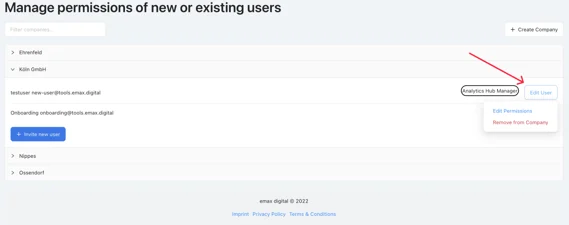
To manage existing users, click Edit User. Here you can edit a user's permissions or remove the user from the account. After clicking Edit Permissions, the steps are similar to inviting a new user.
Available User Roles
The table below explains which user role is used for which purpose and what each role lets you do.
|
User Role |
Purpose |
What you can do with this role |
|---|---|---|
|
Analytics Hub Manager |
Enables users to manage marketplaces and advertising |
View reports; manage data inputs; manage data connections |
|
Market Insights Manager |
Enables users to manage marketplaces |
View reports; manage data inputs |
|
AMC Manager |
Enables users to manage marketplaces |
View reports |
|
Agency Ad Manager |
Enables users to manage marketplaces |
View reports; manage data inputs; manage data connections |
|
Keyword Analyzer Manager |
Enables users to manage marketplaces |
View reports |
|
Content Monitor Manager |
Enables users to use the Content Monitoring feature |
View Content Monitor; manage master content |
|
ONIX Monitor Manager |
Enables users to use the ONIX Monitor |
View reports; manage ONIX uploads |
|
User Manager |
Enables users to invite, edit, and remove other users |
Manage users |