Migration note (Phase 1b): Content reproduced from the legacy page "How to connect a Vendor SP API?" (1666580613). Grammar and structure tidied; copy-paste errors from the Seller template corrected (Vendor wording); not yet optimised or fact-checked. Images carried over from the legacy source β intern to verify they display correctly.
If you're looking to link your Vendor Central account, here's where you can find out about the necessary requirements and how to connect to the Amazon Selling Partner API (SP-API) for vendors.
In which case is a Vendor SP-API connection relevant for me?
An SP-API connection is required for the following emax digital products:
-
Vendor Hub
-
Market Basket Report
-
Rapid Retail Analytics
-
Seller Monitoring
-
Review Monitor
-
Content Monitor
What data comes from the Vendor SP-API?
Reports for the Amazon Retail Analytics program (ARA) and Brand Analytics reports are imported into the emax digital Analytics Hub via the SP-API. This includes:
-
Sales and Traffic Reports
-
Real-time Sales Report
-
Inventory Report
-
NetPPM Report
-
Market Basket Report
How to connect a Vendor SP-API
Step 1: Make sure you are not logged into any Amazon account
First of all, make sure that you are not logged into an Amazon account with the browser you are currently using. To do this, go to the Amazon Marketplace website. You can see whether you are logged in with an account at the top right of the screen. If you are still logged in, log out.
If you are registered with Amazon, this refers to a specific marketplace. So if you are registered on www.amazon.de and www.amazon.es, you must log out separately on both websites.
So check all Amazon marketplaces you want to connect to the emax digital Analytics Hub beforehand.
Step 2: Make sure you have access to the specific Vendor Central account you want to connect
To give the emax digital Analytics Hub access to the respective Vendor Central, authorization takes place via Login with Amazon. You grant this authorization by logging in during the connection process with a user account that has access to the respective Vendor Central account.
Please note that you can only grant the emax digital app access rights with an account that you have been authorized in yourself.
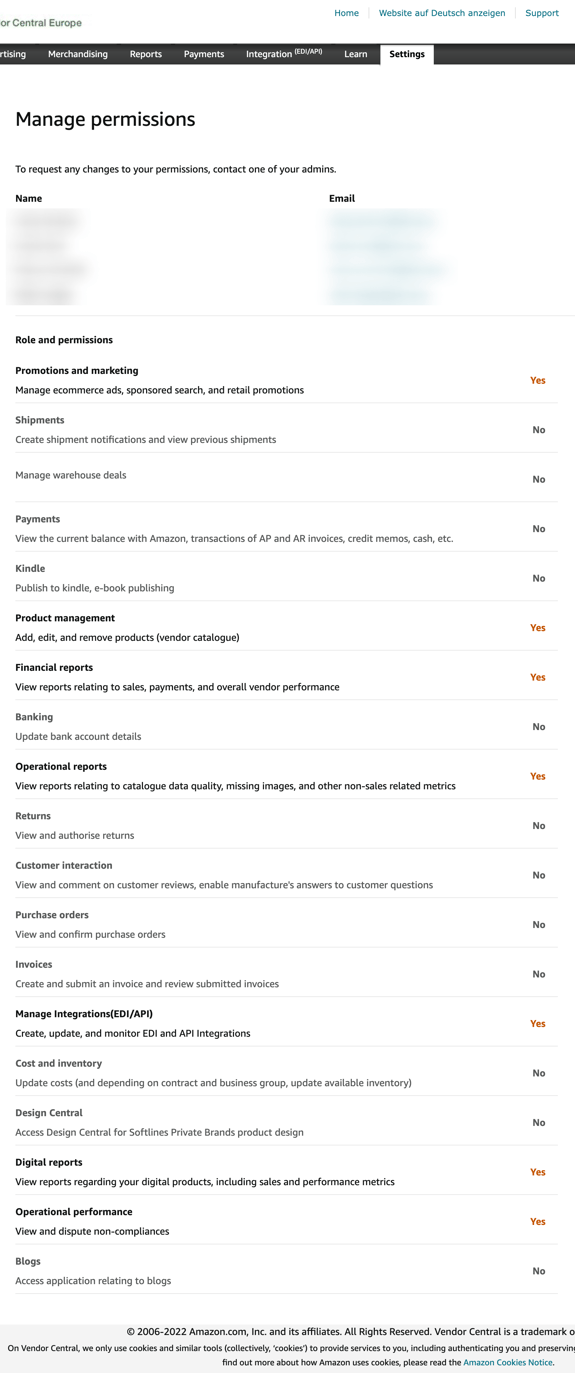
If you do not have access to sales reports in Vendor Central with your account, you cannot grant access rights for the sales reports. It is therefore important to ensure that you have the required access rights before authorization.
The following access rights should be granted:
Step 3: Connect your emax digital company account with the Vendor SP-API
After you have created the prerequisites for a successful connection, you must now establish the actual connection.
To do this, log in with an emax digital user account and select the company account that you want to connect to a Vendor Central account.
In our example, we select the company "Nippes" because we want to establish a data connection here. Make sure that you select the right company for the Vendor Central account.
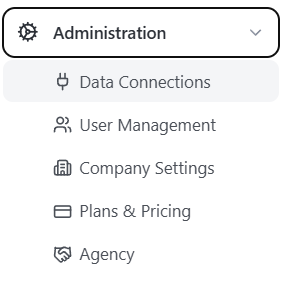
Click on the cogwheel at the top right of the screen and select Admin.
Now select "Data Connections" in the second-level navigation on the left side of the screen.
Now click on "manage" in the section for the Vendor Connections. Select the appropriate region for the marketplace you want to connect.
Amazon's assignment of which country belongs to which region is unfortunately not entirely clear. Depending on the context, a different assignment can be found. Since the SP-API is a service from the AWS area, the assignment according to AWS documentation applies. The details of which country belongs to which Amazon region can be found in the Reference section.
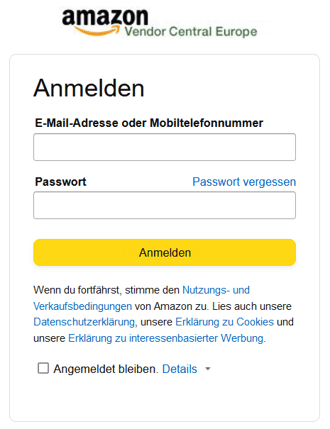
After selecting the region, you will be redirected to the Amazon login screen. Log in here with the login credentials that you normally use to log in to the respective Vendor Central.
If you have access to multiple Vendor Central accounts with the user account, please make sure that you select the correct account.
After you have selected an account, you will be asked to confirm your selection. Check again that you have selected the correct Vendor Central account. You can see the name of the selected account in the upper left corner of the screen.
Click on confirm to complete the authorization.
You have successfully authorized access to Vendor Central. You will now be redirected back to the emax digital Analytics Hub, which now has the authorization to import data from Vendor Central. The data import starts immediately.
Once the maximum number of accounts (according to your contract) has been reached, the authorization button will be grayed out.
Done! Your Vendor Central account is now connected. The data import starts immediately after the connection.
For details on how much history is imported, how long it takes for your data to appear, and how to disconnect or reconnect an account, see Vendor Central β Data Scope and Update Frequency (Reference and Data) and Managing Data Connections (Setup and Configuration β Administration).
How Vendor onboarding works
Migration note (Phase 1b): This section was reproduced from the legacy Getting Started page "How does Onboarding work for Vendors?" (1666416730). It is added here so the connection guide and the surrounding onboarding flow live together. The individual connection how-tos are not duplicated β they are the steps above and on the related connect pages. Not yet optimised or fact-checked.
Connecting Vendor Central is one step in a guided onboarding. To use all functions of the Analytics Hub, you connect the relevant data sources and complete a few setup tasks together with your customer success manager.
In a nutshell:
-
Connect Vendor Central via SP-API (see the steps above).
-
Connect your Advertising profile via the Advertising API (see How to Connect Sponsored Ads (SPA)).
-
Invite your customer success manager to your Vendor Central and Advertising profile.
-
Onboarding kick-off.
-
Set up your Analytics Hub.
-
Set up your custom catalog columns (see How to Set Up the Vendor Central Catalog).
-
Set up keywords (see Setup and Configuration β Monitoring Configuration).
-
Final onboarding session.
Please complete the connection and invitation steps before the onboarding kick-off.
Invite your customer success manager. Invite your customer success manager to your Vendor Central and Advertising profile so they can help you get the most out of your Analytics Hub and your Amazon business. Invite: cs.vc@tools.emax.digital.
Onboarding kick-off session. Every business is different, even as an Amazon vendor β that's why we design onboarding together with you rather than leaving you alone with it, so you can get the most out of your data.
Set up custom catalog columns. Add additional data to combine with your Amazon data and get a view of your business from another angle.
Set up keywords. Set up your keywords to get an overview of the visibility of your products, your brand, and your competitors.
Set up advertising budgets. Set up your advertising budget so you can always keep track of your advertising goals.
Final onboarding session. In this session you get to know all functions of the Analytics Hub and your first tips and tricks to improve your business on Amazon.