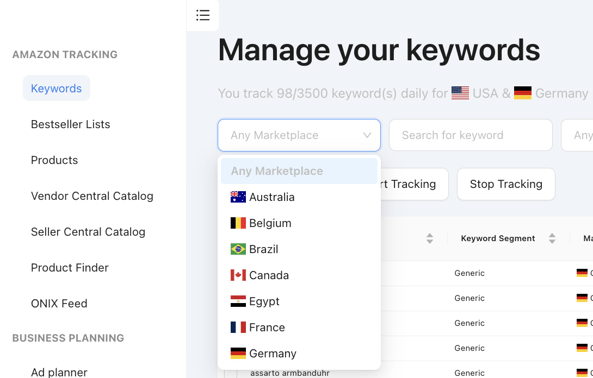
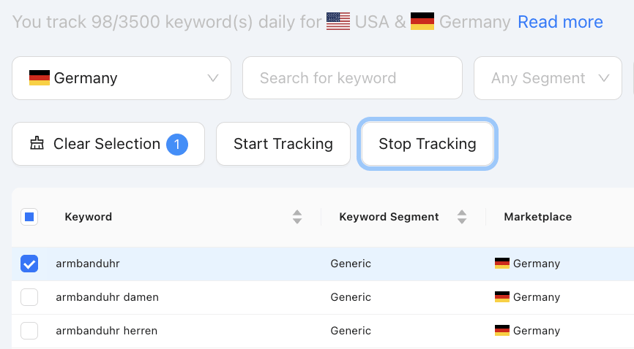
PSteps how to initially set up tracking for keywords
-
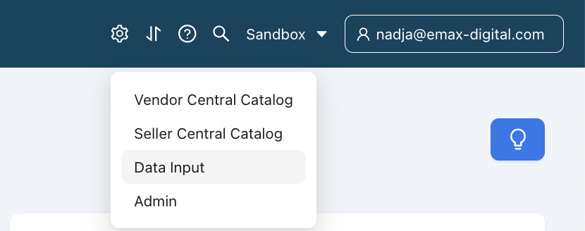
Navigate to the wheel, and select data Input in the drop-down
⚠️ External image — needs to be re-uploaded to Confluence
![]()
Source: https://knowledge.emax-digital.com/hs-fs/hubfs/Bildschirmfoto%202024-02-23%20um%2010-04-57-png.png
-
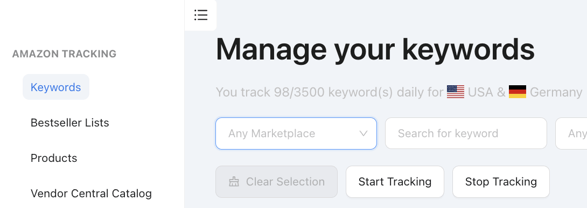
Move to the Navigation on the left side and select Keywords
⚠️ External image — needs to be re-uploaded to Confluence
![]()
Source: https://knowledge.emax-digital.com/hs-fs/hubfs/Bildschirmfoto%202024-02-23%20um%2011-15-32-png.png
-
**Select a marketplace
⚠️ External image — needs to be re-uploaded to Confluence
![]()
Source: https://knowledge.emax-digital.com/hs-fs/hubfs/Bildschirmfoto%202024-02-23%20um%2011-16-11-png.png
** 4. **Download a template to add new Keywords
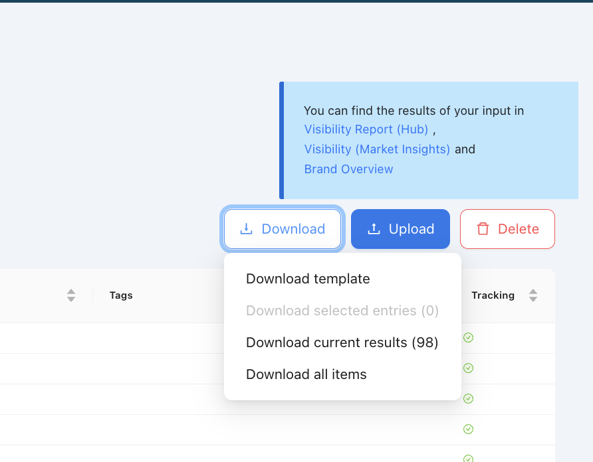
⚠️ External image — needs to be re-uploaded to Confluence
![]()
Source: https://knowledge.emax-digital.com/hs-fs/hubfs/Bildschirmfoto%202024-02-23%20um%2011-18-16-png.png
** 5. *Edit the file by entering* 1. Keyword 2. Keyword segment 3. Marketplace 4. Tags (optional) 5. Activate tracking

⚠️ External image — needs to be re-uploaded to Confluence
![]()
Source: https://knowledge.emax-digital.com/hs-fs/hubfs/Bildschirmfoto%202024-02-23%20um%2011-20-25-png.png
Please note:
Valid values for the keyword segment are only
-
Generic
-
Branded
-
Competitor
Any other entry will cause the upload to fail.
5.Upload the edited file and create a group name****
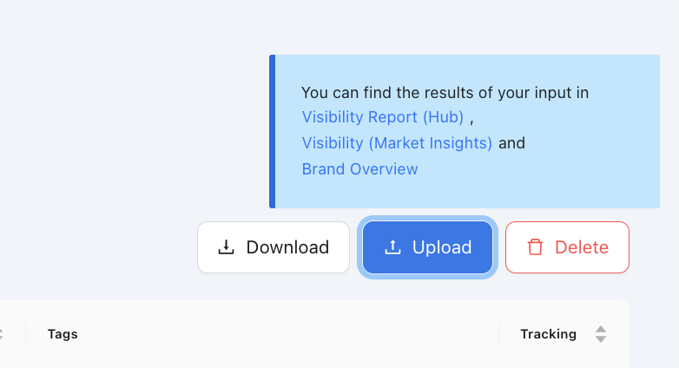
⚠️ External image — needs to be re-uploaded to Confluence
![]()
Source: https://knowledge.emax-digital.com/hs-fs/hubfs/Bildschirmfoto%202024-02-23%20um%2011-22-05-png.png
Start and Stop tracking for Keywords
-
**Start tracking Keywords
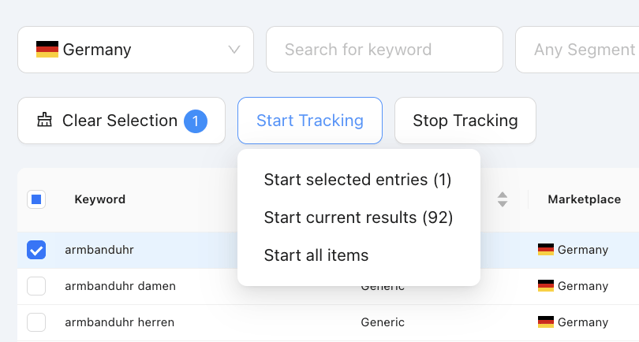
⚠️ External image — needs to be re-uploaded to Confluence
![]()
Source: https://knowledge.emax-digital.com/hs-fs/hubfs/Bildschirmfoto%202024-02-23%20um%2011-23-57-png.png
** 2. Stop tracking Keywords
**
⚠️ External image — needs to be re-uploaded to Confluence
![]()
Source: https://knowledge.emax-digital.com/hs-fs/hubfs/Bildschirmfoto%202024-02-23%20um%2011-24-42-png.png
**
Where do I see the results
You can see the results of the Amazon Search based on your entered keywords in the Visibility report as part of the Market Insights, or in the Visibility Dashboard in the Vendor or Seller Hub.
Please Note: The results will be available in your reports within 24 hours of uploading.
You haven't booked the Market Insights?Get a free demo
🏷️ Tags: keywords-visibility · how-to · keywords · setup