Steps how to initially set up tracking for keywords
-
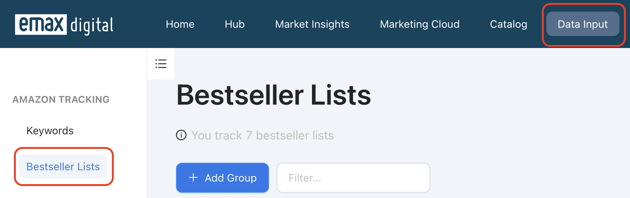
Navigate to data input in the first navigation bar and click bestseller lists on the left
**
⚠️ External image — needs to be re-uploaded to Confluence
![]()
Source: https://knowledge.emax-digital.com/hs-fs/hubfs/Screenshot%202022-06-29%20at%2019-46-44-png.png
**
-
Add a group and select a marketplace
**
⚠️ External image — needs to be re-uploaded to Confluence
![]()
Source: https://knowledge.emax-digital.com/hubfs/Group%201%20(3)-png.png
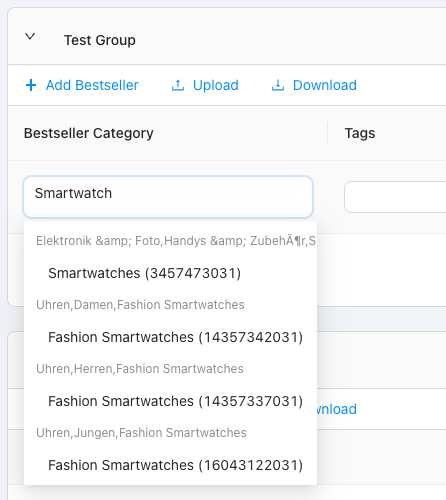
** 3. Add a single bestseller list
⚠️ External image — needs to be re-uploaded to Confluence
![]()
Source: https://knowledge.emax-digital.com/hubfs/Screenshot%202022-06-30%20at%2008-09-17-png.png
-
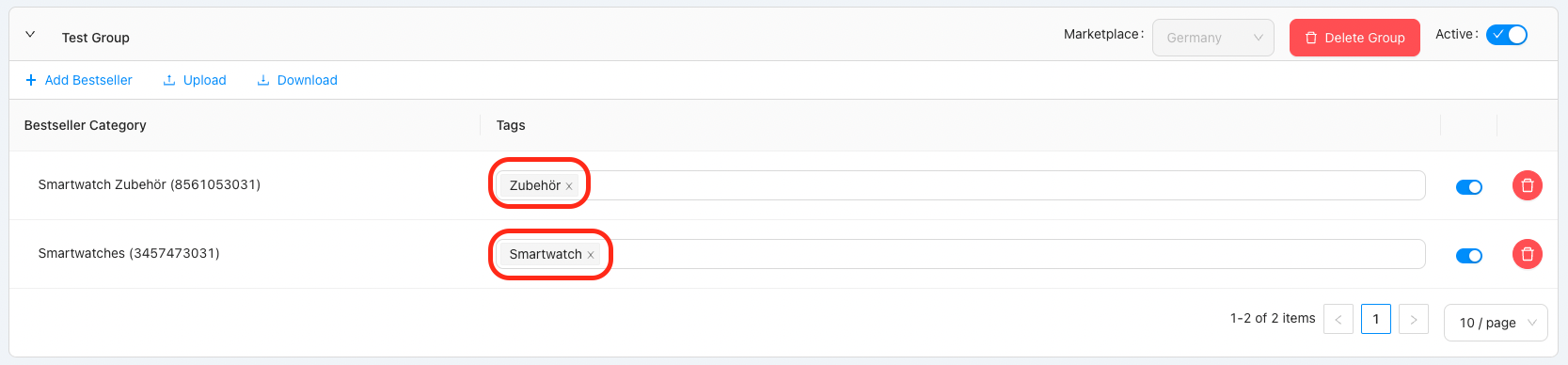
add tags to filter a group of bestseller lists in your market insights reports
⚠️ External image — needs to be re-uploaded to Confluence
![]()
Source: https://knowledge.emax-digital.com/hubfs/Screenshot%202022-06-30%20at%2008-11-40-png.png
-
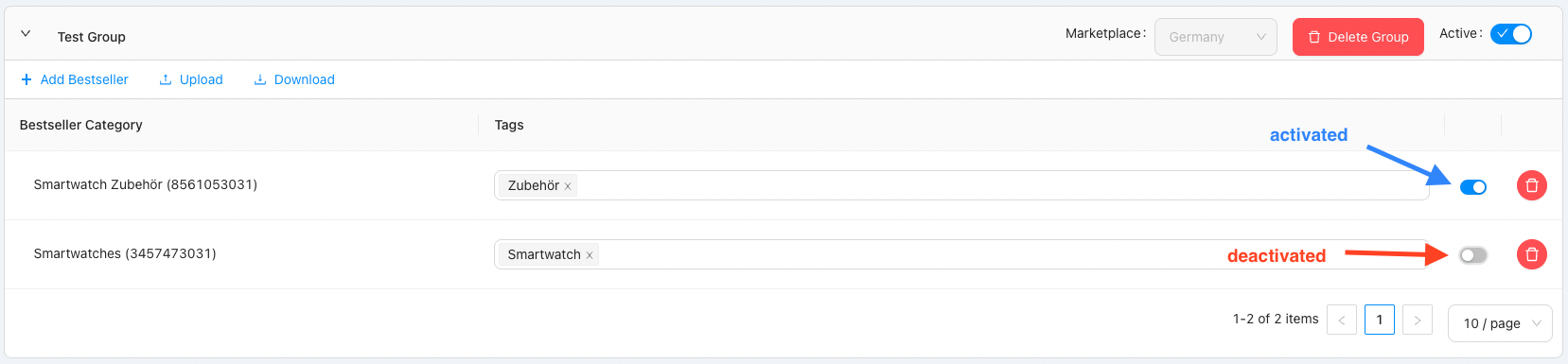
activate/deactivate tracking (required to see results in reports)
⚠️ External image — needs to be re-uploaded to Confluence
![]()
Source: https://knowledge.emax-digital.com/hubfs/Screenshot%202022-06-30%20at%2008-14-13-png.png
Where do I see the results
You can see the results of the bestseller lists based on your bestsellers in the Bestseller report as part of the Market Insights.
Please Note: The results will be available in your reports within 24 hours of uploading.
You haven't booked the Market Insights?Get a free demo
🏷️ Tags: keywords-visibility · how-to · seller · bestseller · setup