
App path -> https://app.emax-digital.com/performance-summary-hub-seller/visibility
Overview
The Visibility dashboard tracks how prominently your products appear in Amazon search results for the keywords you care about — split between Paid (sponsored placements) and Organic (natural search rankings). It is built around the keyword list you upload in the data input section and groups those keywords into three strategic segments: Branded (your own brand terms), Generic (category and product-type searches), and Competitor (terms associated with rival brands).
For each segment, the dashboard shows your Visibility Share — the percentage of all search result positions across your tracked keywords that are occupied by your ASINs — along with how that share has developed over time, how it compares to the prior period, and (in the over-time view) how much advertising spend you are putting behind those keywords.
This is the starting page in a two-stage flow: the View More buttons at the bottom drill into a more detailed page for each segment.
This dashboard is for Seller Central accounts. Equivalent visibility tracking exists separately for Vendor accounts.
What You Can See on This Dashboard
Section: Header Context Bar
A simple top strip showing the Date range, Marketplace, and Currency currently applied to the dashboard — so you always know what scope of data you are looking at before reading any chart.
Section: Keyword Segmentation for Your Tracked Keywords
A breakdown of how your tracked keywords are distributed across the three segments — Branded, Generic, and Competitor — for the selected reporting period.
What it tells you: whether your tracking list is balanced across the segments you care about. Only keywords with at least one recorded visibility data point in the chosen period are counted, so the breakdown reflects active, measurable keywords rather than your full upload. Each keyword is counted once per segment even if it appeared on multiple dates.
Section: Your Catalog ASINs in {Placement Type} Search
Shows how many of your catalogue ASINs actually appeared in keyword search results during the selected period, split between Found (appeared in at least one search result crawl) and Not Found for the chosen placement type (paid or organic).
What it tells you: the share of your assortment that is genuinely visible in search. ASINs in the "Not Found" group are not winning any tracked-keyword visibility and are candidates for listing optimisation, advertising support, or further investigation.
Section: {Placement Type} Visibility Over Time
A cross-segment trend chart showing how your visibility share and advertising spend have developed over time, broken down by keyword segment (Branded / Generic / Competitor).
Key metrics:
-
Visibility Share — the percentage of search result positions across your tracked keywords in a segment that are occupied by your ASINs in the chosen placement type. Higher means your products appear more often and more prominently than competitors'.
-
Ad Spend — total spend on keyword-targeted Sponsored Products (keyword match types only) and Sponsored Brands campaigns targeting keywords that had active visibility data in the period.
Lookback window depends on the granularity selected: 12 weeks (Weekly), 6 months (Monthly), 3 quarters (Quarterly). For Yearly view, the chart shows monthly data points within the selected year.
Section: Tracked Keywords (per segment)
Three scorecards — one each for Branded, Generic, and Competitor — showing the number of tracked keywords currently in each segment. A quick reference for the size of each keyword set behind the metrics.
Section: {Placement Type} Visibility Over Time — by Segment
Three bar charts in a row, one per keyword segment, each showing the visibility share trend over time for that segment alone. Use these for a focused, segment-by-segment read rather than the cross-segment comparison above.
-
Branded Keyword Visibility Trend — your share of search results when shoppers search for your brand. A high, stable share means you are defending your brand searches well.
-
Generic Keyword Visibility Trend — your share on category and product-type searches. Growing share here signals shelf-space wins against competitors on non-branded demand.
-
Competitor Keyword Visibility Trend — your share on keywords associated with rival brands. A rising share here means your products are increasingly appearing in front of shoppers searching for competitors — useful for measuring conquest activity.
The lookback window matches the cross-segment chart: 12 weeks (Weekly), 6 months (Monthly), 3 quarters (Quarterly), or monthly points within the selected year (Yearly).
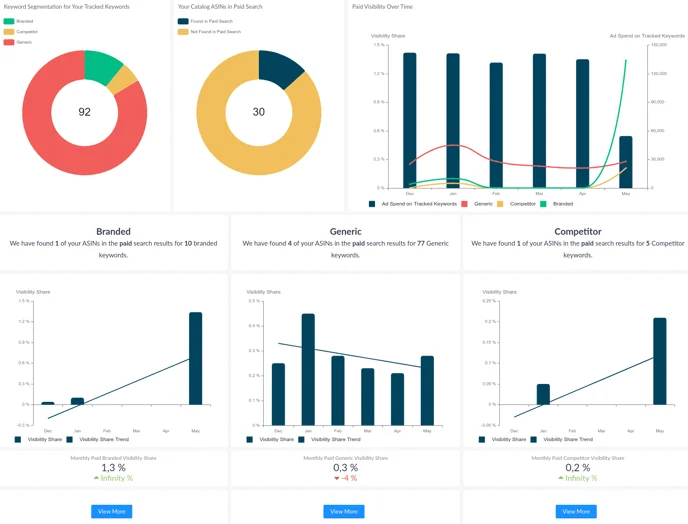
Section: {Reporting Range} {Placement Type} Visibility Share — Current vs. Prior Period
Three scorecards — one per segment — comparing the current period's visibility share with the immediately preceding period of equal length (e.g. last month vs the month before). If the current period is still in progress, data up to the latest available date is used; if no data exists for the current period, a placeholder value of 0 is shown to keep the comparison intact.
-
Branded Visibility Share — Current vs. Prior
-
Generic Visibility Share — Current vs. Prior
-
Competitor Visibility Share — Current vs. Prior
Each scorecard shows the current value and prior-period value side by side, making it easy to see at a glance whether each segment is trending up or down.
Section: View More (drill-downs)
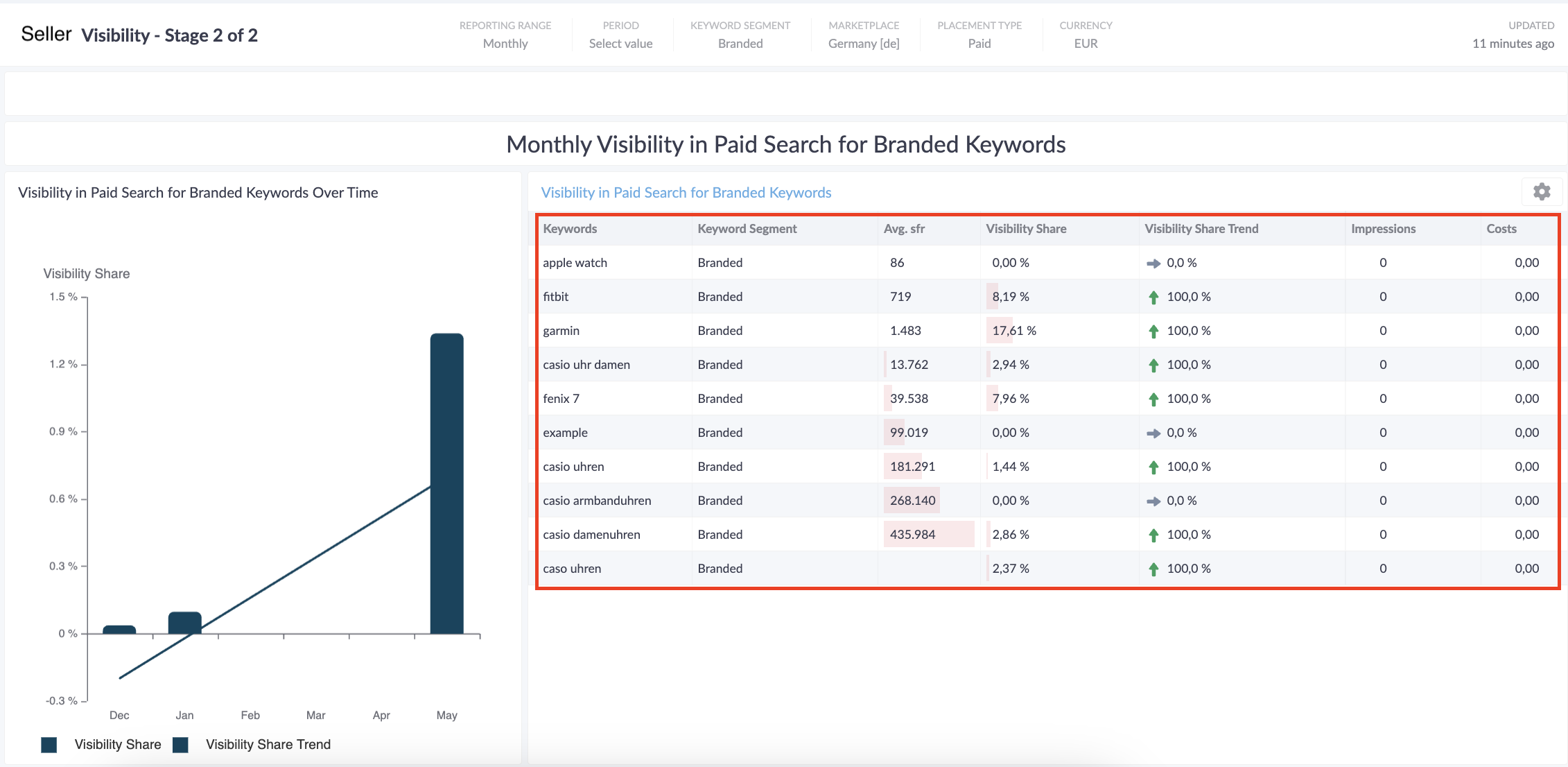
A row of three View More buttons — one per segment — that link to the more detailed Stage 2 dashboard for that segment, with keyword-level breakdowns and deeper diagnostics.
Available Filters
|
Filter |
What it does |
Multi-select? |
Default |
|---|---|---|---|
|
Marketplace |
Restricts the view to a specific Amazon marketplace (e.g. DE, UK, FR) |
No |
— |
|
Currency |
Currency in which Ad Spend and any monetary KPIs are displayed |
No |
— |
|
Reporting Range |
Granularity of the trend charts and the current-vs-prior comparison: Weekly, Monthly, Quarterly, or Yearly |
No |
— |
|
Placement Type |
Switches the whole dashboard between Paid (sponsored placements) and Organic (natural search results) visibility |
No |
— |
|
Period |
The specific date / date range the dashboard reports on (constrained to the Reporting Range above) |
No |
— |
Filter interaction notes
-
Reporting Range and Period work together. Switching Reporting Range (e.g. Monthly → Weekly) reloads the Period dropdown with the matching values.
-
Placement Type drives every chart title and metric on the page — Paid and Organic visibility are reported in the same dashboard but never combined into a single view. To compare paid and organic for the same segment, run the dashboard twice.

-
The current-vs-prior scorecards always compare to the immediately preceding period of equal length, regardless of Reporting Range — i.e. a Weekly view compares to the prior week, a Monthly view to the prior month, and so on.
Use Cases
1 — Weekly visibility pulse check
You want a quick read on whether your visibility is holding, growing, or slipping.
-
Set Reporting Range = Weekly, Placement Type = Organic, Period = the most recent closed week.
-
Read the three current-vs-prior scorecards (Branded / Generic / Competitor) to see directional movement at a glance.
-
Use the per-segment trend bar charts to confirm whether a one-week change is part of a wider trend or just a blip.
-
Repeat with Placement Type = Paid to see whether advertising-driven visibility is moving in step with organic or diverging.
2 — Identifying ASINs that are invisible in search
You suspect some of your catalogue is not showing up for the keywords you track.
-
Set Placement Type = Organic and select the period of interest.
-
Open the Your Catalog ASINs in Organic Search section and look at the "Not Found" group.
-
These ASINs are not earning visibility on any tracked keyword and are candidates for listing optimisation (title, bullets, backend keywords), more aggressive Sponsored Products targeting, or a content refresh.
-
Repeat with Placement Type = Paid to see whether advertising is at least securing visibility where organic is failing.
3 — Measuring branded defence
You want to confirm that competitors are not stealing your brand searches.
-
Set Placement Type = Paid (the placement most often used by competitors to conquest brand terms).
-
Read the Branded Visibility Trend chart for the last several periods.
-
If Branded paid visibility share is declining, competitors may be bidding on your brand terms — escalate brand-defence Sponsored Products and Sponsored Brands campaigns and check Branded Ad Spend in the over-time chart to confirm whether your defence spend has dropped.
4 — Tracking generic shelf-space wins
You are running a campaign to grow on category-level (non-branded) search terms.
-
Set Placement Type = Organic, Reporting Range = Monthly.
-
Use the Generic Visibility Trend bar chart to track whether organic share is growing month-over-month.
-
Cross-reference with the cross-segment over-time chart to see whether rising Generic visibility is coming alongside increased Ad Spend — i.e. whether the growth is being bought or earned.
-
If paid is driving organic, plan to taper spend gradually and watch whether organic holds.
5 — Competitor conquest measurement
You want to know whether your products are starting to appear when shoppers search for rival brands.
-
Set Placement Type = Paid, Reporting Range = Monthly.
-
Watch the Competitor Visibility Trend chart over several months — a rising share means your conquest campaigns are landing impressions on competitor terms.
-
Check the Competitor Ad Spend line in the cross-segment chart to confirm the share gain is consistent with spend, not an anomaly.
-
For deeper keyword-level detail, click the View More button under the Competitor segment to open the Stage 2 drill-down.
Limitations & Notes
-
Tracked keywords only. The dashboard analyses visibility on the keywords you have uploaded in the data input section. Any keyword not on your tracking list is invisible to this dashboard — including new long-tail terms shoppers may be searching. Keep the tracked list current.
-
Active keywords only. Keyword counts and segment breakdowns include only keywords with at least one recorded visibility data point within the selected period. Keywords on your list that produced no measurable data in the window are excluded from the counts.
-
Placement Type is single-select. Paid and Organic visibility cannot be combined into one view — switch the filter and re-read the dashboard to compare.
-
Ad Spend scope. The Ad Spend line on the over-time chart covers Sponsored Products (keyword match types only) and Sponsored Brands targeting keywords with active visibility data in the period. Sponsored Display, ASIN-targeted Sponsored Products, and DSP spend are not included.
-
Lookback window is fixed per granularity. The over-time charts always show 12 weeks (Weekly), 6 months (Monthly), 3 quarters (Quarterly), or monthly points within the selected year (Yearly). You cannot freely extend the chart range beyond these defaults.
-
In-progress periods. If the selected period is still ongoing, the current-vs-prior scorecards use data up to the latest available date — meaning the current value will look smaller than the prior period until the period closes. Wait for a closed period before drawing firm conclusions on direction.
-
Zero placeholder. If no data exists for the current period in the current-vs-prior scorecards, the value is shown as 0 to keep the comparison rendering — this is a display fallback, not a real measurement of zero visibility.
-
Seller Central scope. Vendor (1P) visibility is tracked in a separate equivalent dashboard.