
App path -> https://app.emax-digital.com/portfolio-analyzer-hub-seller
Overview
The Portfolio Analyzer is the strategic catalogue-management dashboard for Seller Central accounts. It classifies every ASIN in your portfolio into one of four performance quadrants — Star, Quick Buy, Shelf Warmer, or Question Mark — based on how its traffic (page views) and conversion rate compare to the rest of your catalogue. Alongside this strategic view, it runs seven automated alarms (traffic decline, conversion decline, missing ads, missing A+ content, weak content, lost Buy Box, and price below RRP) so you can instantly see where to focus.
It is designed for brand managers, e-commerce leads, and account managers who need to answer: "Which of my products are working, which are wasting traffic, which are hidden gems, and where are the listing or pricing problems I should fix this week?"
All quadrant assignments are relative to your own portfolio, not against external benchmarks — the median page-view and conversion-rate values across your catalogue split the matrix into the four zones.
What You Can See on This Dashboard
The dashboard flows top-to-bottom: a Strategic Portfolio Matrix at the top, then excluded-product counters for items with missing data, then an Alarm Summary scorecard, and finally a detailed Product Overview table at ASIN level.
Section 1 — Header Bar
A read-only summary at the top of the page confirming the active filter context: the selected Date (Period), Marketplace, and Currency. Use this as a sanity check before screenshotting or sharing.
Section 2 — Strategic Portfolio Matrix (Conversion Matrix)
The headline view of the dashboard. Each item in your portfolio is plotted on a scatter chart by its percentile rank on two axes — page views (horizontal) and conversion rate (vertical) — and assigned to one of four quadrants relative to the rest of your catalogue.
Quadrant definitions:
-
⭐ Star — High page views and high conversion rate. Your best performers, driving both traffic and sales efficiency. Action: protect and invest.
-
⚡ Quick Buy — Low page views but high conversion rate. Visitors who find these products tend to buy — the opportunity is to drive more traffic via ads, SEO, or merchandising. Action: scale visibility.
-
📦 Shelf Warmer — High page views but low conversion rate. Traffic is there, but the listing isn't converting. Action: review content, images, pricing, reviews, or Buy Box ownership.
-
❓ Question Mark — Low page views and low conversion rate. Underperforming on both dimensions. May be a product at the very start or end of its Amazon lifecycle. Action: decide whether to invest, relaunch, or deprioritise.
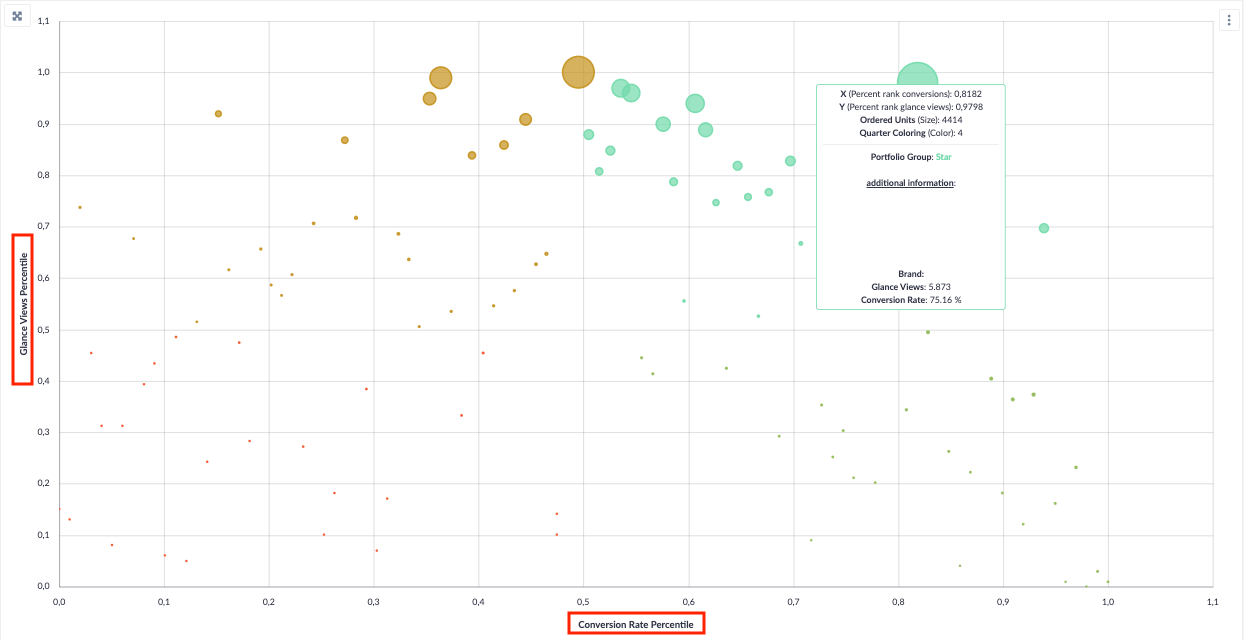
Visualization: Scatter / xy-chart plotting each portfolio item by percentile rank on glance views and conversion rate, colour-coded by quadrant. A companion detail table (right of the matrix) lists every item with: ASIN / view dimension · quadrant classification · page views · conversion rate · ordered units · percentile rank glance views · percentile rank conversions.
Important: Quadrant assignment is relative to your own catalogue. A "Star" in a small catalogue is not directly comparable to a "Star" in a large catalogue — the median splits the matrix, so every portfolio will always have items in each quadrant.
Section 3 — Excluded-Products Counters
Three small counters that tell you how many items have been excluded from the matrix and table because of missing or incomplete data. These exist so you don't lose visibility on edge-case products that wouldn't otherwise show up.
-
Units Ordered but no Page Views — ASINs that sold but for which no page-view data was recorded (often a detail-page tracking gap).
-
Page Views but no Units Ordered — ASINs that received traffic but no orders in the period (zero conversion).
-
No Units Ordered and no Page Views — ASINs in your catalogue with no activity at all in the period.
Each counter has a button that opens the corresponding list of products.
Section 4 — Alarm Summary
A scorecard showing how many ASINs in your portfolio segment are currently triggering each alarm type. Use this as a one-glance health check.
Alarm definitions:
-
Page Views Alarm — Page views declined vs. the previous period. Traffic is dropping.
-
Conversion Rate Alarm — Conversion rate declined vs. the previous period. More visitors are leaving without buying.
-
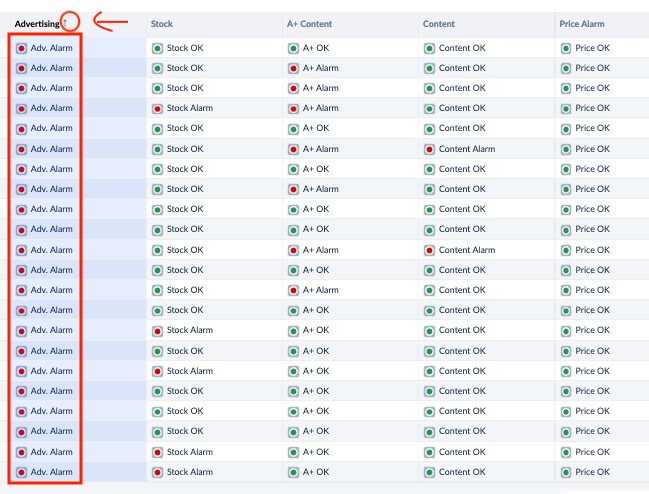
Advertising Alarm — No advertising spend was recorded for the ASIN in the period. The product is receiving no paid traffic support.
-
Missing A+ — The listing has no A+ or A+ Premium content. Adding rich content typically lifts conversion.
-
Content Alarm — The listing's content score is in the bottom third of your catalogue. Title, images, or bullets may be insufficient.
-
LBB Alarm (Lost Buy Box) — Lost Buy Box share exceeds 10%. A competitor is winning the Buy Box more than 10% of the time, which directly costs sales.
-
Price Alarm — The current Buy Box price is below the RRP (Recommended Retail Price) maintained in the catalog. The product is selling below the intended price point.
Visualization: A row of seven number scorecards — one per alarm type — each clickable to drill down to the affected ASINs.
To the right of the alarm summary, a "View more details on ASIN level" block provides two shortcut buttons that jump you into the Performance and Content drill-down dashboards for the filtered selection.
Section 5 — Product Overview (ASIN-level Table)
The full operational table at ASIN level — one row per product — combining sales, traffic, conversion, content, Buy Box, and pricing signals.
Columns shown:
-
Identification: Portfolio Group · ASIN · SKU · Product Title
-
Sales: Units Ordered · Units Ordered YTD · Ordered Product Sales
-
Traffic & Conversion: Page Views · Page Views Trend · Conversion Rate · Conversion Rate Trend
-
Alarms (with traffic-light indicators): Advertising · A+ Content · Content · LBB > 10% · Conversion Rate Alarm · Glance Views Alarm · Price Difference · Price Alarm
Trend logic: Trend columns compare the selected period to the previous equivalent period (month-over-month by default). For a running month, the trend compares the current month-to-date with the previous month up to the same day-of-month, so the comparison is always like-for-like.
Reading the "n/a" values: If a cell shows "n/a", it means either (a) detail-page tracking is not yet active for that ASIN, or (b) for Price Alarm specifically, no Recommended Retail Price has been maintained in the Seller Central catalog yet. Maintaining RRPs in the catalog is what activates the Price Alarm.
Available Filters
|
Filter |
What it does |
Multi-select? |
Default |
|---|---|---|---|
|
Reporting Range |
Sets the granularity of the analysis: Weekly, Monthly, Quarterly, or Yearly |
No |
Monthly |
|
Period |
The specific period the dashboard reports on (constrained by the Reporting Range) |
No |
— |
|
Marketplace |
Restrict the view to a specific Amazon Seller Central marketplace |
No |
— |
|
Currency |
Currency used for all monetary values |
No |
— |
|
View By |
Aggregation dimension for the matrix: ASIN, parent ASIN, brand, category, or sub-category |
No |
ASIN |
|
Category |
Restrict the view to one or more product categories |
Yes |
All categories |
|
Subcategory |
Restrict to one or more sub-categories within the selected Category |
Yes |
All subcategories |
|
Tag |
Filter by manually assigned product tags |
Yes |
All tags |
|
ASIN Auto Tag |
Filter by automatically assigned tags (lifecycle, focus group, etc.) |
Yes |
All auto tags |
|
Portfolio Groups |
Filter by quadrant: Star, Quick Buy, Shelf Warmer, or Question Mark |
No |
All groups |
|
Alarm Filter |
Show only ASINs currently triggering one or more selected alarms |
Yes |
All |
|
Search (ASIN, SKU, Product Title) |
Free-text search to jump directly to specific products |
Yes |
— |
|
Minimum Page Views |
Excludes items below this page-view threshold from the matrix and table (filters out low-activity noise) |
No |
— |
|
Units Ordered |
Excludes items below this units-ordered threshold |
No |
— |
|
Most Ordered |
Restricts the view to a top-N best-selling subset |
No |
— |
Filter interaction notes
-
Subcategory depends on Category. Selecting one or more Categories narrows the available Subcategory values.
-
Marketplace depends on company. Available marketplaces reflect the seller accounts connected to your tenant.
-
Minimum Page Views and Units Ordered thresholds shape the matrix. Raising either threshold removes low-activity items from the matrix and from the quadrant counts, which can shift the median lines and reclassify borderline products. Use the three excluded-products counters below the matrix to see exactly what is being filtered out.
-
Portfolio Groups + Alarm Filter combine. Filtering by both lets you ask very specific questions — e.g. "Show me all Shelf Warmers currently triggering a Content Alarm."
-
View By changes the unit of analysis. Switching from ASIN to category will recompute the matrix at category level, with the median lines redrawn at category-level percentiles.
Use Cases
1 — Weekly portfolio health check
You want a 5-minute pulse on the state of your catalogue.
-
Set Reporting Range = Monthly, Period = the current/last closed month, Marketplace = your main market.
-
Scan the Alarm Summary row — any alarm with a sharp spike is your priority.
-
Click into the highest-count alarm (e.g. Conversion Rate Alarm) to drill into the affected ASINs in the Product Overview table.
-
Note the Star count vs. the Question Mark count in the matrix — if Question Marks are growing, lifecycle attention is needed.
2 — Find your hidden gems (Quick Buys)
You want products to scale through advertising or SEO.
-
Set Portfolio Groups = Quick Buy.
-
The matrix and table now show only ASINs that convert well but get little traffic.
-
Sort the Product Overview by Conversion Rate descending — the top entries are your strongest candidates for an ad budget increase or sponsored campaign.
-
Cross-check the Advertising Alarm column — if Quick Buys are also flagged with "no ad spend", that's the most actionable list on the dashboard.
3 — Fix the Shelf Warmers (high traffic, poor conversion)
Traffic is being wasted on products that don't convert.
-
Set Portfolio Groups = Shelf Warmer.
-
In the Product Overview table, look at the alarm traffic lights: which Shelf Warmers have Missing A+, a Content Alarm, an LBB Alarm, or a Price Alarm?
-
These are your highest-ROI fixes — the traffic is already there; closing the conversion gap unlocks sales without extra ad spend.
-
Use the "View more details on ASIN level → Content" button to jump into the Content drill-down for the affected products.
4 — Buy Box recovery
You suspect competitors are taking the Buy Box on your listings.
-
In the Alarm Summary, read the LBB Alarm count — this is the number of ASINs losing the Buy Box more than 10% of the time.
-
Click into the alarm to filter the Product Overview to those ASINs.
-
Sort by Ordered Product Sales descending — the top-revenue items with LBB issues are your highest-priority recovery cases, since every percentage of lost Buy Box on a high-revenue product is a much bigger absolute sales loss.
5 — Pricing compliance check
You need to confirm products are not selling below RRP.
-
In the Alarm Summary, read the Price Alarm count.
-
Filter the Product Overview to Alarm Filter = Price Alarm.
-
Review the Price Diff column to see how far below RRP each item is currently priced.
-
Remember: if an ASIN shows n/a for Price Alarm, it means no RRP has been maintained in the catalog for that product — fixing the catalog will turn the alarm on.
6 — Spot ASINs falling out of the Star quadrant
You want to catch performance erosion early.
-
Set Portfolio Groups = Star, Reporting Range = Monthly, Period = the most recent closed month.
-
Look at the Page Views Trend and Conversion Rate Trend columns in the Product Overview.
-
Any Star with a strongly negative trend is at risk of slipping into Shelf Warmer (if conversion declines) or Quick Buy (if traffic declines). Investigate before it moves quadrant.
Limitations & Notes
-
Data scope: Seller Central (3P) only. This dashboard covers Seller Central accounts. Vendor Central (1P) ASINs are not included — they are covered by the Vendor-side Portfolio Analyzer.
-
Quadrant assignment is relative. Every portfolio will always contain Stars, Quick Buys, Shelf Warmers, and Question Marks because the matrix is split at the median of your own catalogue. A "Star" in one brand is not directly comparable to a "Star" in another. Use the matrix to prioritise within your portfolio, not as an external benchmark.
-
Minimum thresholds reshape the matrix. Adjusting Minimum Page Views or Units Ordered changes which items qualify, which moves the median lines and can reclassify borderline products. Choose thresholds deliberately and keep them consistent across reviews.
-
Excluded-product counters matter. Items with no page views, no units ordered, or both, are excluded from the matrix and table by default. Always glance at the three excluded counters below the matrix to confirm you're not missing a meaningful tail.
-
"n/a" values mean a data prerequisite is missing. For Content / Price columns, "n/a" indicates that either detail-page tracking is not yet active or that the RRP (Recommended Retail Price) has not been maintained in the Seller Central catalog. These are configuration gaps, not data errors.
-
Trends are month-over-month by default. Page Views Trend and Conversion Rate Trend compare the selected period to the previous equivalent period; for a running month, the comparison is current-month-to-date vs. the same day-range of the previous month.
-
Alarms are signals, not verdicts. A Conversion Rate Alarm or Page Views Alarm flags a change vs. the previous period; the underlying root cause (seasonality, ad-spend change, listing edit, competitor activity) still requires investigation in the drill-down dashboards.
-
LBB Alarm is at 10% threshold. The alarm fires when Lost Buy Box share exceeds 10%. Smaller buy-box losses won't trigger the alarm but may still be worth monitoring on high-revenue ASINs.
-
Portfolio Groups filter is single-select. You can only look at one quadrant at a time via the filter; the matrix view shows all four simultaneously.
Data Refresh
Data updates daily (every 24 hours).