
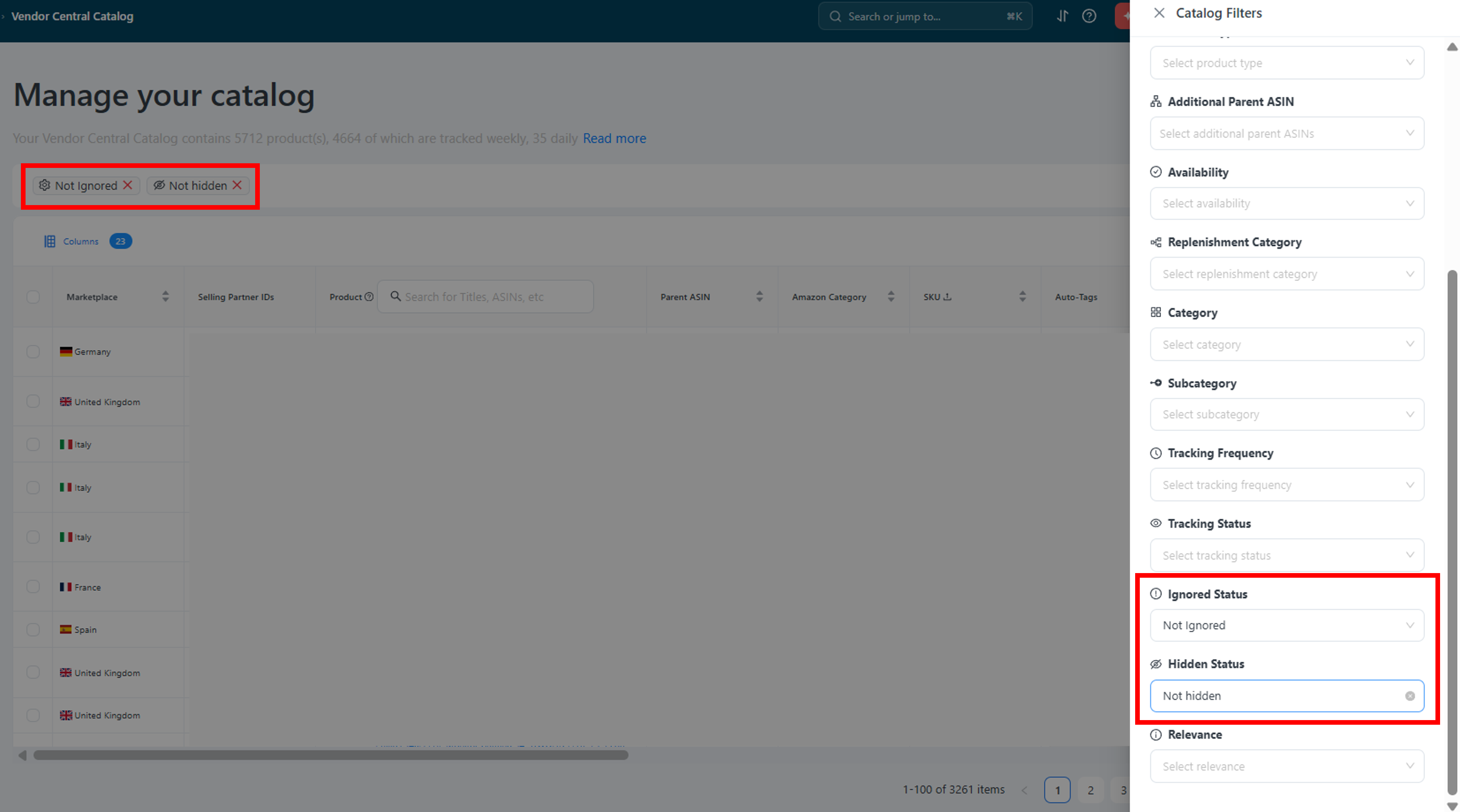
You'll find this setting in Catalogs → Vendor Central Catalog/Seller Central Catalog, under the Catalog Filters panel — look for the Hidden Status and Ignored Status dropdowns.
What does "Hidden" mean?
"Hidden" is a simple on/off switch you can use to tidy up how your catalog looks — nothing more. When you mark a product as Hidden, it just disappears from your default catalog view. That's it.
What actually happens when I hide a product?
Nothing changes except what you see in the catalog table. Everywhere else, the product behaves exactly as before:
-
Catalog view: The product drops out of your default view (the catalog loads with a "Not hidden" filter by default). Want to see it again? Just remove or change that filter.
-
Product Performance Report: Still shows up as normal — nothing is excluded.
-
Totals & aggregated numbers: Still fully counted — no exceptions.
-
Tracking: Keeps running exactly as before.
-
Exports: Included, just like any other product.
Think of Hidden as a "get it out of my sight" button for your own catalog view. It doesn't touch any data, reports, or tracking anywhere else.
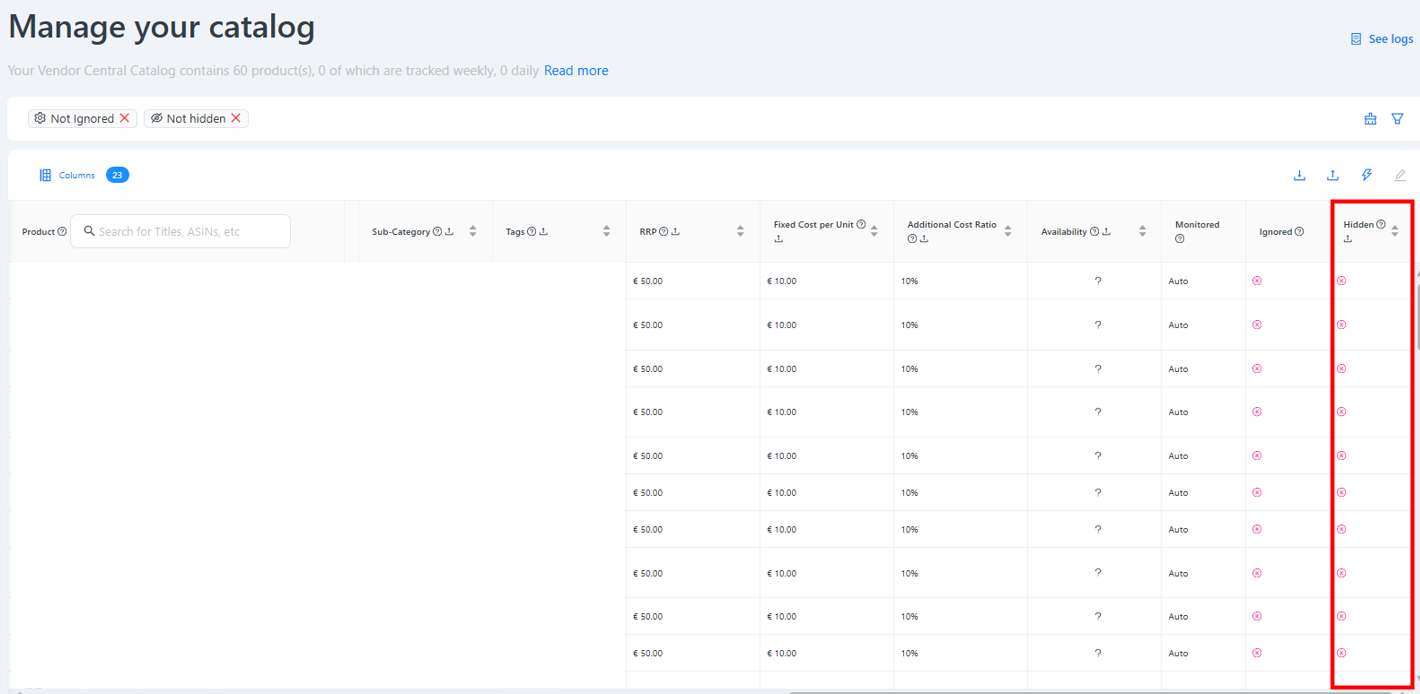
How do I hide a product?
You can set Hidden in two ways:
-
Per product, right inline in the catalog table
-
In bulk, by selecting multiple products and editing them all at once
Any user can do this — no special permissions needed.
Hidden vs. Ignored — what's the difference?
You may also come across a similar-looking flag called "Ignored." They sound alike, but do very different things:
-
Hidden is just a view filter. You can set or remove it yourself, anytime, and it never affects your data — the product still shows up in reports, in the Content Monitor, and keeps being tracked as usual.
-
Ignored actually removes a product's data from all reports and dashboards, including historic data. Because of that impact, you can't set this yourself — please reach out to your KAM team, who can arrange it for you. Typical use cases include legacy entries from company acquisitions or irrelevant supplier catalog entries that should not appear in your reporting at all.
Rule of thumb: If you just want a cleaner catalog view, use Hidden. If a product shouldn't be part of your catalog at all (for example, it was added by mistake or carried over from an acquisition), talk to your KAM team about Ignored.
Can Hidden or Ignored reduce my subscription costs?
No. Neither Hidden nor Ignored has any effect on your pricing. Costs are based on the products listed in your catalog and the backend data access required to track them.
Here's why: Amazon's SP-API delivers account-wide reports. It is not technically possible to request performance data — such as sales, traffic, or inventory — for only a subset of your products. Even if a product is Hidden or Ignored, the full report still has to be ingested on our end, so the underlying data access and the associated costs remain unchanged.
If you're looking to adjust costs based on catalog size, please reach out to your KAM team to explore the right packaging option for your setup.