
This feature is currently available to selected customers in a closed beta.
This page explains what the push statuses mean, why content sometimes isn't displayed even after a successful push, and how to resolve the errors Content Push surfaces — directly on Amazon where needed.
Understanding the push status
|
Status |
Meaning |
Next step |
|---|---|---|
|
🟢 Done |
Content successfully transmitted to Amazon |
Check in the Content Monitor whether the PDP updates within 1–2 business days |
|
⚠️ Accepted with Issues |
Transmitted, but some attributes were not applied |
Hover over the status to read Amazon's message → fix → push again |
|
🔴 Failed |
Transmission failed entirely |
Hover over the status to see the cause (validation, credentials, or content) |
|
⏳ Processing |
Amazon is still processing the feed |
Wait — the status updates automatically |
Hover over any status icon to see the push timestamp and, for errors, the raw message returned by Amazon.
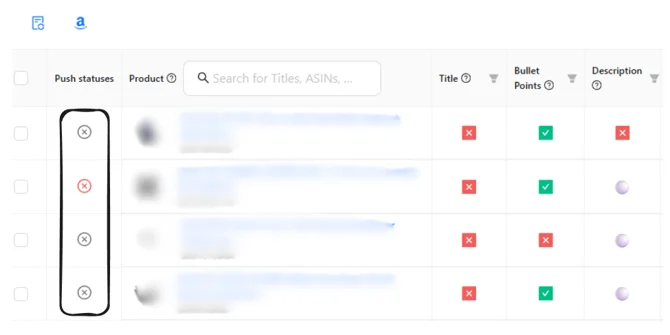
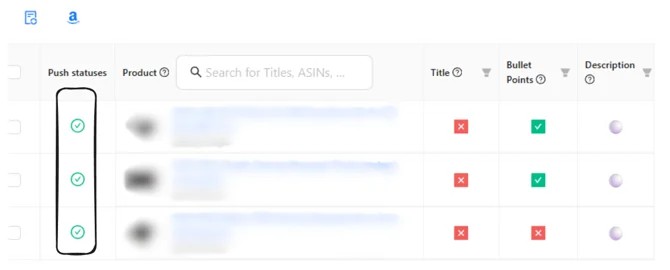
Green status, but the content doesn't change?
A green status confirms the transmission was technically successful. Amazon then decides independently whether and when to display your content on the PDP — and this part is outside our control. Common reasons:
-
Amazon's internal prioritization logic (another contributor may have higher priority)
-
Brand Registry restrictions
-
ASIN-specific restrictions (e.g. fashion, variation themes)
-
Caching or indexing delays on Amazon's side
Recommended approach if the content stays unchanged:
-
Wait 1–2 business days and re-check the Content Monitor.
-
Try pushing the content again — sometimes several attempts are needed.
-
If it still doesn't appear: download the Excel report from the tool (it lists all affected products).
-
Contact Amazon Seller/Vendor Support — and ask specifically why the transmitted content is not being displayed, attaching the Excel as evidence. Don't just ask them to change the content; ask why your accepted content isn't live.
Error reference — what each code means, who fixes it, and how
Each push error comes with a code from Amazon. This table tells you what the code means, whether you can fix it yourself via Amazon self-service, whether it needs Amazon Support, or whether it is handled by emax digital automatically — plus the exact steps.
Where to fix self-service issues on Amazon:
-
Vendor Central: Items → Edit Products → Edit Product Details (or Items → Edit Products → Bulk Download Template to fix many ASINs at once, then Bulk Product Submissions → Upload).
-
Seller Central: Manage All Inventory → Edit.
Red-bordered fields = required, grey = conditionally required.
|
Code |
What it means |
Who fixes it |
How |
Typical time |
|---|---|---|---|---|
|
90220 (fillable fields) |
A required product attribute is missing (e.g. Manufacturer, Model, Color, Dimensions, Package Level) |
You (Amazon self-service) |
Fill the missing field in Vendor/Seller Central (paths above). For many ASINs, use the bulk template. |
Minutes + 24–48h until Amazon propagates |
|
90220 (Cost Price, Brand, Category, Browse Node) |
A required field that you cannot edit yourself |
Amazon Support |
Open a Contact-Us case in Vendor Central with ASIN + target value |
Days–weeks |
|
90000900 / 90248 |
Attribute doesn't apply to this product type, or a conditional field is missing |
You (Amazon self-service) |
Remove the attribute that doesn't apply (e.g. drop Description for fashion), or complete the conditional field set |
Minutes |
|
90225 / 90147 |
A value is too long, or weight is invalid (e.g. item weight > package weight) |
You (Amazon self-service) |
Shorten the text / correct the weight and check the unit (kg vs. g) in the Shipping tab |
Minutes |
|
99300 |
Content policy violation (warranty/promotional claims, special characters, eco-claims, external links, ALL-CAPS) |
You (Amazon self-service); Amazon Support if it persists |
Clean the bullets/title. Example: "3-year warranty included" → "3-year manufacturer's guarantee". If still rejected after cleanup, open an Amazon case. |
Hours–24h |
|
100470 |
A keyword is repeated too often in the title |
You (Amazon self-service) |
Rewrite the title to remove repetition (Sellers: a 14-day rule may apply) |
Minutes |
|
101161 |
Duplicate SKU |
You (Amazon self-service) |
Assign a unique SKU (do the SKU update first, then push) |
Minutes |
|
101168 |
Vendor SKU cannot be changed (locked at Amazon) |
Amazon Support |
Open a Contact-Us "New Item Setup" case |
Days |
|
8560 |
ASIN matching failure |
You (Amazon self-service); Amazon Support for ID/ASIN rights |
Check UPC/EAN/GS1 data; escalate to Amazon if it's an identifier-rights issue |
Minutes–days |
|
8029 |
Sales restriction on the product |
Amazon Support |
Apply for approval (the listing restrictions link points to the application) |
Days |
|
90244 / 100833 |
Variation Theme is invalid or deprecated |
You (Amazon self-service); Vendors often via Support |
Switch to a valid theme from the current Amazon.de list; for Vendors, AVS alignment can take ~48h |
48h–days |
|
8603 |
Parentage conflict |
Handled by emax digital |
No action needed on your side — our system resolves this automatically |
— |
|
BAD_REQUEST |
Account configuration issue |
Handled by emax digital |
No action needed on your side — we check the account configuration |
— |
|
100540 |
Document rejected |
— |
This is a follow-on error of another issue; fixing the underlying error resolves it |
Monitor |
How to find which field is required: Amazon Product Type Definitions
Most push errors are not a tool problem — they happen because a field that Amazon requires for that specific product type is missing or has a value Amazon doesn't accept. Amazon defines exactly which fields are required, optional, or forbidden for each product type (e.g. T-Shirt, Water Heater, Smartwatch), and which values are valid (e.g. which Variation Themes are allowed). Knowing where to look these rules up is the fastest way to resolve a 90220, 90248, or 90244/100833 error yourself.
The most practical, non-technical tool is Amazon's category flat file template — an Excel file Amazon provides per product type and marketplace. It lists every field (required vs. optional) and all accepted values.
In Seller Central: Catalog → Add Products via Upload → Download an inventory file → choose the product category → select marketplace Germany (Amazon.de) → open the "Valid Values" tab (allowed values, e.g. permitted Variation Themes) and the "Data Definitions" tab (required vs. optional fields).
In Vendor Central: Items → Add Products or Items → Edit Products → Bulk Download (Template) → select the product type → download the Excel template (same structure: red cells = required, grey = conditionally required).
How to use it when an error mentions a missing or invalid field:
-
Download a fresh Amazon.de template for the product type (Amazon updates these regularly — an old template may list outdated requirements or deprecated themes).
-
Open the Valid Values tab → confirm the Variation Theme you use is on the list and not marked "Deprecated: Do Not Use".
-
Open the Data Definitions tab → note which fields are required (red) for that product type.
-
Compare against your catalog — any required field that is empty is a push-blocking error.
-
Fields you cannot edit yourself (Brand, Browse Node, Cost Price) need an Amazon Contact-Us case rather than a catalog edit.
"The Content Monitor shows a deviation, but Master and live content look identical"
This is usually caused by invisible character differences: trailing spaces, different dash types (– vs. -), capitalization (x vs. X), or HTML entities. Compare the content in the detail view, correct the affected spot, and push again.
Variant ASINs (Parent / Child)
For variation products, some attributes (e.g. the variation theme, main image) can only be changed at the Parent ASIN level, while Title, Bullets, and Description are generally pushable at the Child ASIN level.
Unconfirmed: There are unverified reports that Amazon now accepts all attributes directly at the Child ASIN level. This has not been officially confirmed by Amazon — please don't rely on it.