
If you're looking to link your advertising account, here's where you can find out how to connect to the Amazon Advertising API.
How to connect a Advertising API?
Step 1: Make sure you are not logged into any Amazon advertising account
First of all, make sure that you are NOT logged into an Amazon advertising account with the browser you are currently using. To do this, go to the Amazon Advertising Console. You can see whether you are logged in with an account at the top right of the screen. If you are still logged in, log out.
Step 2: Connect your emax account with the Advertising API
In our example, we select the company "Nippes" because we want to establish a data connection here. Make sure that you select the right company for the Seller Central account.
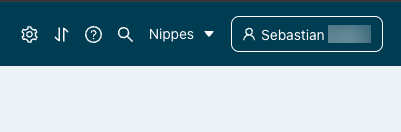
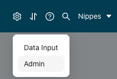
Click on the cogwheel at the top right of the screen and select Admin.
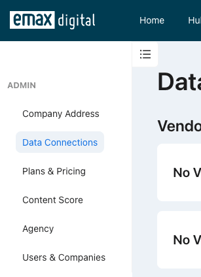
Now select "Data Connections" in the second level navigation on the left side of the screen.
Now click on "manage" in the section for the Advertising Connections. and hit "Authorize Amazon Advertising in the newly opened drawer.

Hit "Confirm" to authorize emax digital app to access your advertising data.
Step 2: Select the Advertising Profiles you want to connect
After you hit confirm the Amazon-hosted sign-in screen will disappear.
The Data Connections page will now reload and the drawer will display all advertising profiles you have access to.
IMPORTANT: In some cases (e.g. in the URL) the "A" is substituted by an "ENTITY".
So "A123456" is the same ID as "ENTITY123456".
Now select the advertising profiles you want to connect by hitting the checkbox and
hit -> Save
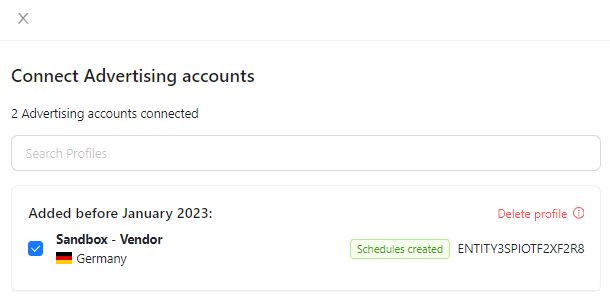
Congrats! 👏 Your advertising profiles are now connected to your Analytics Hub!
Your advertising data will be available in the Analytics Hub within 72 hours.
🏷️ Tags: data-connections · how-to · advertising-api · connections