
Track your products to see the results of their product detail pages based on the products you enter. The results appear in the Brand Overview report as part of Market Insights.
Please note: Results will be available in your reports within 24 hours of uploading.
How to Set Up Product Tracking
-
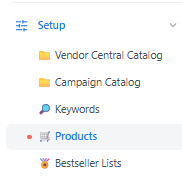
Navigate to Setup and Products on the left.
-
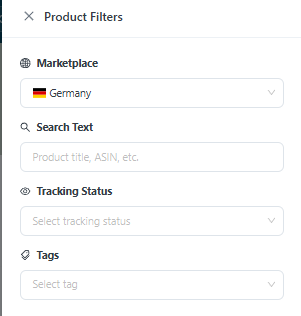
Select a marketplace from the filters on the right.
-
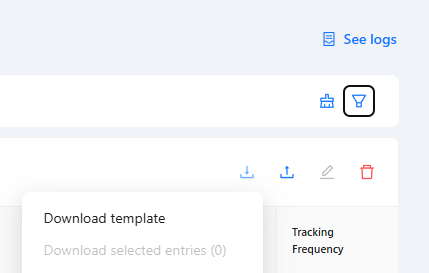
Download a template.
-
Edit the file by entering: Child ASIN, Tags (to filter a group of products in your Market Insights report), and Activate tracking (required to see results in reports).

-
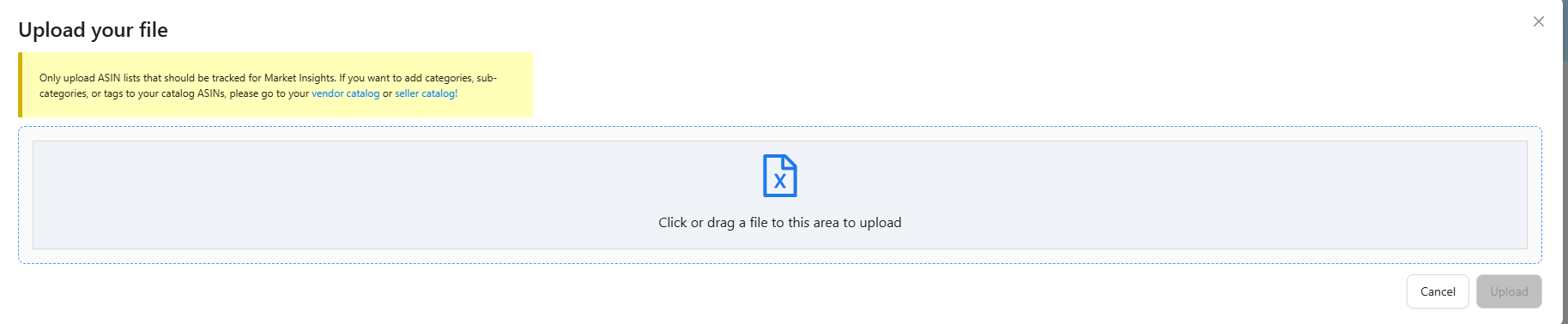
Upload the edited file.
Where Do I See the Results?
You can see the results of the product detail pages based on your entered products in the Brand Overview report as part of Market Insights.
Where Do I See How Many Products I Track?
You can view your tracking limit and the number of products (as well as keywords and bestseller lists) you already track on the Data Connections page and on the Setup page.
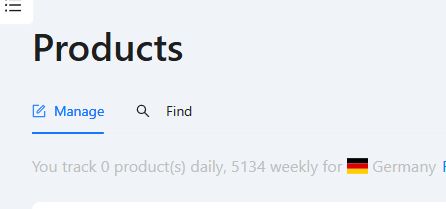
Using the Product Finder
The Product Finder helps you find similar products from the same brand based on a given ASIN — a fast way to build a tracking group without entering ASINs one by one.
Finding the ASIN of a product on Amazon
-
Go to the detail page of the product on Amazon.
-
Find the ASIN — a ten-digit alphanumeric product identifier — in the URL.
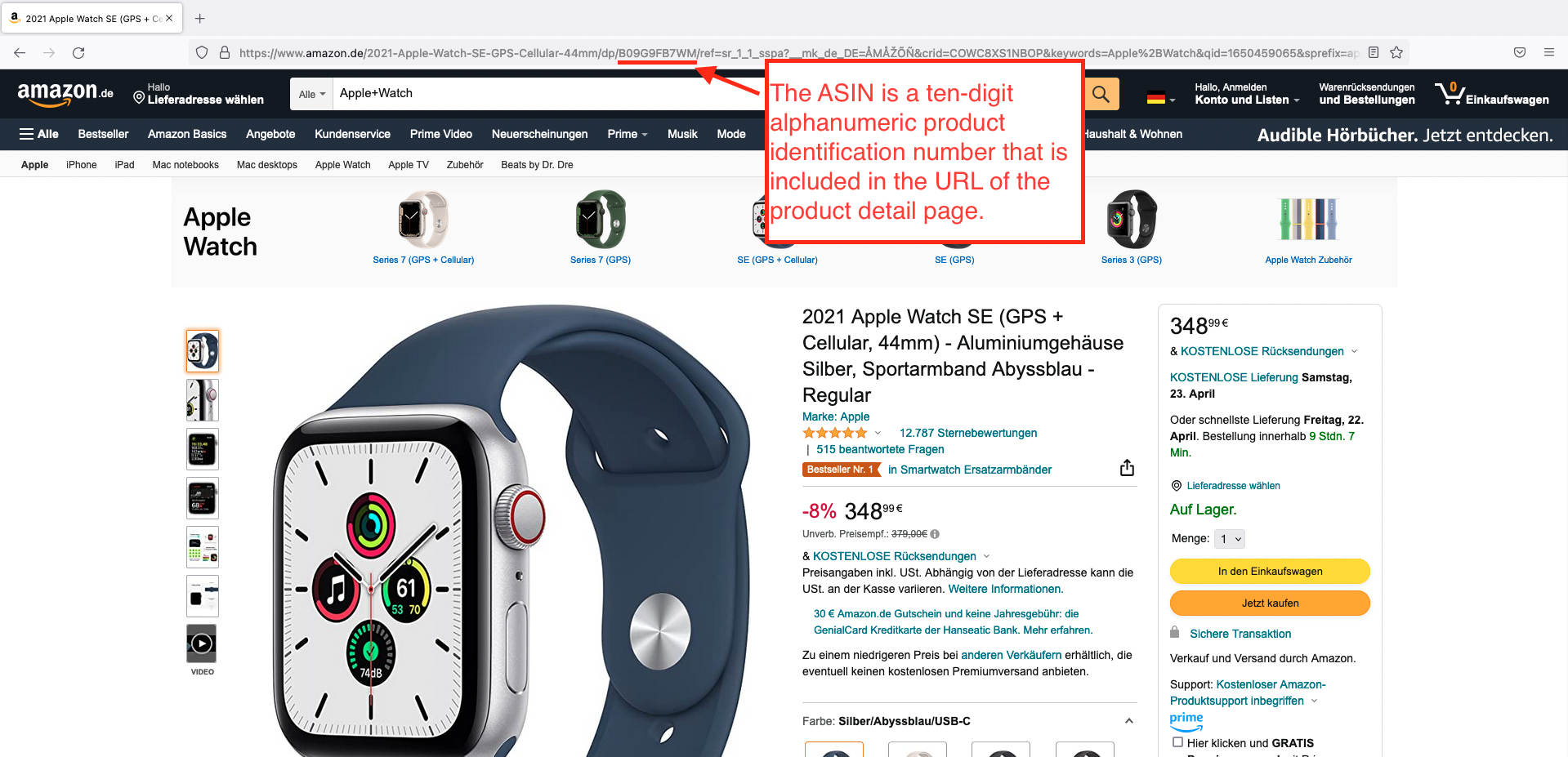
Make sure you take the ASIN from the Amazon marketplace you want to investigate. Otherwise the tool will not find similar products based on your entered ASIN.
Searching for products of a single brand
-
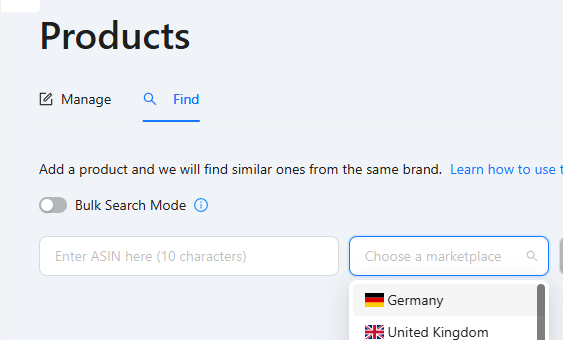
Enter the ASIN you want to search similar products for.
-
Select the marketplace where the product search should take place.
-
Click Search ASIN to start the search. The product search usually takes 5–10 minutes.
Selecting and tracking the results
Once the search succeeds, the Product Finder returns the similar products it found based on the entered ASIN. Select the products whose detail-page information you want to track by ticking the checkboxes (use the checkbox next to the "ASIN" column header to select all). As you select, the number next to the blue button shows how many products you can still track on your booked product plan.
Click Track Products to automatically create a group of products, which is then displayed on the Products page. After activating tracking, you can either continue searching for more products or go to Products to edit the tracking of your product groups. Tags help you summarize specific products into a group that you want to analyze in your Hub or Market Insights reports.
