
BETA FEATURE — This feature is currently in beta. Functionality and availability may change.
Migration note (Phase 1b): Content reproduced from the legacy pages "Amazon Content Push" and "Amazon Content Push: Why Content Is Not Accepted or Not Displayed". Grammar and structure tidied; not yet optimised or fact-checked. Images carried over from the legacy source — intern to verify they display correctly.
The core challenge
On Amazon, multiple parties can sell the same product (Amazon itself, vendors/the brand, and multiple third-party sellers). This creates a content ownership problem: who controls the product detail page (title, description, bullet points, images)?
Even if Amazon generally agrees the brand should own the content, it's hard to enforce. Content can be changed by others, and Amazon may accept or overwrite content inconsistently. This is painful for brands because they want brand consistency, up-to-date and accurate content, and ownership and control across marketplaces.
What are we building?
A platform that allows customers to push their "master content" to Amazon. Today, without such a tool, customers must go through vendor managers and slow, manual, non-automatic workflows. The long-term vision is to automatically push content to Amazon when the live detail page differs from the customer's desired master content.
What exists today
Content Monitor shows:
-
Master content (what the brand wants)
-
Current Amazon content (what's live)
-
Mismatches between the two
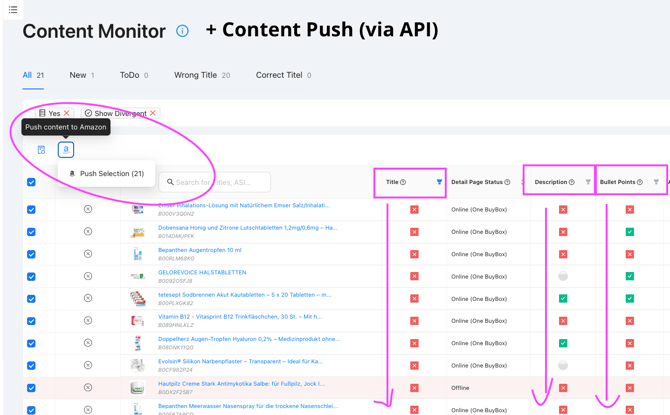
Content Push (Beta) pushes master content directly to Amazon. It can push:
-
Title
-
Description
-
Bullet points
It is currently available only to the internal team (beta phase) and emax digital admins, together with customers, mainly for testing and feedback.
What do we need from customers who want to test this feature?
Vendors
-
Connection: SP-API
-
Daily tracking for all the test ASINs
-
Master content (title, bullet points, description) for 5–10 ASINs, uploaded via Content Monitor (Upload)
-
Vendor code for the relevant country and ASINs, uploaded directly into Vendor Central Connections in Data Connections
Sellers
-
Connection: SP-API
-
Daily tracking for all the test ASINs
-
Master content (title, bullet points, description) for 5–10 ASINs, uploaded via Content Monitor (Upload)
Limitations and reality check
Pushing content is not guaranteed to work every time. Amazon often accepts the request technically but does not actually apply the change, and does not explain why. Sometimes you need to push multiple times, and you may still need to involve a vendor manager. This is why the product is still in the research phase and heavily dependent on customer feedback.
Images (next big step)
-
Image push is in development.
-
Timeline: possibly end of September (complex project).
-
Planned approach: customers provide publicly hosted image URLs, which are stored in the Content Monitor. Amazon downloads the images from those links and sets them as product images.
-
Reason for this approach: large brands already host images centrally, Amazon is only one of many sales channels, and customers want to upload once and reuse everywhere. This aligns with how Amazon's API is designed.
Why content is not accepted or not displayed
When pushing content to Amazon via the Content Upload API, it may happen that content is not accepted, or content is accepted but not displayed on the product detail page. This section explains status meanings, common reasons for issues, and what you can do.
1. Push status in the tool
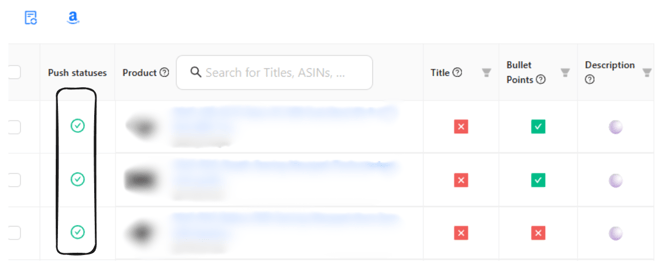
🟢 Green status – accepted by Amazon
-
Content was successfully transmitted via API.
-
Amazon technically accepted the content.
Important: Even with a green status, content may not appear (or may only partially appear) on the product page. This is often due to Amazon-internal processes (see section 3).
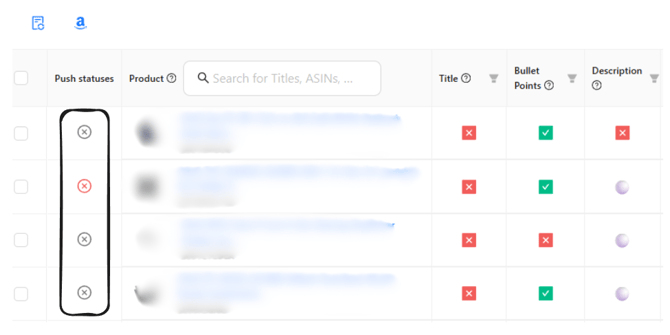
🔴 / ⚪ Red or grey status – not accepted
-
Amazon rejected the content.
-
Content was not processed.
In these cases, Amazon provides error messages via API, which are displayed in our tool.
2. Common reasons for a negative status (red / grey)
A negative status usually means missing data or policy violations.
Missing or incorrect product data — missing/incorrect SKU, missing vendor code, incomplete master data at Amazon. Solution: correct the missing information directly in Amazon.
Formal content errors — title longer than 200 characters, invalid special characters, incorrect structure. Solution: adjust the content in the tool and push again.
Content policy violations — for example, unauthorised warranty claims, misleading advertising claims, medical or legally sensitive statements. Solution: revise the content according to Amazon guidelines and resubmit.
3. Green status but content not displayed
Even if Amazon accepts the content, it may not appear at all, only appear partially, or not overwrite existing content. Possible reasons (outside our control):
-
Internal Amazon prioritisation logic
-
Conflicts with other content (e.g. A+ Content, Brand Registry)
-
Caching or indexing processes
-
Vendor- or ASIN-specific restrictions
These processes are not fully transparent via API.
4. Recommended actions
If the status is green but content is not visible:
-
Download the Excel report from our tool — it shows all affected products and is useful for structured analysis.
-
Contact Amazon Support — ask specifically why the transmitted content is not displayed, and attach the Excel file as a reference.
-
Continue automated processes — manual and automated workflows should complement each other.
Our tool transparently reflects all available API status information and supports error analysis. However, if content is accepted but not displayed, contacting Amazon Support is necessary.
Where to find your vendor codes
If you're preparing to push your master content to Amazon, you'll need to provide all of your vendor codes first. These codes are essential for correctly mapping and uploading your catalog data.
What are vendor codes? Vendor codes are unique identifiers assigned to your vendor account(s) within Amazon. They help Amazon recognize which catalog content belongs to which vendor when you upload or update master data. Without these codes, your product content cannot be properly matched or published.
How to find your vendor codes (inside Amazon Vendor Central):
-
Log in to your Vendor Central account with your vendor credentials.
-
Open the main navigation menu (top navigation bar, or the left-hand menu depending on your interface version).
-
Go to Catalogue. This section contains all product and vendor-related data associated with your account.
-
Inside the Catalogue section you will see a list of your vendors. All your vendor codes are displayed clearly here — these are the codes you need for pushing or mapping your master content to Amazon.
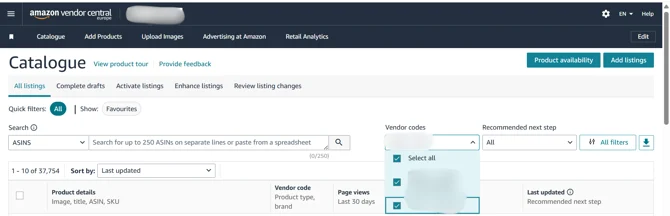
(vendor codes in Vendor Central Catalogue view)