
App path -> https://app.emax-digital.com/buy-box-price-monitor
Overview
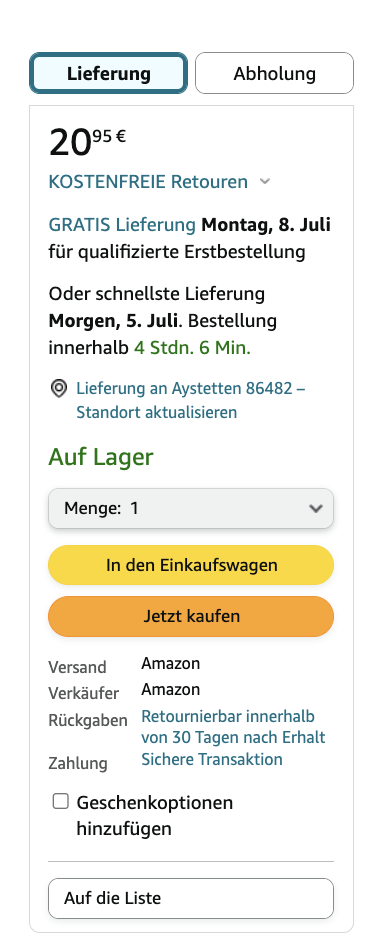
The Buy Box & Price dashboard is the daily monitoring view for who is winning the Buy Box on your ASINs and at what price. Winning the Buy Box — the "Add to Cart" button on an Amazon product page — is critical for sales, since the vast majority of purchases go through it. For each product in your catalogue, it tracks the current Buy Box owner, the Buy Box price, the lowest competing offer, your average actual sales price (Vendor and Seller), and how all of these compare to your Recommended Retail Price (RRP). It also flags recent price moves and ownership changes so you can react quickly when a third-party seller undercuts you, when Amazon drops your price, or when you lose the Buy Box altogether.
This is a monitoring dashboard, not a trend-analysis dashboard — its purpose is to surface ASINs that need attention today, with enough historical context (7 / 30 / 60 / 90 day lookbacks) to judge whether a movement is normal noise or a meaningful change.
This dashboard covers both Vendor Central and Seller Central ASINs that are part of your monitored catalogue.
What You Can See on This Dashboard
Section 1 — Date & Marketplace Header
A simple text header at the top of the dashboard that reflects the Date and Marketplace currently in scope, so anyone reading a screenshot can immediately tell which market and reference date the numbers refer to.
Section 2 — Buy Box Price Over Time (30 days)
A 30-day daily price chart for the ASIN(s) you have selected — the visual core of the dashboard for investigating a specific product.
Key metrics (lines on the chart):
-
Buy Box Price — the daily price of the offer that is winning the Buy Box. When a single ASIN is selected, the winning seller's name is also shown.
-
Lowest Offer Price — the cheapest offer available on the listing that day, whether or not it holds the Buy Box.
-
Avg. Vendor Sales Price — the average price at which units were actually sold through Vendor Central that day (ordered revenue ÷ ordered units).
-
Avg. Seller Sales Price — the average price at which units were actually sold through Seller Central that day (ordered product sales ÷ units ordered).
-
RRP (Recommended Retail Price) — your reference price as set in your Vendor, Seller, or Monitoring catalogue, drawn as a reference line.
Visualization: a multi-line chart over the last 30 days. When multiple ASINs are selected, every line shows the catalogue-wide daily average; the winning seller name is only visible when filtering to a single ASIN.
Note: Average sales prices may be hidden for accounts where price disclosure is restricted.
Section 3 — Buy Box Price Status Summary
A high-level snapshot of how many ASINs in your catalogue fall into each Buy Box status category, comparing the selected period against the equivalent period immediately before it.
Visualization: a pie chart of Number of Products by Buy Box Status.
Status legend:
-
Constant — the average Buy Box price did not change between the selected period and the period before.
-
Decrease — the Buy Box price is lower in the selected period than in the period before.
-
Increase — the Buy Box price is higher in the selected period than in the period before.
-
New Buy Box — an offer is winning the Buy Box now, but none was present in the period before.
-
Lost Buy Box — an offer was winning the Buy Box previously, but no offer is winning it now.
-
No Buy Box — no offer is winning the Buy Box in either period.
-
No Data — data is unavailable for the last day of one of the two periods.
Section 4 — Buy Box & Price Change per ASIN
The main working table of the dashboard — one row per ASIN, with current state, comparison to the previous period, fixed lookback comparisons, RRP context, inventory levels, and deal flags.
Columns shown:
-
Identification: Market · Marketplace · ASIN · Link · SKU · Title / Product Title · Category · Sub Category
-
Current Buy Box state: BB Price Status · Buy Box Owner · Buy Box Price
-
Previous period comparison: Previous Buy Box Owner · Previous Buy Box Price · Price Difference (negative = price went down)
-
Fixed lookback comparisons (independent of the time range filter):
-
Min 7 Days · △ 7 Days — difference between today's Buy Box price and the lowest price recorded in the last 7 days
-
Min 30 Days · △ 30 Days — same comparison over 30 days
-
Min 60 Days · △ 60 Days — same comparison over 60 days
-
Min 90 Days · △ 90 Days — same comparison over 90 days
-
RRP context: RRP · RRP vs Buy Box Price (how far the Buy Box sits above or below your RRP)
-
Promotion flags: Subscribe and Save eligibility · Subscribe and Save Price · Has Deal flag
-
Inventory: Vendor Inventory Level · Seller Inventory Level (units ready to ship from Amazon warehouses, split by channel)
How the comparison works: the table compares the last day of the selected time range against the last day of the equivalent period before it. For example, Prior Day compares yesterday vs. the day before; Past 45 Days compares the end of that window against the end of the 45 days preceding it. When Today is selected, the data reflects the most recent check from early that morning.
Available Filters
|
Filter |
What it does |
Multi-select? |
Default |
|---|---|---|---|
|
Marketplace |
Restrict the view to a single Amazon marketplace (e.g. DE, UK, FR, IT, ES) |
No |
— |
|
ASIN |
Drill down to a specific ASIN — required for the seller name to appear on the price-over-time chart |
No |
All ASINs |
|
Auto Tag |
Filter by automatically assigned ASIN tags (e.g. lifecycle, growth bucket) |
Yes |
All |
|
Catalog Tag |
Filter by manually maintained product tags from your catalogue |
Yes |
All |
|
Tracking Status in Catalog |
Filter to ASINs that are actively tracked (or not) in your monitoring catalogue |
No |
— |
|
BB Price Status |
Filter rows to specific Buy Box statuses — e.g. only show Lost Buy Box or Decrease |
Yes |
All statuses |
|
Distributor View |
Switches the Vendor-side data between Manufacturing (your sell-in to Amazon) and Sourcing (vendor-of-record alternative) |
No |
Manufacturing |
|
Catalog Category |
Restrict to one or more product categories |
Yes |
All categories |
|
Catalog Sub Category |
Restrict to one or more sub-categories under the selected categories |
Yes |
All sub-categories |
Filter interaction notes
-
Catalog Sub Category depends on Catalog Category. Selecting categories narrows the available sub-categories. If no category is selected, all sub-categories are available.
-
Marketplace is required for meaningful price comparison. Prices are currency-denominated in each marketplace's local currency — leaving Marketplace blank can mix currencies in the table.
-
ASIN affects the 30-day chart. When a single ASIN is selected, the chart shows that product's daily prices plus the winning seller's name. With multiple ASINs (or no ASIN filter), the chart shows catalogue-wide daily averages and the seller name is hidden.
-
BB Price Status is a quick triage filter. Set it to Lost Buy Box + Decrease + New Buy Box to see only ASINs where something changed recently.
-
Fixed lookback columns ignore filters. The △ 7 / 30 / 60 / 90 day columns in the ASIN table always compare against the lowest Buy Box price in those fixed windows, regardless of the time range filter.
Understanding "Buy Box Status": this dashboard vs. the Content Monitor
The status of your Product Detail Pages, including the Buy Box Status, can be read in two different places, under two different metric names, because they use different data sources:
-
"BB Price Status" (or "Buy Box Price Status") — in this dashboard, the Buy Box and Price Monitor.
-
"Detail Page Status" — in the Content Monitor.
Both serve the same purpose — showing the status of the Buy Box on each product's detail page — but the data behind them differs:
-
Time component. The BB Price Status here pulls the latest available data from Amazon's API, typically reflecting the status as of the previous day. This gives a good sense of recent activity, though there may be minor discrepancies from what customers see live on the detail page.
-
Data source. The Detail Page Status in the Content Monitor can show data up to a week old, depending on your license type. The Content Monitor actually visits the product detail page to see exactly what is displayed to the customer — potentially more reflective of the live Buy Box, but with the delay of crawl-based retrieval.
Best practice: for the most accurate, timely read, use this dashboard with the time filter set to "Yesterday" — that surfaces the most recent reliable API data, generally closest to real time. Note that filter settings (e.g. "Top 100 Sales") persist to your next visit, so you do not need to reapply them each time.
Why you might see discrepancies: in rare cases the API data may not exactly match the live detail page, since that is subject to Amazon's own updates. Differences in retrieval cadence also matter — the Content Monitor visits detail pages at least once per week, while this dashboard relies on API data retrieved daily. The Content Monitor can be upgraded to daily monitoring; contact your customer support team about your options. If you notice persistent discrepancies, reach out to support.
Use Cases
1 — Morning Buy Box check
You want a 2-minute check on whether anything broke overnight.
-
Set Marketplace to your primary market and the time range to Today (or Prior Day).
-
Filter BB Price Status to Lost Buy Box, New Buy Box, and Decrease.
-
Scan the ASIN table for ASINs where the Buy Box Owner has changed away from Amazon or you, or where Price Difference is large and negative.
2 — Investigate a price drop on a specific product
You have noticed an unexpected drop on a key ASIN and want to understand what happened.
-
Enter the ASIN in the filter.
-
Read the Buy Box Price Over Time (30 days) chart: is the Buy Box price tracking the Lowest Offer (a third-party seller is forcing a price match), or has it dropped on its own (Amazon's automated pricing has moved)?
-
Compare the Buy Box Price line against your RRP and Avg. Vendor / Seller Sales Price lines to see how far the gap has widened.
-
In the ASIN table, check the Min 30 / 60 / 90 Days columns to see whether the current price is at a 30-, 60-, or 90-day low.
3 — Catch third-party seller takeovers
You want to know which ASINs you have lost to third-party sellers.
-
Set BB Price Status = Lost Buy Box or filter the ASIN table by Buy Box Owner ≠ Amazon / your seller name.
-
Cross-check Previous Buy Box Owner to see who held it before.
-
Use Vendor Inventory Level and Seller Inventory Level to check whether the takeover was caused by you being out of stock — a frequent root cause.
4 — Catalogue-wide pricing health snapshot
You want a quick read on the state of pricing across the whole catalogue.
-
Clear ASIN-level filters; keep Marketplace set.
-
Look at the Buy Box Price Status Summary pie chart: what share of ASINs is in Decrease, Lost Buy Box, or No Buy Box? Anything materially above your normal baseline is worth a deeper look.
-
Sort the ASIN table by Price Difference (most negative first) to surface the largest movers.
5 — Validate RRP discipline
You want to check whether Buy Box prices are drifting too far below your Recommended Retail Price.
-
In the ASIN table, sort by RRP vs Buy Box Price (largest negative gap first).
-
Open the 30-day chart for the worst offenders and check whether the gap is a recent move or a long-standing pattern.
-
Cross-reference Has Deal — large RRP gaps on ASINs with an active deal are expected; gaps on non-deal ASINs are a red flag.
Limitations & Notes
-
Snapshot-based, not continuous. Buy Box ownership and prices are captured by a daily check, typically completed early in the morning. Very short-lived Buy Box wins or intraday price fluctuations between snapshots will not appear.
-
"Today" reflects the most recent snapshot. Selecting Today shows data from this morning's check — not live data.
-
Comparison logic is end-of-period vs. end-of-period. The ASIN table compares the last day of the selected range against the last day of the preceding equivalent range. The Status Summary uses the average across the period. Be aware of which view you are reading.
-
Fixed lookback columns are independent of the time range. △ 7 / 30 / 60 / 90 Days always compare today's Buy Box price against the lowest price in those fixed windows — they do not change when you change the time range filter.
-
Negative Price Difference = price went down. Read the sign carefully — a negative number is a price drop, not a problem with the data.
-
ASINs with "No Data" status indicate a gap in the daily crawl, typically because the product had no active offer on that day.
-
Average sales price visibility. Vendor and Seller average sales prices may be hidden for some accounts where price disclosure is restricted.
-
Seller name only shows for single-ASIN view. The 30-day chart only displays the winning seller's name when exactly one ASIN is selected; otherwise the price lines are catalogue-wide averages.
-
Currency mixing. Prices are shown in each marketplace's native currency. If you do not set the Marketplace filter, mixed currencies will appear in the same table.
-
Catalogue dependency. Only ASINs included in your monitoring catalogue are tracked. ASINs flagged as inactive via Tracking Status in Catalog will not appear unless you explicitly include them.
-
Distributor View affects how Vendor-side fields (e.g. Vendor Inventory) are sourced; switch views if you operate both Manufacturing and Sourcing models.
-
For competitive seller tracking beyond Buy Box price, see the Seller Monitoring dashboard.
Data Refresh
Data updates once per day, with the most recent Buy Box and price check completed early each morning.
Why the Buy Box Matters and How to Win It
Why the Buy Box is important
The Buy Box is the prominent "Add to Cart" box that appears on a product's detail page. Winning the Buy Box significantly increases your sales and revenue, since a large majority of purchases are made through this button. Monitoring whether you are the Buy Box winner for your ASINs is therefore a core part of detail-page health.
How do I win the Buy Box?
Winning the Buy Box depends on several factors:
-
Competitive pricing, including shipping costs, plays a vital role. Lower total prices increase the likelihood of securing the Buy Box.
-
Fulfilment method matters: sellers using Fulfilment by Amazon (FBA) or Seller-Fulfilled Prime are more likely to win the Buy Box, because Amazon favours reliable, fast shipping.
-
Seller or Vendor performance metrics are critical. Low order-defect, cancellation and refund rates, timely shipping, consistent stock availability, and high-quality customer service all improve eligibility.
Monitoring and maintaining the Buy Box
Challenge: Amazon vendors and sellers often struggle to react promptly to changes that affect their Buy Box status. Competitors may undercut prices or change fulfilment methods, resulting in lost Buy Box ownership and reduced sales.
Solution: Using this Buy Box & Price Monitor (or the Brand Overview for a longer Buy Box review), vendors and sellers can closely monitor Buy Box status and react quickly.
Step by step:
-
Monitor weekly reports — regularly review updates from the Buy Box & Price Monitor to track price changes or new competitors in the Buy Box.
-
Analyse competitor activity — download and analyse the charts showing the most active competitors in price changes and identify products affected by price dumping.
-
Adjust strategies — respond to competitor pricing by adjusting your own prices where possible, or changing fulfilment method (e.g. moving to FBA), and maintain high seller/vendor performance metrics to increase Buy Box eligibility.