
Submit your advertising budget and goals so you can measure performance against your targets and receive alerts when you are off track.
Why Submitting Your Advertising Budget and Goals Matters
-
Get a better understanding of how you are performing compared to your goals.
-
Get alerted when you are spending your budget too fast or not fast enough (pacing).
-
Get alerted when your ROAS or ACoS goes below or above your set goals.
-
Get a better understanding of what revenue is realistic with your set budget.
Using the Advertising Budget Planner
The Advertising Budget Planner supports you in planning your advertising spend and revenue goals per month/year and marketplace.
The four tables
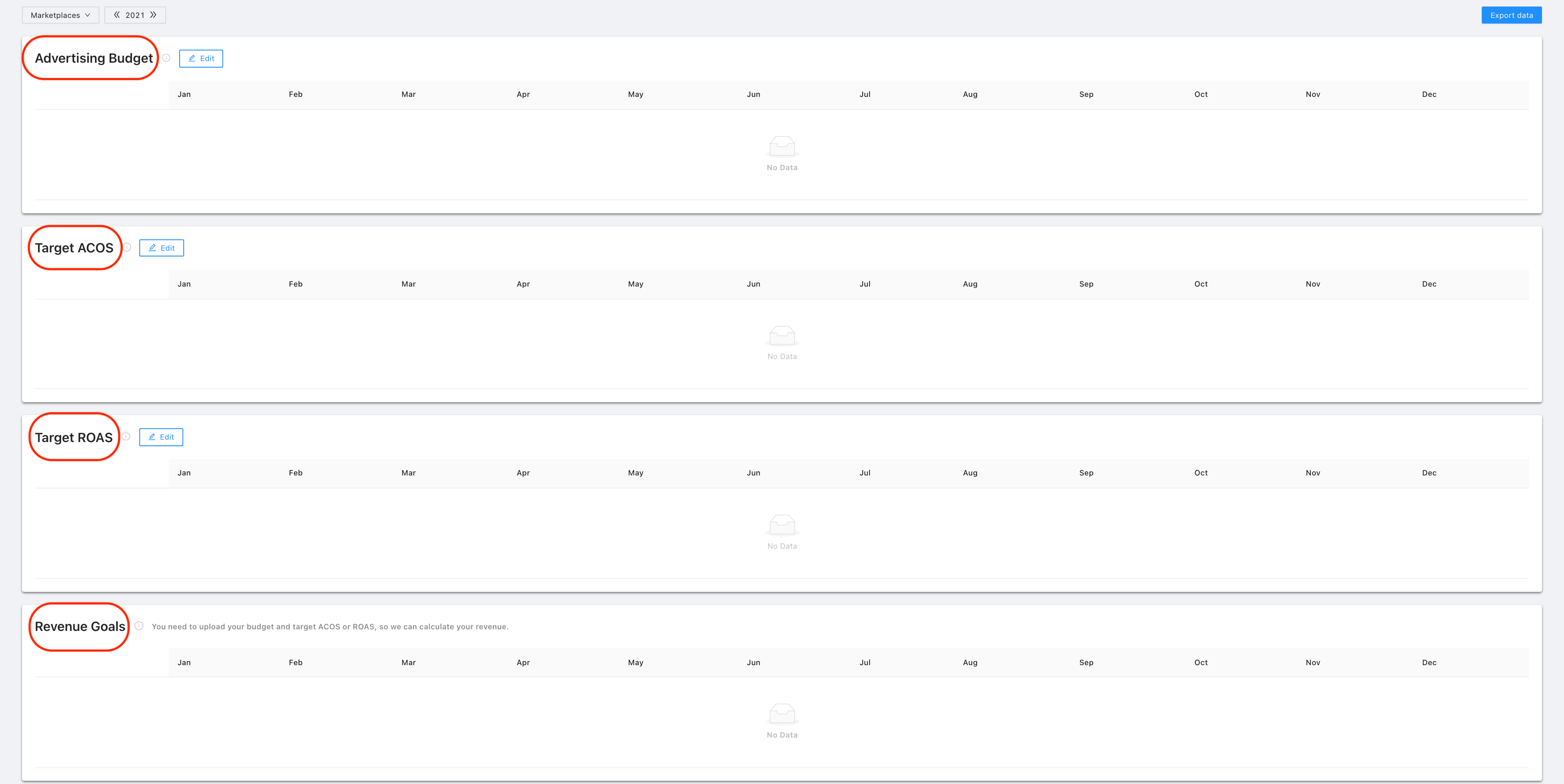
The planner contains four tables:
-
Advertising Budget
-
Target ACoS
-
Target ROAS
-
Revenue Goals
Each table is separated into five advertising types: Sponsored Products, Sponsored Brands, Sponsored Display, Sponsored Brands Video, and DSP (Demand-Side Platform).
Step-by-step
-
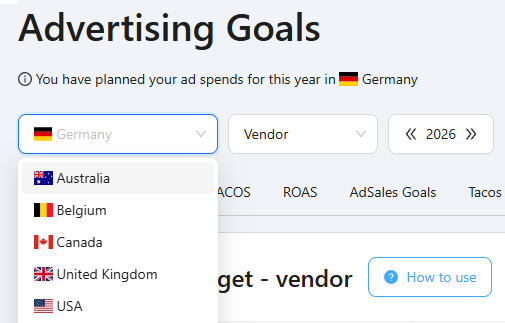
Select a marketplace via the drop-down to set up your budget planning.
-
Choose a business year.
-
Download the Excel template from the bottom of the page to fill in your Advertising Budget, Target ACoS, Target ROAS, and Revenue Goals per marketplace per business year.

-
In the template, select a reporting year (e.g. "2024") and a marketplace via the drop-down, then fill in the respective data for Advertising Budget, Target ACoS, Target ROAS, and Revenue Goal.
-
Click "Upload" to upload the filled-in template — drag and drop the file, or click the blue file icon to choose it.

-
To add data for another year or marketplace, upload another filled-in template (same format). You cannot upload a file for a marketplace in which the company is not registered as an Amazon Vendor or Seller.
After uploading, you can see the data for the chosen marketplace and business year in the tool. You can also delete all filled-in data per marketplace per business year, and "Export Data" to download an Excel file with everything you entered.
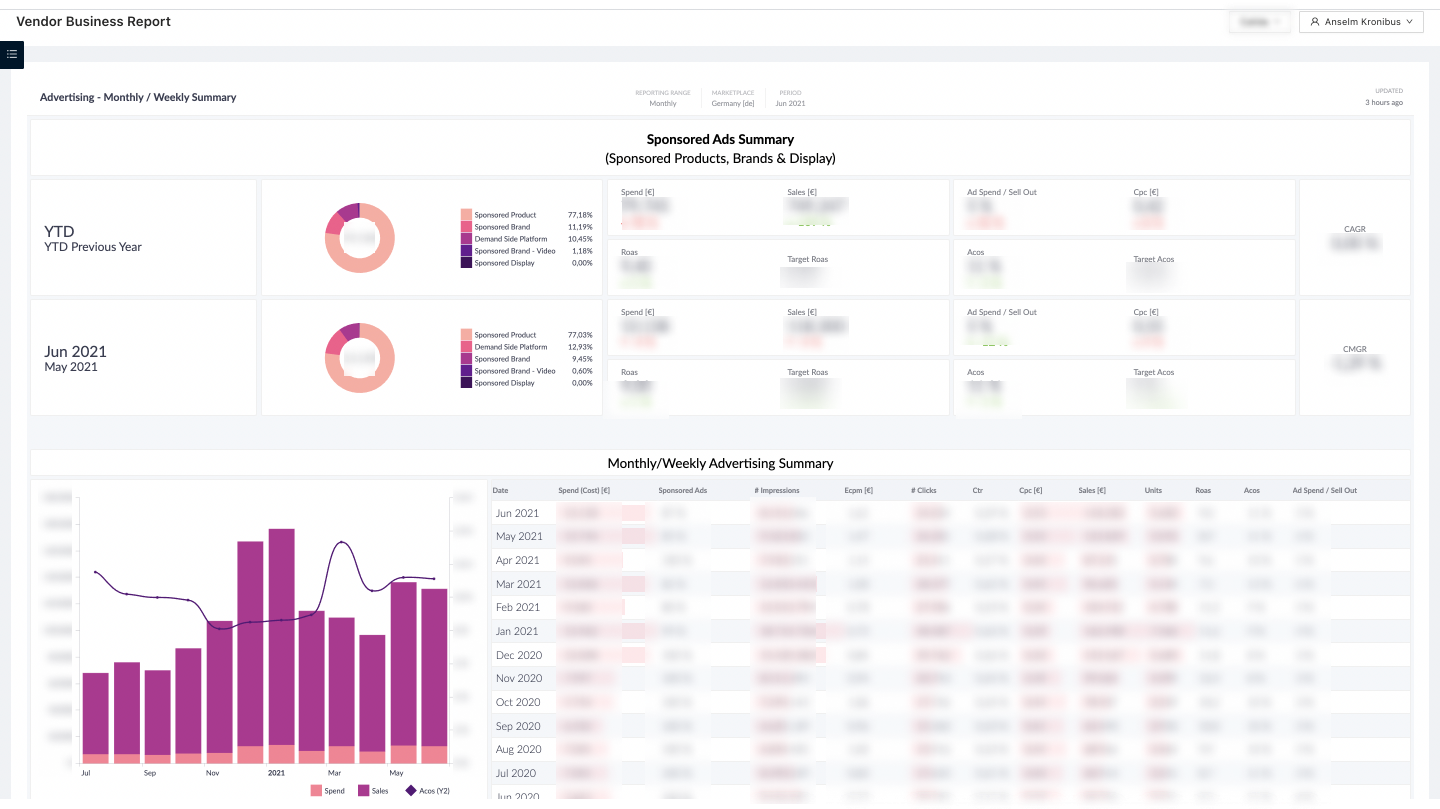
You can compare the entered Target ACoS and Target ROAS in the Advertising module of the Vendor Business Report and Seller Business Report.
Main KPIs included
|
KPI |
Description |
How to calculate |
|---|---|---|
|
Advertising Budget |
The amount of budget the company is willing to spend per month/year and marketplace. |
No calculation needed |
|
Advertising Cost of Sales (ACoS) |
Measures advertising campaign performance — the ratio of ad spend to targeted sales. |
ACoS = Budget / Revenue × 100 |
|
Return on Advertising Spend (ROAS) |
The revenue generated per € spent in an advertising campaign. |
ROAS = Revenue / Budget |
|
Revenue Goal |
The revenue the company would like to achieve based on planned ad spend and predefined target ACoS/ROAS. |
Revenue Goal = ROAS × Budget, or Budget / ACoS |