
Deprecated feature. The Onix Monitor for Publishers (automated ONIX feed upload via SFTP) is a deprecated feature. It is no longer offered to new customers, but remains supported for existing contracts that still rely on it. If you are unsure whether this applies to your account, contact your emax digital account manager.
Onix Monitor for Publishers — automated ONIX feed upload via SFTP
For publishers, emax digital can ingest an automated ONIX product feed via an SFTP server. To connect, you upload your ONIX feed to the emax digital SFTP server from the system you use to manage it. You can connect with a third-party tool such as FileZilla, or via the command line on Linux/Unix-based systems without any third-party tool.
Mandatory file name format: the uploaded file must be an XML file (<your-file-name>.xml).
Step 1 — Find your SFTP login credentials
Your credentials for the SFTP server can be found on the Data Connections page in emax digital. You need these to connect the system that manages your ONIX feed to the emax digital SFTP server.
What is labelled "URL" on your Data Connections page may be called something different in your SFTP client — for example "Host" in FileZilla.
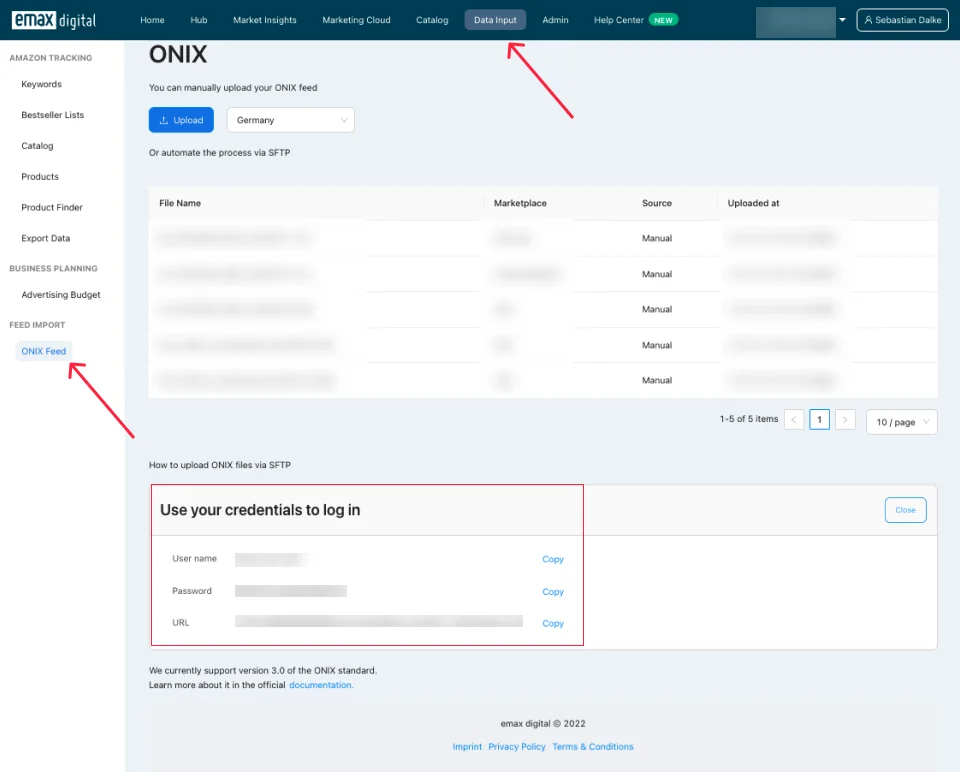
Step 2 — Log in using a third-party tool (e.g. FileZilla)
If you use FileZilla, enter your credentials in the Quickconnect toolbar. Fields map roughly as follows:
-
Host: the URL from your Data Connections page (e.g.
s123243-nedien@something.com) -
Username: e.g.
emax-sftp -
Password: your SFTP password
-
Port: can be left empty / ignored
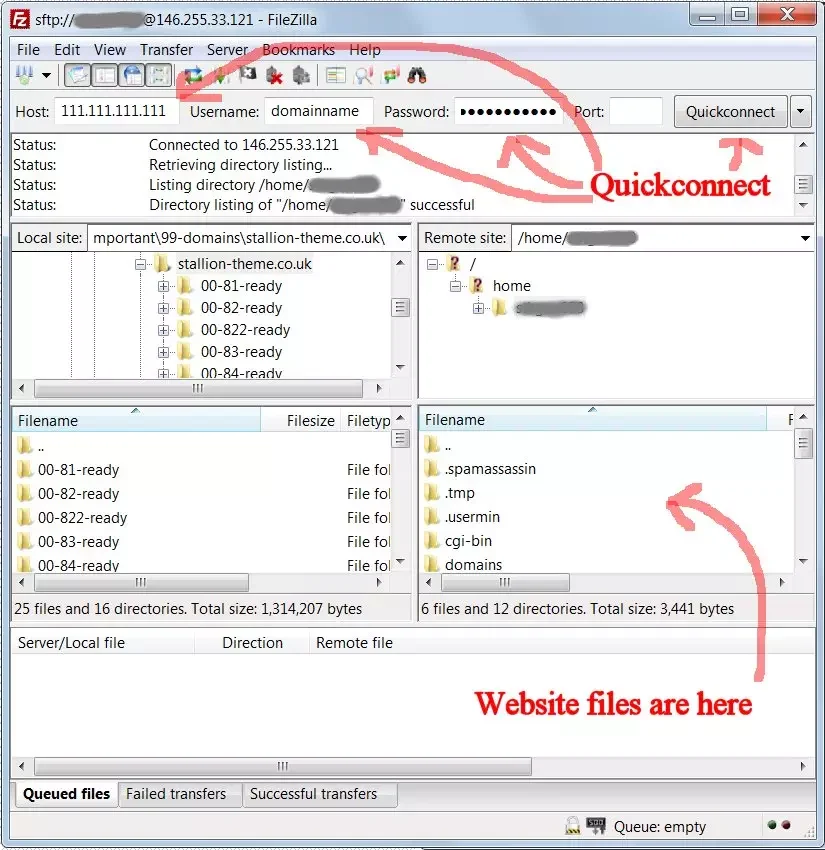
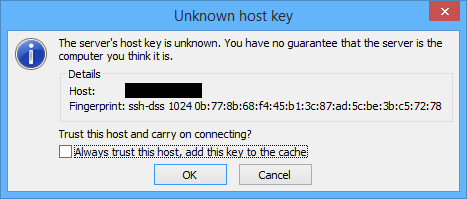
Click Quickconnect. On the first connection you will be asked whether to trust the host's fingerprint — select "Always trust this host, add this key to the cache" and click OK so you are not asked on every subsequent login.
If you use a tool other than FileZilla, the setup may require different steps — it may be necessary to involve your IT team.
Step 3 — Log in using the terminal
To log in via terminal, open a terminal and use the sftp username@url pattern, for example:
sftp emax-sftp@s-123243nedien@something.com
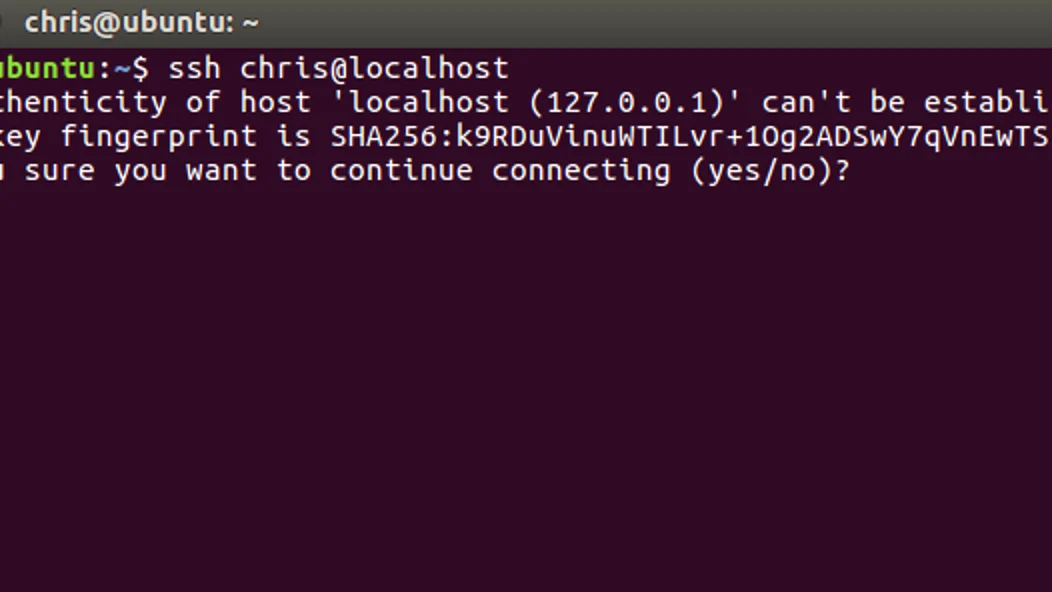
Press Enter. On the first login you will be asked to save the fingerprint — type yes and press Enter. Then enter your password when prompted. You are now inside the SFTP server and can run commands to upload files. For example, to upload a single file into a specific marketplace folder:
sftp> put /home/filename.txt marketplace=de/
You can also upload an entire folder in the same way.
Other deprecated features
This section will be expanded in a later phase as further deprecated dashboards/features are catalogued here for reference.