
Migration note (Phase 1b): Content reproduced from the legacy Getting Started page "Snapshot Cards" (1666777205). Grammar and structure tidied; not yet optimised or fact-checked. Screenshots carried over from the legacy HubSpot source are on the internal image-check list for manual verification.
Snapshot Cards let you build personalised reports on the Home screen, so you can understand your sales and advertising performance across both vendor and seller marketplaces at a glance.
Where to find Snapshot Cards
You'll find the Snapshot Cards in your navigation menu under the Home section.
What you can do with Snapshot Cards
Create personalised reports. Tailor reports to your specific requirements and concentrate on key metrics — such as Amazon sales and advertising performance — to get a nuanced view of your activities across both vendor and seller marketplaces.
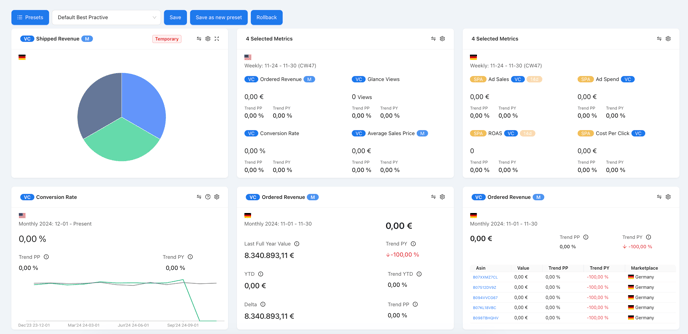
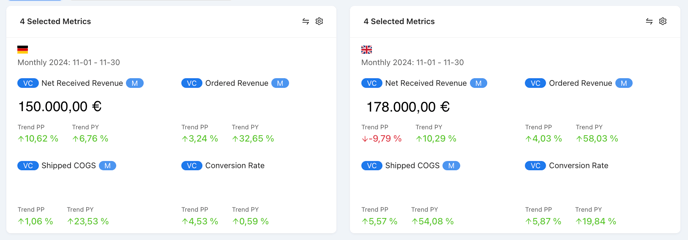
Snapshot overview for faster comparison and reporting. Create snapshot overviews to compare timeframes, marketplaces, countries, and more — all at a glance, for faster reporting and insights.
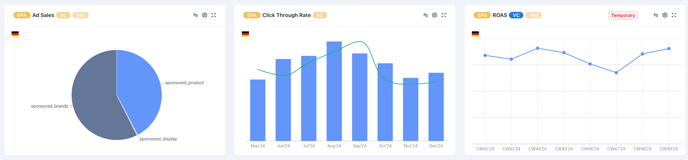
Monitor your advertising performance. Assess the effectiveness of your advertising campaigns by building a personalised report with key metrics such as ad spend, click-through rate (CTR), and return on ad spend (ROAS).
Card types
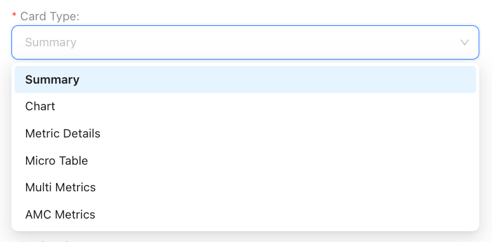
Choose from a variety of card types to tailor your snapshot overview:
-
Summary: highlights KPI performance with a line chart for trends.
-
Chart: visualise data with options such as stacked-bar or pie charts.
-
Metric Details: focus on one KPI with a detailed trend analysis.
-
Micro Table: ideal for identifying top-performing ASINs by KPI.
-
Multi Metrics: compare up to four metrics side by side.
-
AMC Metrics: compare AMC KPIs.
Other card settings
Customise your card further with these options:
-
Reporting granularity: switch between weekly, monthly, quarterly, or yearly insights.
-
Categories & tags: filter your data by categories, sub-categories, or tags for more precise analysis.
-
Goal selection: enable yearly goal or FPY (First Past Year) attainment tracking to monitor progress.
-
Chart settings: toggle the legend and adjust the look-back window to refine your view of completed periods.
How to save your Snapshot Cards
Once you've created and customised your snapshot cards, you can save them as a preset. This lets you quickly access the same setup later without recreating your cards. Simply name your preset, save it, and apply it whenever needed for consistent reporting.

To load a saved preset, click the Presets option to quickly select and apply your saved configuration.
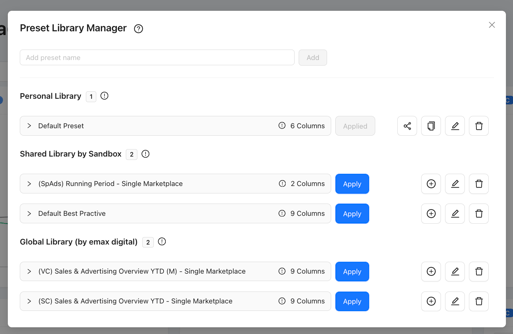
Preset library overview
-
Personal Library: access your own presets or ones imported from the global library, customised for your needs.
-
Shared Library: share and collaborate on presets with other users at the account level within your company.
-
Global Presets: use pre-built presets created by emax digital for standardised, efficient reporting.
For agencies
Agencies have an additional preset option: create one preset that can be shared across the entire agency, making it easy to standardise reporting and reuse the same setup for different customers or accounts.
